
Black Screen When Launching CS2: How to Fix It
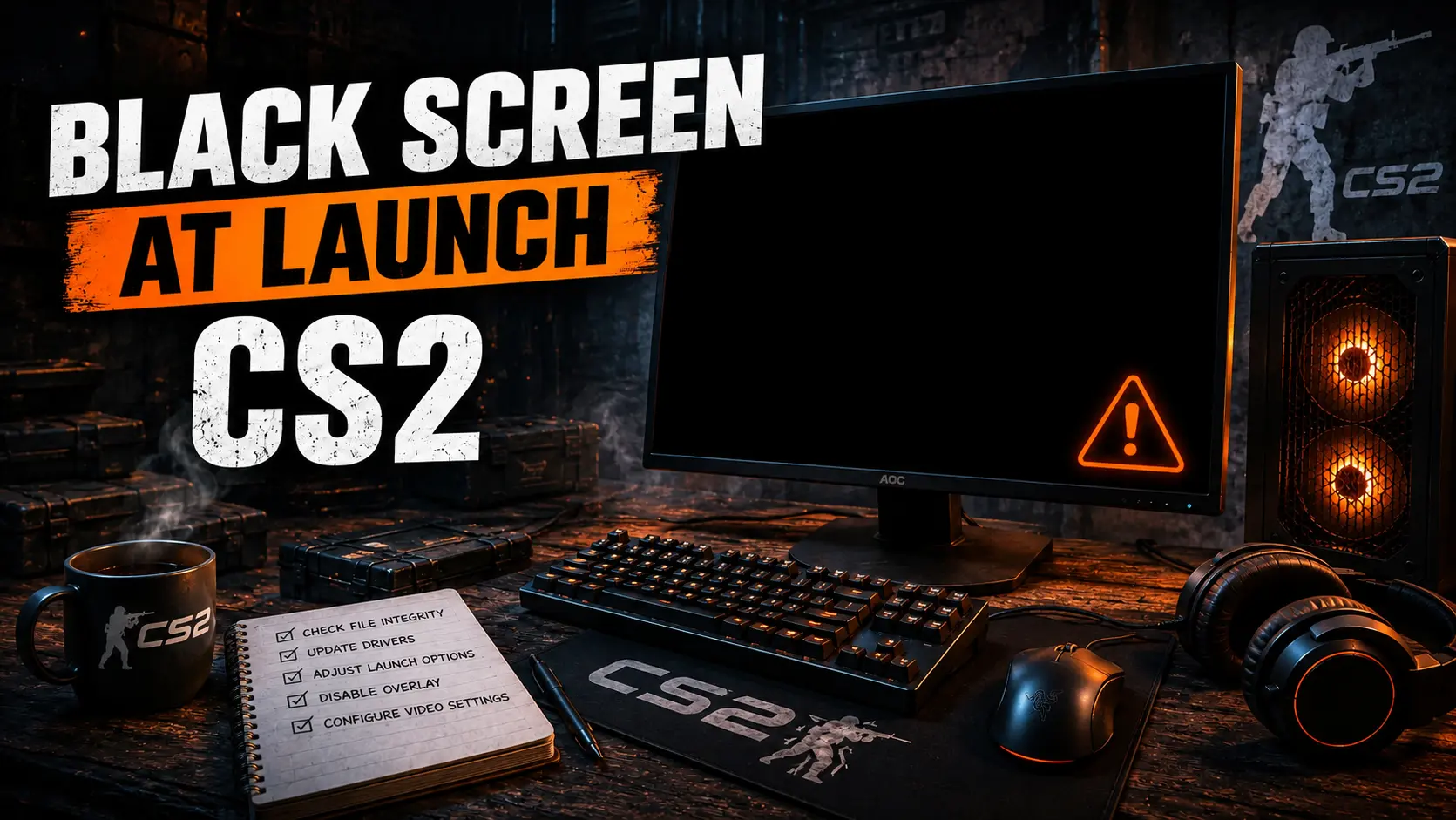
A black screen when launching CS2 is most often caused by an unsupported resolution or refresh rate, corrupted video settings, overlay conflicts, or a graphics driver issue. Sometimes, Counter-Strike 2 continues running in the background: you can hear the menu music and interact with buttons using your cursor, but no image appears. In other cases, the black window closes, and Steam displays the Play button again.
Don't start by reinstalling the game or Windows. First, launch CS2 in windowed mode, reset the video configuration, and verify the game files through Steam. These steps resolve most software-related causes without affecting your inventory, rank, Premier rating, or other account data.
Why Does CS2 Show a Black Screen on Startup?
When the game starts, it reads the saved resolution, display mode, refresh rate, monitor selection, and graphics settings. If the monitor or graphics driver cannot apply the selected mode, CS2 may launch with a black screen. This can happen after connecting another display, creating a custom resolution, switching from HDMI to DisplayPort, updating the graphics driver, or changing settings in the NVIDIA, AMD, or Intel control panel.
The second group of causes is unrelated to the monitor itself. A corrupted file, outdated launch option, third-party library, overlay, screen recording program, or antivirus software may interfere with the game launching correctly. The symptoms can help narrow down the cause.
-
The screen is black, but menu music and sounds are playing: An incorrect display mode, resolution, refresh rate, or monitor selection may be responsible. Press Alt+Enter and try launching the game in a 1280×720 window.
-
The black window appears and then closes: Corrupted files, a driver issue, an overlay, or a third-party application may be responsible. Verify the CS2 files and disable overlays.
-
The monitor displays “No Signal”: An unsupported refresh rate, driver failure, cable issue, or graphics card problem may be the cause. Switch to windowed mode, check the cable, and restore a standard display mode.
-
The problem started after a CS2 update: Modified files, shader recompilation, or incompatible software may be responsible. Restart your PC and verify the game files.
-
The black screen occurs only on a laptop: The game may be running on integrated graphics or using an incompatible hybrid graphics configuration. Assign
cs2.exeto the high-performance GPU. -
The problem occurs only with a second monitor: The selected display, HDR, refresh rate, or scaling may be responsible. Disconnect the secondary monitor and reset the video configuration.
If the entire computer freezes, the display also goes black in other games, or visual artifacts appear after restarting, the cause may lie outside CS2. Check the GPU temperature, power supply, cable, connectors, and driver stability.
What to Do First
Close Counter-Strike 2 by pressing Alt+F4. If the game does not respond, press Ctrl+Shift+Esc, open Task Manager, and end the CS2 process. Then restart Steam and your computer. A full restart clears a stuck graphics process and closes programs that may be holding onto an overlay or screen capture session.
Next, perform these quick checks:
-
Disconnect the second monitor, TV, or docking station, leaving only your primary display connected.
-
Restore your monitor's native Windows resolution and a supported refresh rate.
-
Remove all CS2 launch options, especially outdated commands for resolution, refresh rate, and display mode.
-
Launch the game. If the screen is black again, press Alt+Enter once or twice, waiting a few seconds between attempts.
-
If the window still does not appear, try a safe windowed launch at 1280×720.
After a major update, the first launch may take longer because the game needs to prepare resources and shaders. Wait one or two minutes. If the menu still does not appear, do not leave the computer sitting on a black screen indefinitely. Move on to windowed mode and file verification.
CS2 Black Screen but Sound Is Working
If you can hear music, button sounds, or interface responses to mouse movement, the game has already loaded. In this case, the processor, Steam, and core CS2 files are probably working, and the problem is more likely related to rendering the image. The most common causes are fullscreen mode, resolution, refresh rate, or the selected display.
First, press Alt+Enter. This switches a fullscreen application to windowed mode and may bypass a display mode that the monitor cannot show. If the window appears, open Settings → Video and select:
-
Display mode: Windowed or Fullscreen Windowed for testing.
-
Resolution: Your monitor's native resolution or 1920×1080.
-
Refresh rate: A value available in Windows display settings.
-
Monitor: The correct display if multiple monitors are connected.
Apply the settings, close CS2, and launch it again. Once the game starts reliably, you can restore fullscreen mode and your preferred gaming resolution. Change one setting at a time to identify which one causes the black screen to return.
How to Launch CS2 in Windowed Mode
You can configure windowed mode through the game's Steam properties. Open your Library, right-click Counter-Strike 2, select Properties → General, and find the Launch Options field. First, remove all outdated commands, then enter:
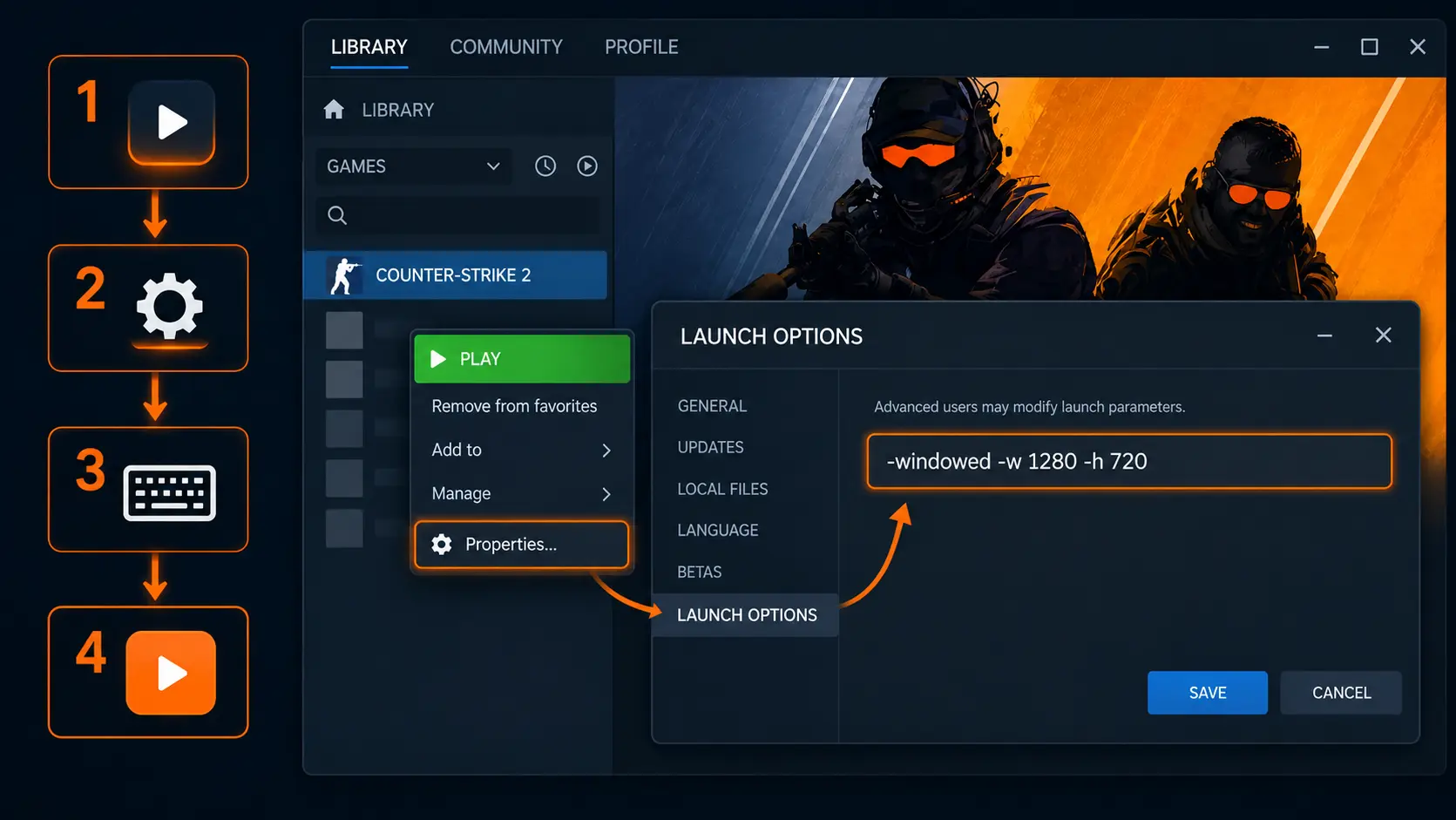
-windowed -w 1280 -h 720
This launch option starts CS2 in a window at 1280×720. This relatively low, standard resolution is supported by most modern monitors and can help you reach the main menu even after an incorrect 4:3 configuration, custom resolution, or excessively high refresh rate.
Once the image appears, set the correct options in the game, close CS2, and remove the temporary command from the Launch Options field. You do not need to keep it permanently, as it will force the game to launch in a 1280×720 window every time.
Avoid adding random collections of commands from old CS:GO guides. Parameters from different versions of Source do not always work the same way in Counter-Strike 2, and conflicting commands make troubleshooting more difficult.
Resetting CS2 Resolution and Video Settings
If the windowed launch option does not help, or the black screen returns after you remove it, reset the video configuration file. CS2 stores the resolution, display mode, selected monitor, and some graphics settings in cs2_video.txt. After you rename this file, the game will create a new version using automatically detected settings.
Completely close CS2 and Steam. Open the following folder:
C:\Program Files (x86)\Steam\userdata\YOUR_STEAM_ID\730\local\cfg\
If Steam is installed on another drive, start from its installation folder instead. The userdata directory may contain several numbered folders, one for each account. The correct one contains the 730 subfolder associated with Counter-Strike 2.
-
Find
cs2_video.txt. -
Rename it to
cs2_video.txt.old. -
If
cs2_video.txt.bakis present, rename it tocs2_video.txt.bak.old. -
Launch Steam, then start CS2 with the windowed-mode launch option.
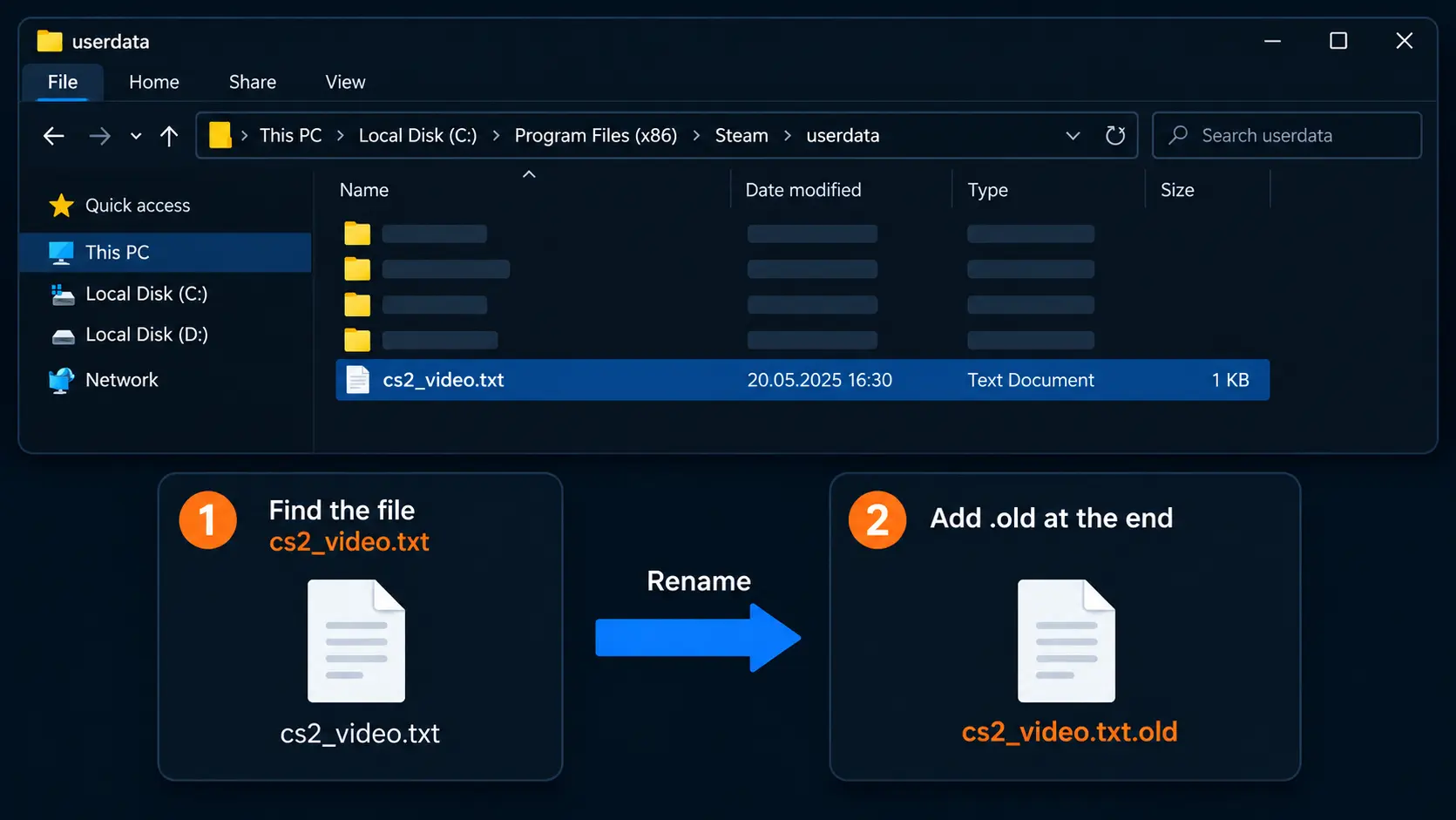
Renaming the file is safer than deleting it because the original settings remain on your drive and you can restore the file if needed. This reset does not delete your inventory, match history, rank, keybinds, or account settings, but you will need to configure your video settings again.
If the old file immediately reappears with the same values, temporarily disable Steam Cloud in the CS2 properties, rename the file again, and try launching the game. Once a working configuration has been created, re-enable cloud synchronization.
Verifying CS2 Game Files Through Steam
Verifying the integrity of CS2 game files compares your local installation with the current version available on Steam and downloads any missing or modified files again. This is especially useful if the black screen appeared after an interrupted update, an unexpected shutdown, a disk error, or the manual installation of third-party files.
-
Open your Steam Library.
-
Right-click Counter-Strike 2 and select Properties.
-
Go to Installed Files.
-
Click Verify integrity of game files.
-
Wait for the verification to finish, then restart Steam.
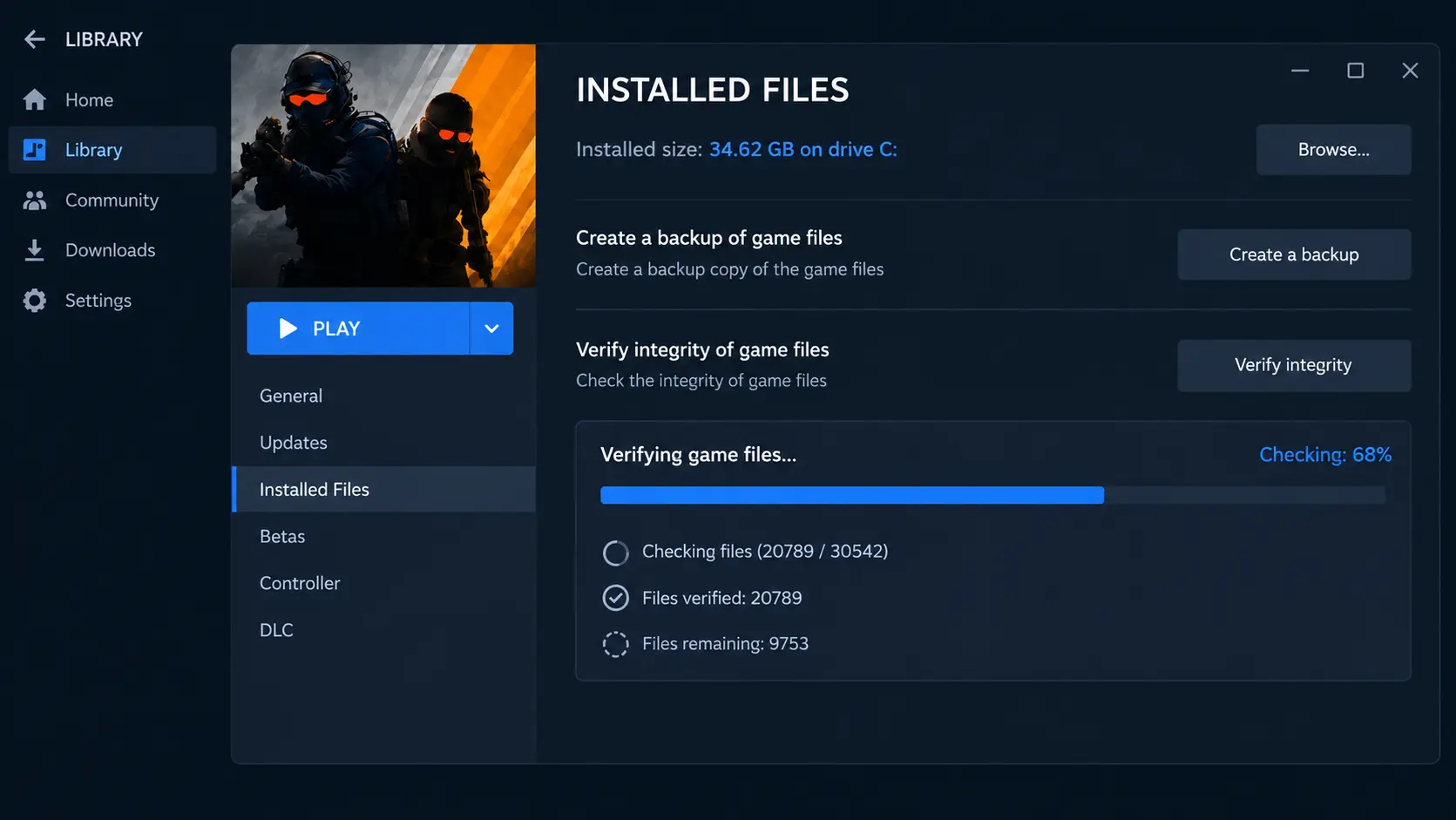
Do not launch the game or modify its folder while verification is in progress. Steam may download several files again, which is normal. Verification restores official game files, but it does not always remove third-party DLLs, ReShade, mods, or other files that are not part of the standard installation. If you added such files manually, remove them from the CS2 directory before launching the game again.
You can open the installation folder without searching through your drives: Properties → Installed Files → Browse. Do not download individual DLLs, “black screen fixes,” ready-made system files, or configuration packs from unknown websites.
Graphics Drivers and Shader Cache
CS2 uses graphics APIs and shaders, so a corrupted driver installation can cause a black screen, a freeze on the Valve logo, or a crash before the main menu appears. Download drivers only from the official NVIDIA, AMD, or Intel website, or install them through the manufacturer's official application.
Choose the appropriate action based on when the error started:
-
The driver has not been updated in a long time: Install the latest stable version and restart your computer.
-
The black screen appeared immediately after an update: Perform a clean reinstallation of the current driver or roll back to the previous stable version.
-
A standard installation does not help: Use the manufacturer's built-in clean installation option. AMD also provides the official AMD Cleanup Utility.
Reinstalling the driver may reset or change individual game profiles. Open your graphics control panel and restore the Counter-Strike 2 profile to its default settings. While troubleshooting, disable custom resolutions, forced scaling, filters, frame limiters, and image enhancement features.
A corrupted shader cache can also be rebuilt. In Windows 11, open Settings → System → Storage → Temporary files, select DirectX Shader Cache, and delete it. Restart your computer. The next launch and the first map load may take longer while the cache is rebuilt.
Important: Brief screen flickering or the display temporarily going dark during graphics driver removal and installation is normal. Do not turn off your computer before the process finishes and you have restarted it.
Disabling Overlays and Conflicting Programs
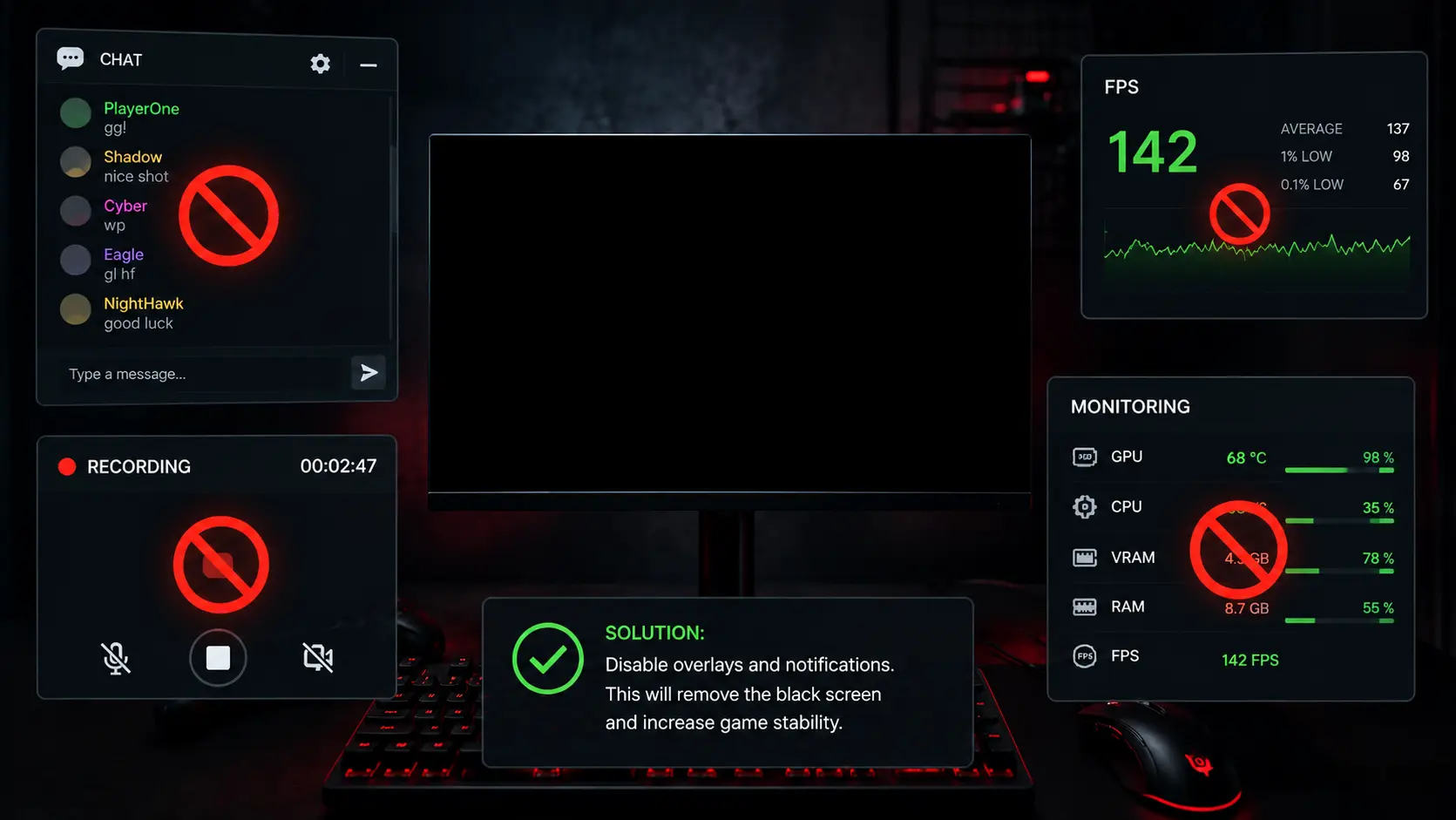
Overlays hook into the game's rendering pipeline to display FPS counters, notifications, recordings, filters, or chat. If two applications hook into the CS2 graphics process simultaneously, the game may sometimes launch with a black window. To troubleshoot this, temporarily disable anything that displays content over the game.
-
Steam Overlay — disable it in the General section of CS2's properties.
-
Discord Overlay — turn it off in Discord's Game Overlay settings.
-
NVIDIA App or AMD Software overlay — disable the in-game overlay.
-
Xbox Game Bar and Windows background recording features.
-
MSI Afterburner and RivaTuner Statistics Server.
-
ReShade, game filters, and color or crosshair customization programs.
-
OBS and other capture software, especially Game Capture mode.
Also, restore your GPU and memory clock speeds to their factory defaults. An unstable overclock or undervolt may cause problems only when launching a particular game. If CS2 starts working after a clean boot, re-enable the programs one at a time, restarting the game after each change to identify the specific conflict.
Antivirus software does not usually cause a completely black display, but it may block the executable or prevent the game from saving a new configuration. Check the protection history and quarantine. Only add an exclusion for the official Steam installation folder if necessary. Do not disable system protection entirely or allow unknown DLL files.
What to Do If Nothing Helps
If the basic troubleshooting steps do not resolve the issue, perform the following advanced checks in order:
-
Install all available stable Windows updates and restart your computer.
-
Free up space on your system drive and the drive containing CS2, then check both drives for errors.
-
Perform a clean boot of Windows without third-party services and try launching the game.
-
Open Event Viewer → Windows Logs → Application and look for errors involving
cs2.exearound the time of launch. -
Test CS2 with the CPU, RAM, and GPU running at their default clock speeds.
-
Reinstall the game in a different Steam library on an SSD, if available.
Before reinstalling, back up your custom configuration files and screenshots. Simply uninstalling CS2 may not reset files stored in userdata, so rename cs2_video.txt first. After reinstalling, launch the game without custom launch options, modifications, or overlays.
If CS2 still fails to launch and displays a black screen even after a clean installation, contact Steam Support or submit a report through Valve's issue tracker. Include your graphics card model, driver version, Windows or Linux version, number of monitors, launch options, and the exact symptoms. Attach the error from the Windows event log and describe which update preceded the problem.
In Conclusion
In most cases, a black screen in CS2 on startup can be fixed by switching to windowed mode, resetting cs2_video.txt, or verifying the game files. If the audio is working, start by checking the resolution, refresh rate, and monitor. If the black window closes, check the game files, graphics drivers, and third-party software. If the monitor loses its signal completely, also check the cable, unstable overclocking, and potential hardware failures.
Once the game launches successfully, restore your settings gradually: start with the native resolution, then enable fullscreen mode, set the desired refresh rate, and re-enable HDR and overlays. Testing each setting individually helps identify the exact cause and prevents you from having to repeat the entire configuration process after the next update.
Random CS2 Guides

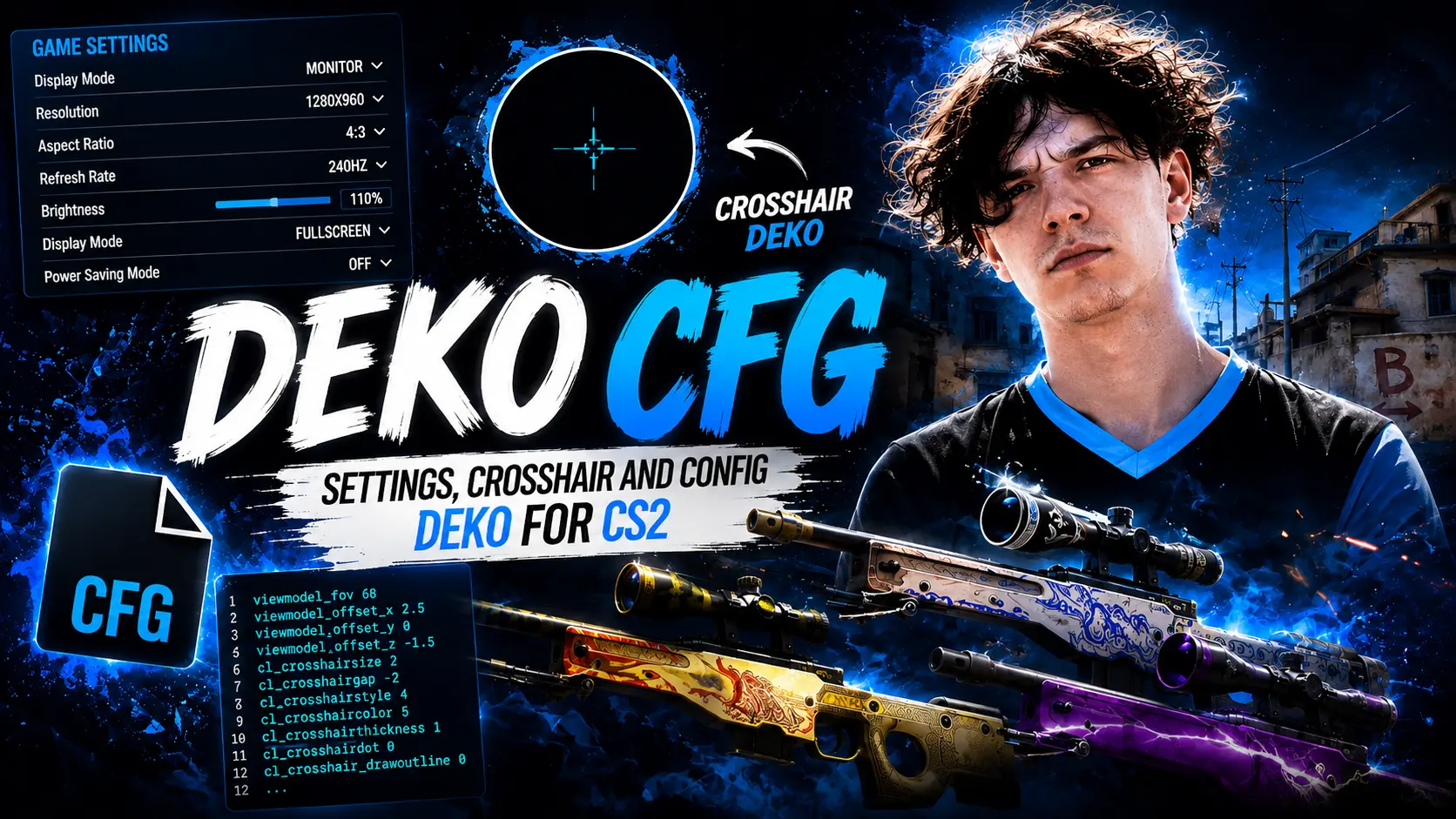
deko's crosshair, viewmodel, resolution, radar, HUD, mouse settings and sensitivity.