
Learn how to fix a black screen in CS2 on startup.
18 October 2026

CS2 Microphone: How to Set It Up, Test It, and Fix Common Issues
The microphone in CS2 is essential for more than just conversation: a quick callout about an enemy, a grenade, or an incoming push can decide the round. If voice chat is not working, first identify where the signal is being lost: the microphone itself, Windows, Counter-Strike 2, or a specific server. This approach is faster than randomly changing console commands or reinstalling drivers.
How the Microphone Works in CS2
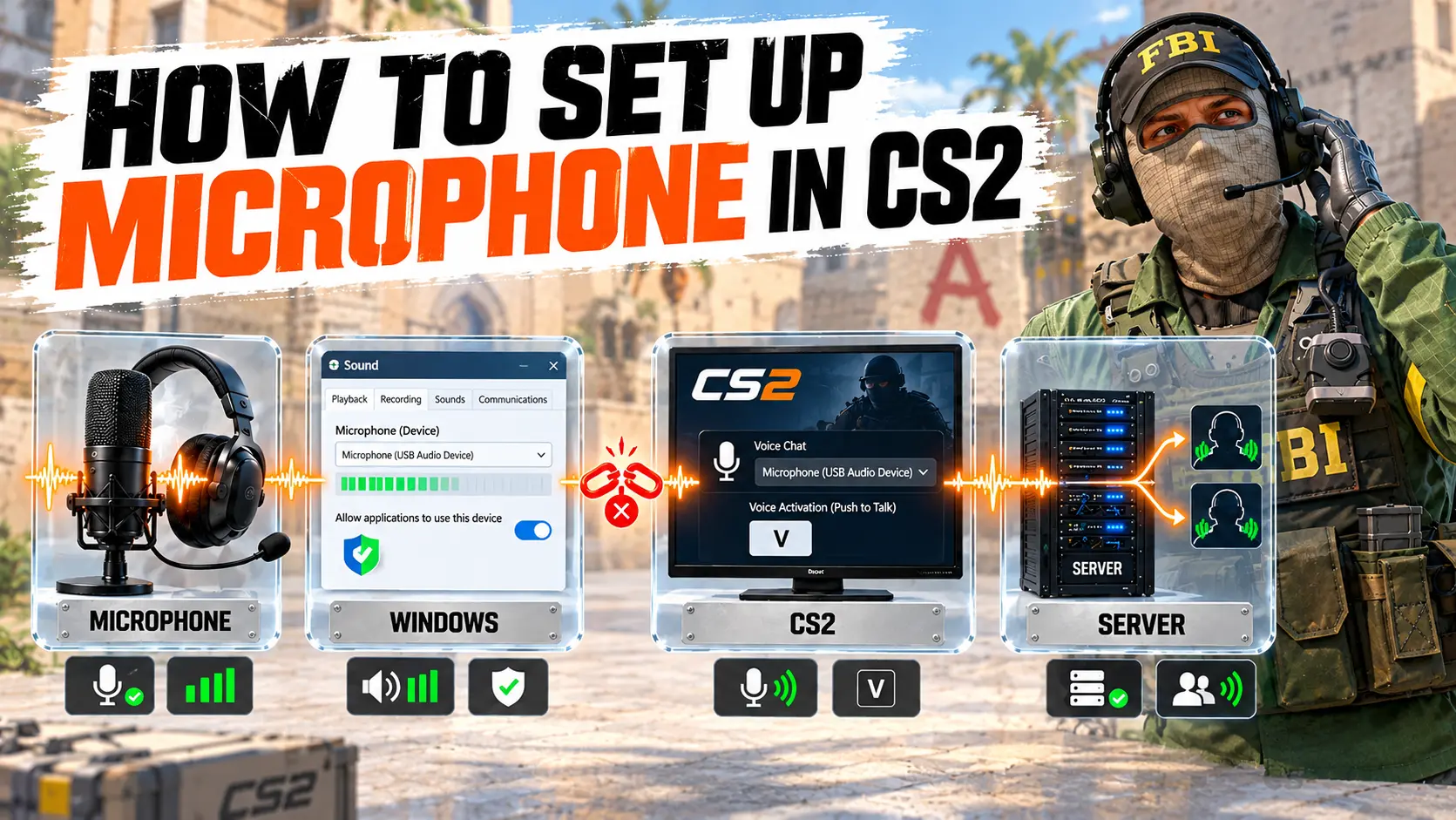
Voice audio follows a chain: the recording device sends a signal to Windows, the operating system allows desktop apps to access it, and CS2 captures the selected input and transmits the audio when voice chat is activated. A failure at any point can produce the same result — your teammates cannot hear you — but the solutions differ.
-
Microphone or headset: Check the connection, mute switch, cable, USB port, and battery. If there is no signal in Windows or other apps, the problem is likely with the device or its connection.
-
Windows: Check the input device, volume, permissions, and driver. If the microphone is detected but the test indicator does not respond, investigate the Windows settings.
-
CS2: Check the recording device, voice mode, key binding, and activation threshold. If the microphone works in Windows but not in-game, focus on the CS2 settings.
-
Match or server: Check voice chat rules, local mute settings, and communication restrictions. If local tests work but certain players cannot hear you, the issue may be related to the match or server.
Do not start by reinstalling the game. First, record a few seconds using the Windows microphone test, then test your voice in CS2. These two results will help you identify where to look for the cause.
How to Set Up a Microphone in CS2
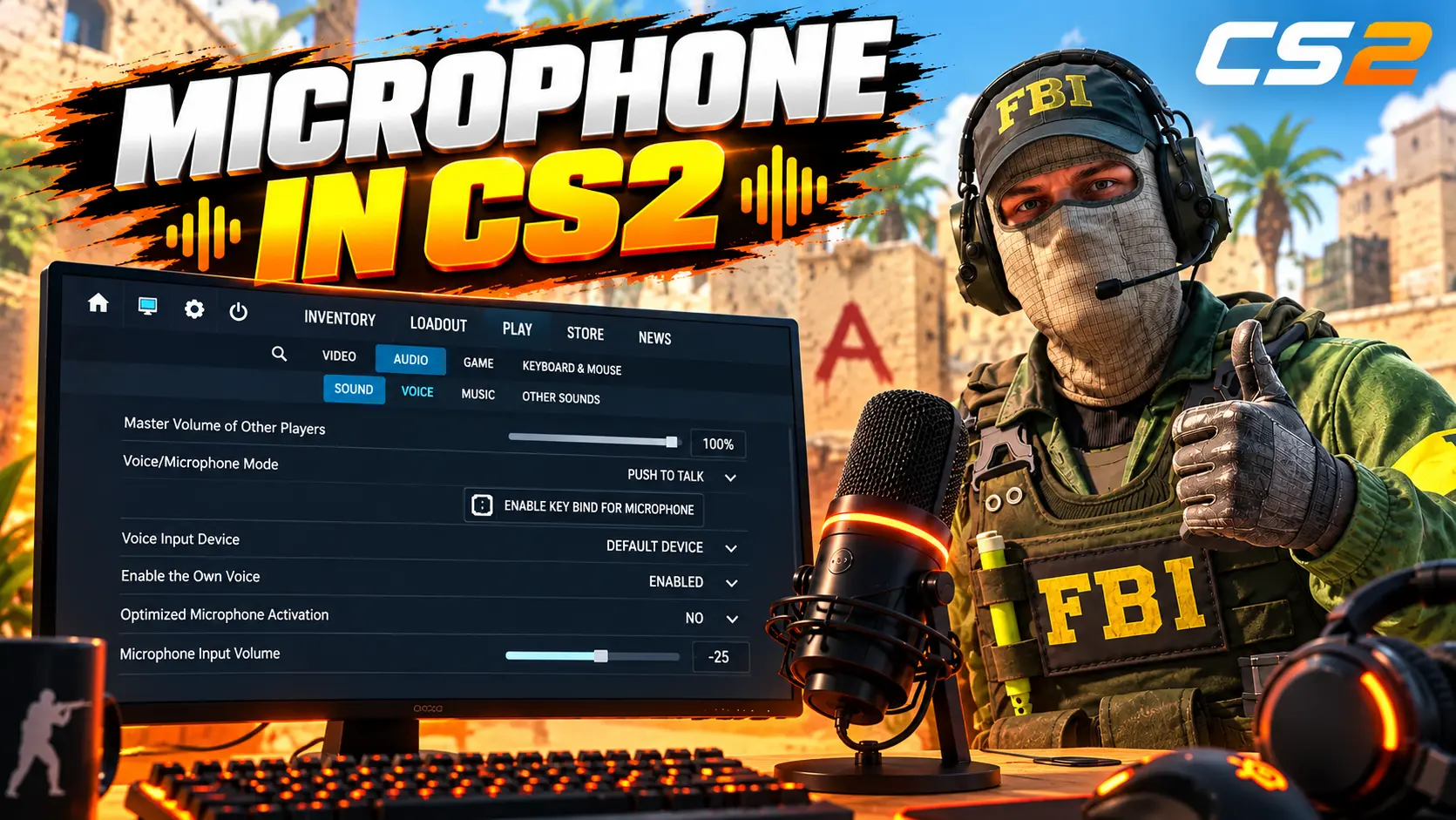
The main options are under Settings → Audio → Voice. Labels may vary slightly after updates or depending on the game language, so focus on the purpose of each setting.
-
Connect your headset or standalone microphone before launching the game.
-
Open Settings → Audio.
-
Under Voice Input Audio Device, select the specific microphone you want to use. If the list includes a webcam, monitor, game controller, or virtual audio cable, do not leave the selection to chance.
-
For regular matchmaking, set the voice mode to Push-to-Talk.
-
Enable Streamlined Push to Talk if pressing the key causes brief stutters or cuts off the beginning of your speech.
-
Check the activation threshold. If the game cuts off quiet words, temporarily lower it. If background noise is constantly transmitted, raise it slightly.
Restart CS2 completely after changing the input device. The game may keep an existing audio stream active, so reconnecting your headset during a match does not always take effect immediately.
How to Enable the Microphone and Bind a Key
With Push-to-Talk enabled, your voice is transmitted only while you hold the assigned key. Open Settings → Keyboard/Mouse → Communication and find the Use Microphone action. Choose a key you can hold without taking your fingers off movement and shooting controls. Common choices include V, C, Left Alt, or a side mouse button.
You can also bind the action through the developer console. For example, to use V:
bind "v" "+voicerecord"
For the fourth mouse button:
bind "mouse4" "+voicerecord"
If the selected key is already assigned to another action, the new bind will replace that assignment. Check your existing controls first and choose an unused key. If the voice indicator does not appear when you press it, reassign the action through the settings menu or console.
How to Test Your Microphone in CS2
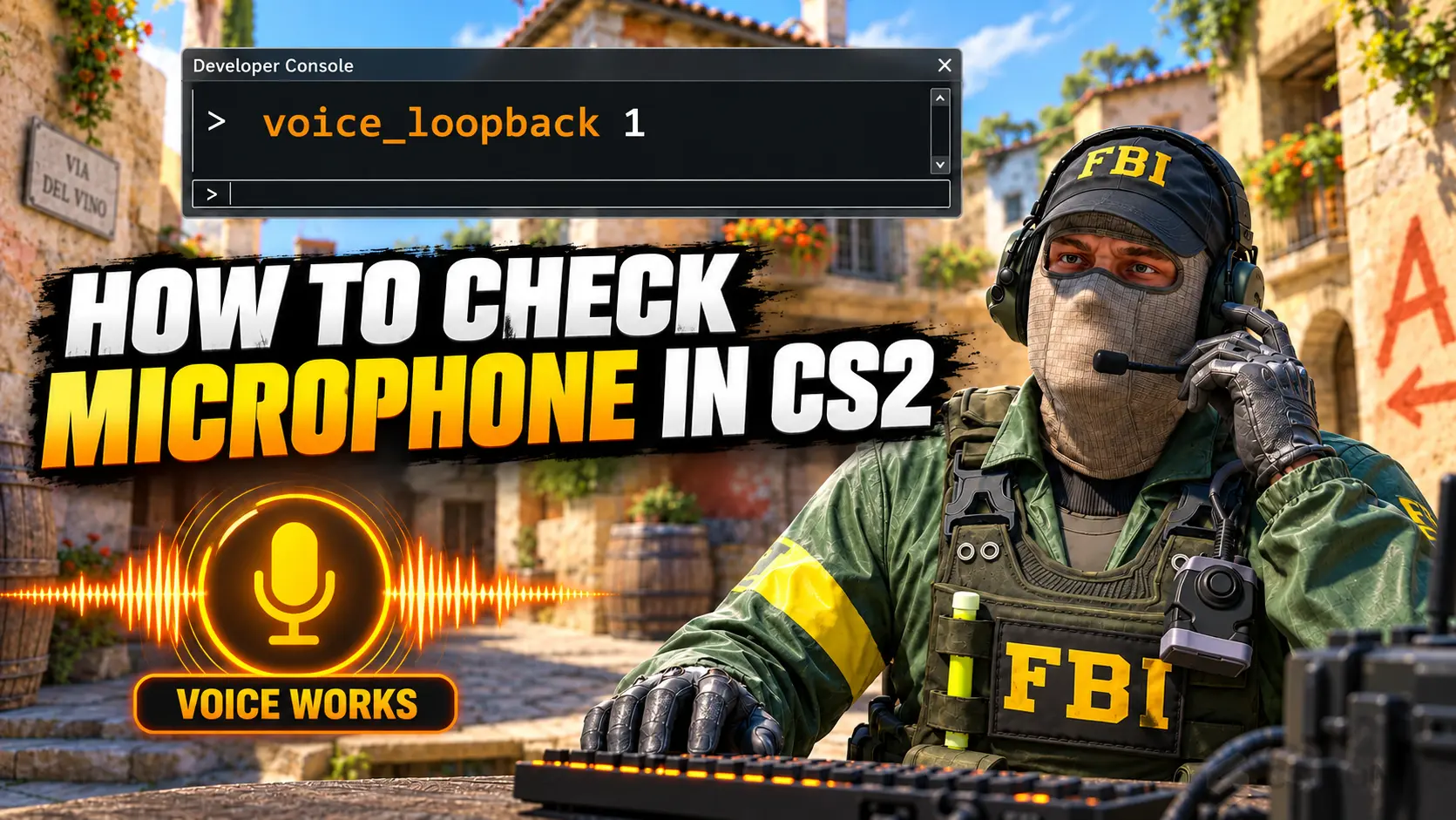
The most useful test is voice_loopback in CS2. It plays your voice back through your headphones, allowing you to hear approximately the same signal the game receives.
-
Enable the developer console under Settings → Game.
-
Open it using your assigned console key.
-
Enter the following command:
voice_loopback 1
Join a practice map or server, hold your voice chat key, and say a short phrase at your normal speaking volume. Check clarity, volume, whether the beginning of words gets cut off, background noise, and echo. Once you finish testing, disable voice playback:
voice_loopback 0
Important: If you can still hear yourself after testing, it does not mean your microphone is broken. Most often, the voice_loopback 1 command is still enabled, the "Hear Your Own Voice" setting is active, or Windows' "Listen to this device" feature is turned on.
To test your microphone without launching the game, open Windows Settings → System → Sound → Input, select your microphone, and click Start test. If the recording sounds clear in Windows but there is no signal in CS2, the problem is likely related to the game's settings, desktop app permissions, or the selected input device.
What to Do If Your Microphone Is Not Working in CS2
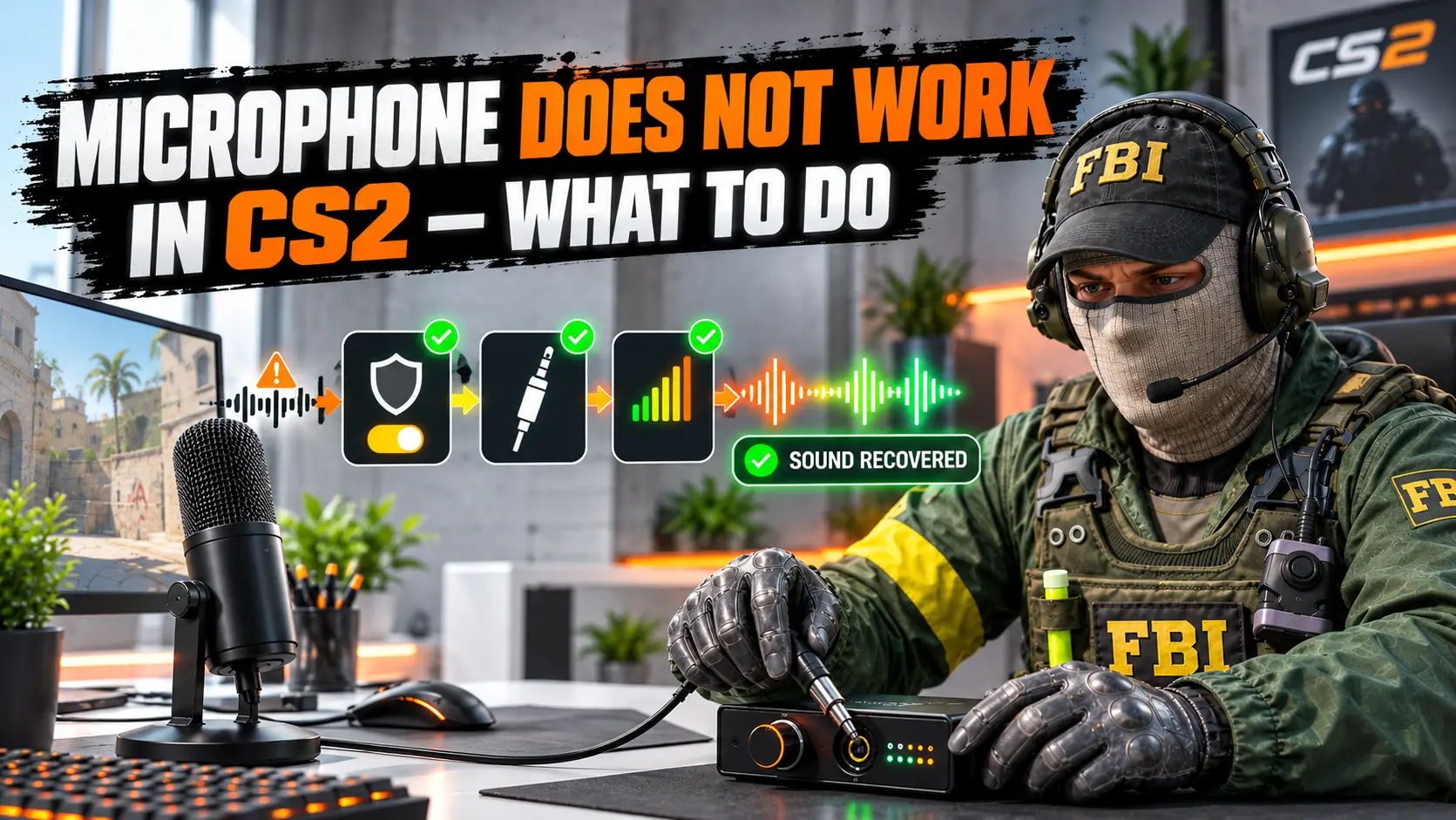
Follow these steps in order, repeating a quick test after each one. This will help you identify which change fixed the problem without disrupting settings that already work.
-
Check the mute switch. Your headset, cable, USB control unit, or microphone body may have a separate hardware mute switch.
-
Check the signal in Windows. If the input indicator does not move, CS2 will not receive any audio either.
-
Select the device directly in CS2. Do not rely solely on the "Default" option. Connecting a webcam, monitor, or controller may have changed the system's default input.
-
Check the voice mode and key binding. Enable Push-to-Talk, assign an unused key, and make sure the voice indicator appears while you hold it.
-
Allow microphone access in Windows. Steam and CS2 need the general microphone access setting for classic desktop applications to be enabled.
-
Close voice processing software. Virtual audio cables, voice changers, mixers, and some noise suppression filters may take control of the device or send an empty audio stream to the game.
-
Reconnect the device and restart Steam and CS2. If you use a USB microphone, try another port without a passive USB hub.
-
Verify the CS2 game files. In Steam, open Library → Counter-Strike 2 → Properties → Installed Files → Verify integrity of game files.
The Microphone Icon Appears, but Your Teammates Cannot Hear You
The icon confirms that the key is being pressed, but it does not guarantee that a usable audio signal is being transmitted. First, enable voice_loopback 1. If you hear silence, select the correct input device and lower the activation threshold. If your voice sounds normal, test voice chat in another official match. A specific server may have its own rules, or an individual player may have muted you.
The Microphone Works in Discord but Not in CS2
Discord and CS2 may use different input devices. Manually select the same physical microphone in the game that you use in Discord, then restart CS2. If you use virtual noise suppression, compare the raw input with the processed input. This is a quick way to identify conflicts involving virtual audio devices.
The Microphone Stopped Working After an Update
Check whether the recording device has reverted to "Default," then restart Steam. After a major Windows update, also check microphone permissions and your audio interface driver. Third-party driver updaters are unnecessary: use Windows Update or the official website of your motherboard, laptop, headset, or sound card manufacturer.
Windows Microphone Settings
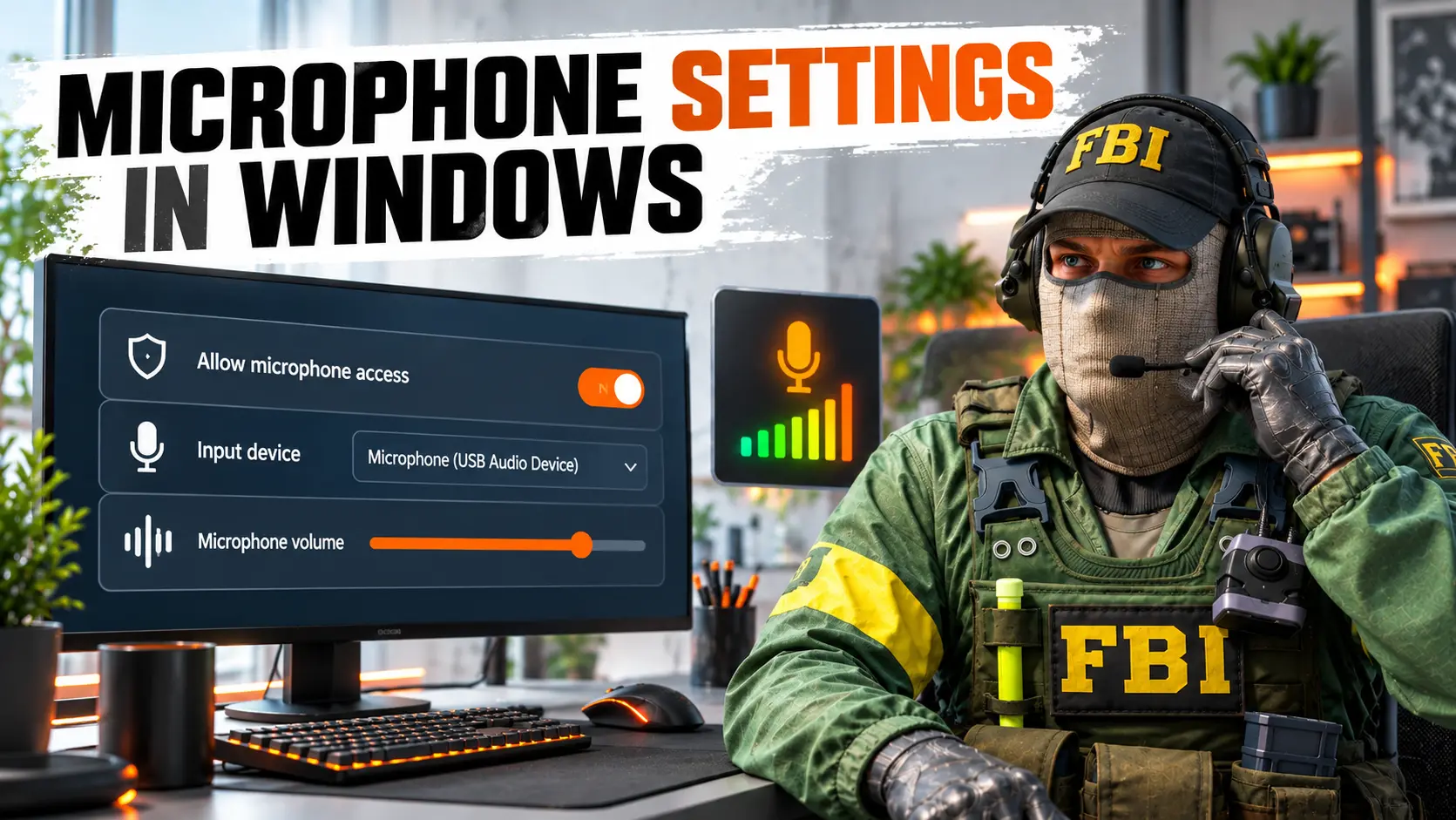
If CS2 cannot detect your microphone, open the system settings. In Windows 11, go to Start → Settings → System → Sound → Input. Select your device, click Start test, speak a few words, and play back the sample. You can also adjust the input volume here.
Next, go to Settings → Privacy & security → Microphone and enable the following options:
-
Microphone access
-
Let apps access your microphone
-
Let desktop apps access your microphone
CS2 and Steam are classic desktop applications. In standard stable Windows builds, they use the shared desktop app permission toggle, so the absence of a separate Counter-Strike 2 entry does not indicate an error.
How to Set the Default Communication Device
Open the advanced sound settings or the classic Sound Control Panel, then go to the Recording tab. Right-click your working microphone and set it as both the Default Device and the Default Communication Device. This is particularly useful when an application uses the system default input instead of the device selected manually.
Should You Set the Microphone Volume to 100%?
Not necessarily. Start at 70–90%, make a test recording, and increase the level until your voice is clearly audible without distortion. Use analog Microphone Boost cautiously: +10 or +20 dB may help a quiet 3.5 mm input, but it also amplifies hiss, keyboard noise, and room noise. For a USB microphone, adjust the physical gain control first.
Low Volume, Noise, Echo, and Voice Cutting Out
Quiet Microphone in CS2
First, check the distance to the microphone capsule and make sure you are speaking into its active side. Then increase the Input volume in Windows and compare the recording. If your voice is loud in Windows but your microphone is quiet in CS2 or the beginnings of sentences are cut off, lower the activation threshold in the game settings. The snd_voipvolume command will not solve this problem: it changes the volume of other players' voices, not the gain of your microphone input.
Voice Cuts Out or the Game Does Not Pick Up Quiet Words
A threshold that is too high acts like a hard noise gate and cuts off quiet syllables. For troubleshooting, set the threshold to its minimum, test a phrase using loopback, and then gradually increase the value until background noise disappears. If the audio still cuts out at a low threshold, temporarily disable third-party noise suppression, automatic gain control, and voice changers. Several filters running in sequence can suppress parts of your speech.
Microphone Hiss or Keyboard Noise
-
Reduce the gain and move the microphone closer to your mouth instead of boosting the volume in software.
-
If you use a directional microphone, point its rear side toward your keyboard and fans.
-
Avoid connecting an analog headset to a loose or noisy front-panel audio jack.
-
Compare recordings with Windows audio enhancements enabled and disabled. Results vary between drivers.
-
When using Push-to-Talk, do not hold the key longer than necessary. Transmit only useful information.
Echo and Double Voice
First, disable voice_loopback and any feature that plays your own voice back to you. If your teammates hear an echo, use headphones instead of speakers, lower the volume, and move the microphone away from the headset's earcup. In Windows, check that Listen to this device is disabled. Do not enable monitoring simultaneously in Windows, your audio interface, and audio-processing software.
Freezes When Activating the Microphone
A brief freeze the first time you press Push-to-Talk can occur when the game opens the recording stream only at that moment. CS2 includes a setting called Streamlined Push To Talk, which keeps the audio stream ready and helps prevent delays or the beginning of a sentence from being cut off.
Enable this option under Settings → Audio → Voice. The equivalent console command is:
voice_always_sample_mic true
If the problem persists, try another USB port, update the official driver for your audio device, and check for conflicts with virtual audio mixers. You can temporarily select the physical microphone directly for comparison. Avoid changing dozens of performance settings: a freeze that occurs specifically when voice transmission starts is usually related to the audio device or its driver.
Steam, Discord, Bluetooth, and Virtual Devices
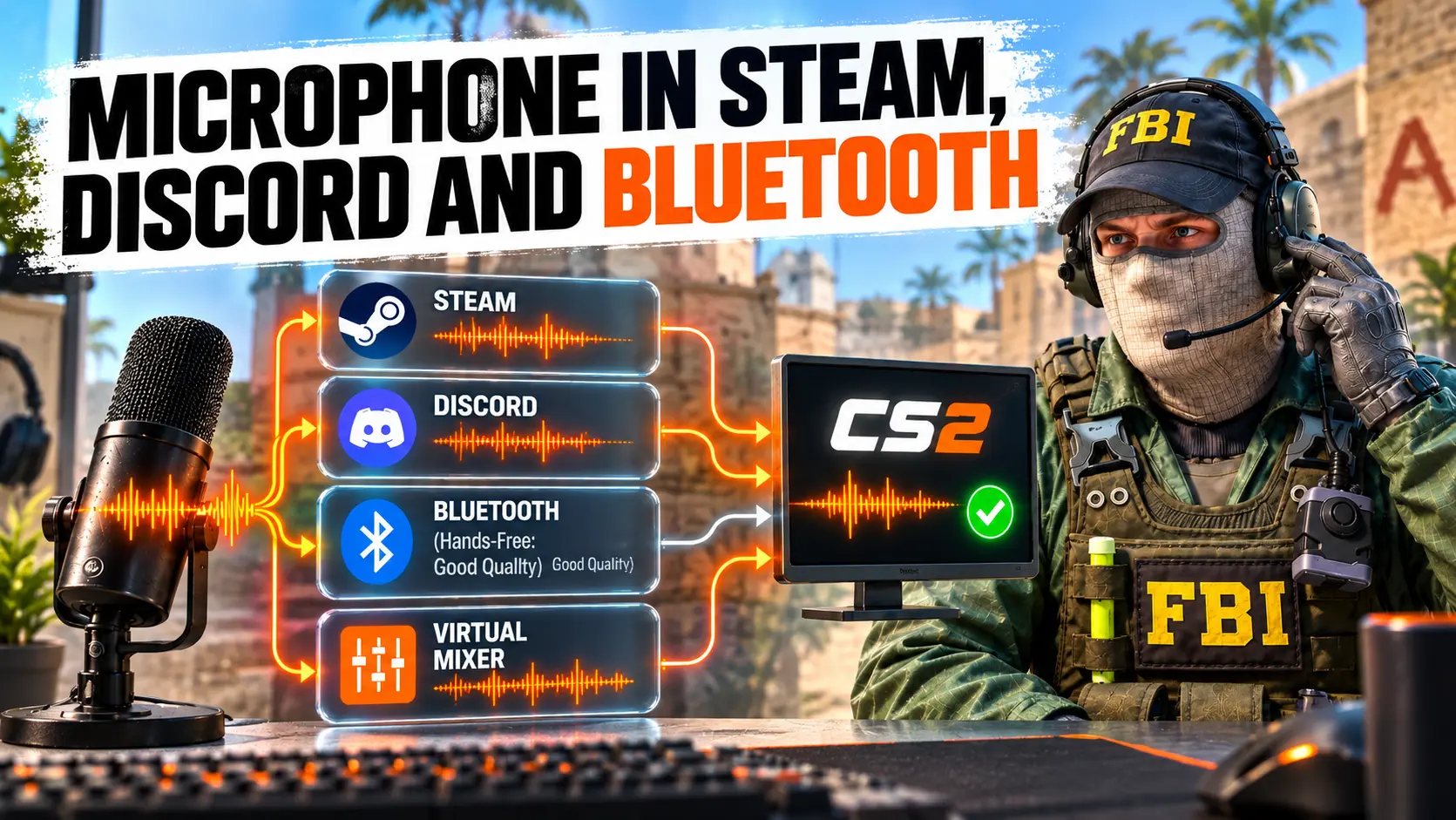
Do You Need to Configure Your Microphone in Steam?
Testing your microphone in Steam is useful as an additional check, but in the current version of CS2, you can select the recording device directly in the in-game settings. Therefore, if the settings differ, prioritize the Voice Recording Device option in the game itself. If your microphone also fails the Steam test, check the connection, Windows input settings, permissions, and audio driver.
Discord, NVIDIA Broadcast, SteelSeries Sonar, and Voicemeeter
Noise suppression software and audio mixers create virtual devices. If you need audio processing, select the program's virtual output in CS2 and make sure the physical microphone is configured as its input within the program. If you cannot hear any voice, temporarily select the physical device directly. You do not need to disable all devices permanently. Just identify the correct audio routing and give your devices clear names in Windows.
Why Bluetooth Headset Audio Quality Gets Worse
Bluetooth Classic often uses different profiles for high-quality stereo playback and two-way communication. When the headset microphone becomes active, Windows may switch playback to Hands-Free mode, which offers lower audio quality. This does not necessarily mean CS2 is malfunctioning. For competitive gaming, the most reliable options are a wired connection, the manufacturer's USB receiver, or a separate microphone.
Modern devices that support Bluetooth LE Audio, paired with a compatible Windows 11 system, may maintain higher-quality stereo playback while the microphone is active. If you experience dropouts or distortion, update Windows and your Bluetooth driver, reconnect the headset, and check the available audio formats.
In Conclusion
Proper microphone setup in CS2 starts not with random console commands, but with checking the audio signal at every stage: device → Windows → game → server. Select your recording device in CS2, assign a convenient key, test your voice using voice_loopback 1, and immediately set the value back to 0. If your voice is too quiet, cuts out, or picks up too much noise, adjust the Windows input settings and activation threshold first, then add software filters if necessary.
Once everything works, save your preferred setup: the specific input device, Push-to-Talk, a convenient key bind, and Streamlined Push To Talk enabled. Short, clear callouts are more useful than a constant stream of loud background noise — your microphone should help your team hear what matters most.
Random CS2 Guides
10 June 2026 Tutorial
Learn how to create a no scope crosshair in CS2 for AWP, SSG 08, SCAR-20 and G3SG1. Discover Steam Notes, Crosshair V2, monitor crosshairs, console commands, and the best legal methods to improve no-scope accuracy.
28 June 2026 Settings
Learn how to enable grenade hints in CS2. This guide shows you how to activate grenade trajectory previews.