


Discover the funniest CS2 crosshairs including meme, troll, heart, smiley, giant, etc.
30 June 2026

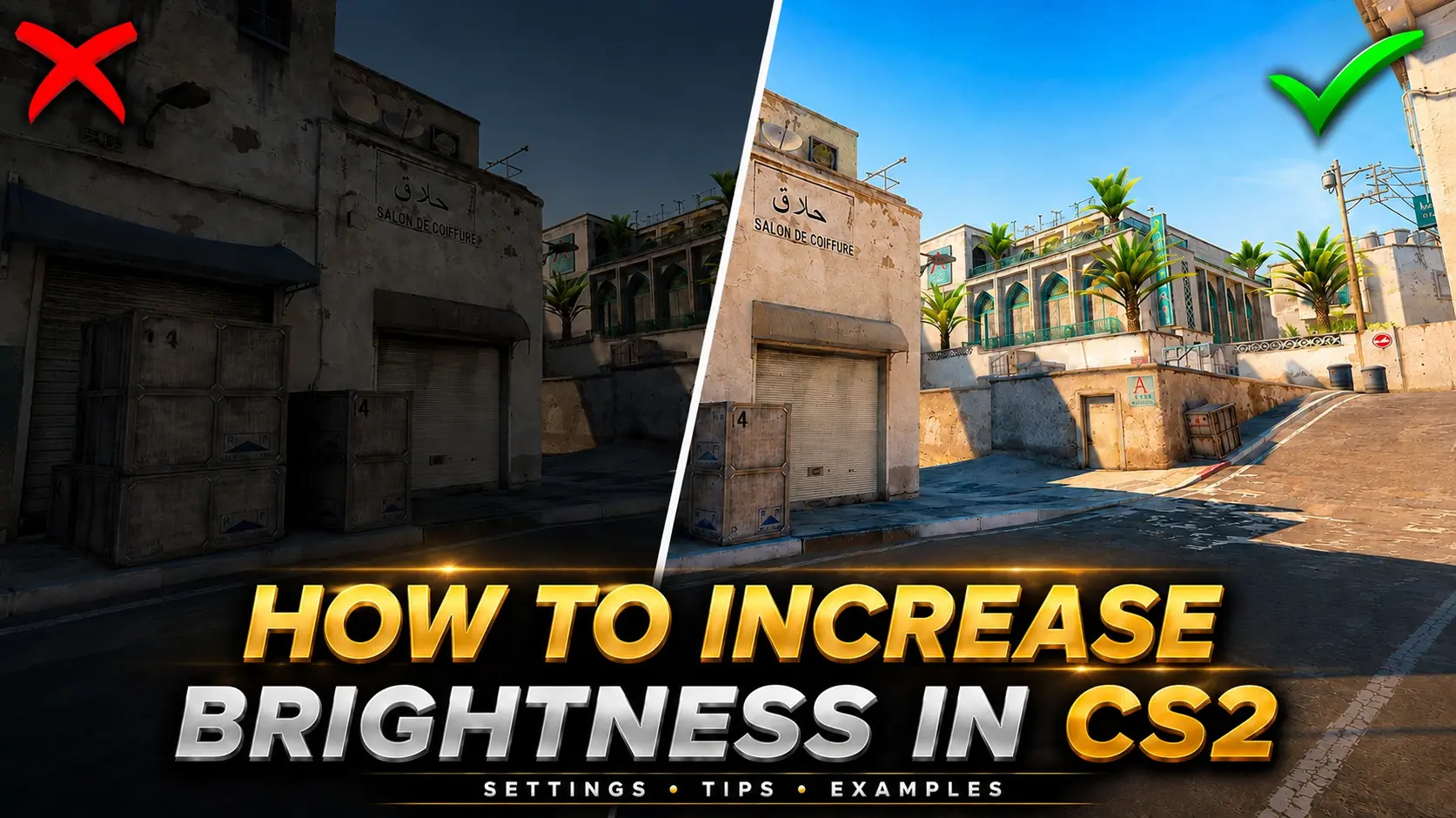
How to Increase Brightness in CS2
Everyone has experienced situations in CS2 where an enemy is hiding in a dark corner and goes completely unnoticed. Many maps contain poorly lit areas that can make it difficult to spot opponents with the default graphics settings. At the same time, many players lower their graphics settings to improve performance and achieve higher FPS.
Fortunately, there are several ways to make the game appear brighter without significantly affecting performance. In this guide, we'll cover the most effective console commands and settings that can help increase brightness in CS2 and improve visibility in dark areas.
Increase Brightness Using the CS2 Console
Higher brightness doesn't just make dark areas of the map easier to see it can also help you spot enemy player models more quickly. With improved visibility, it's easier to identify opponents hiding in shadows, react faster, and place your crosshair more accurately.
While CS2 doesn't offer as many brightness commands as previous Counter-Strike versions, there are still several console commands and settings that can noticeably improve in-game visibility.
To increase brightness in the game, we will need to use the game console. This is done using the “`” key. Once the game console opens, you will need to enter the following commands:The first command allows us to set the maximum brightness on the screen. The value for this command is 3 - this is the maximum available. The minimum is 0.5.
mat_autoexposure_max "3"
After that, your brightness will be set to the maximum level. You can also experiment with different values to find the settings that work best for your monitor. The second command controls the game's gamma. The most comfortable value is 1.6, but if you prefer a darker gamma, simply set the value to 2.2.
mat_monitorgamma "1.6"
After that, your brightness will increase significantly. The third command enables Monitor Mode, allowing you to boost the brightness in CS2 even further. To activate it, set the value to 1.
mat_monitorgamma_tv_enabled "1"
Setting the value to 0 will disable this mode.
Adjusting Brightness in CS2 Through Windows
I'll use my graphics card, NVIDIA, as an example. Right-click anywhere on your desktop and select NVIDIA Control Panel. In the window that opens, go to the Adjust Desktop Color Settings tab and set the values to match mine:
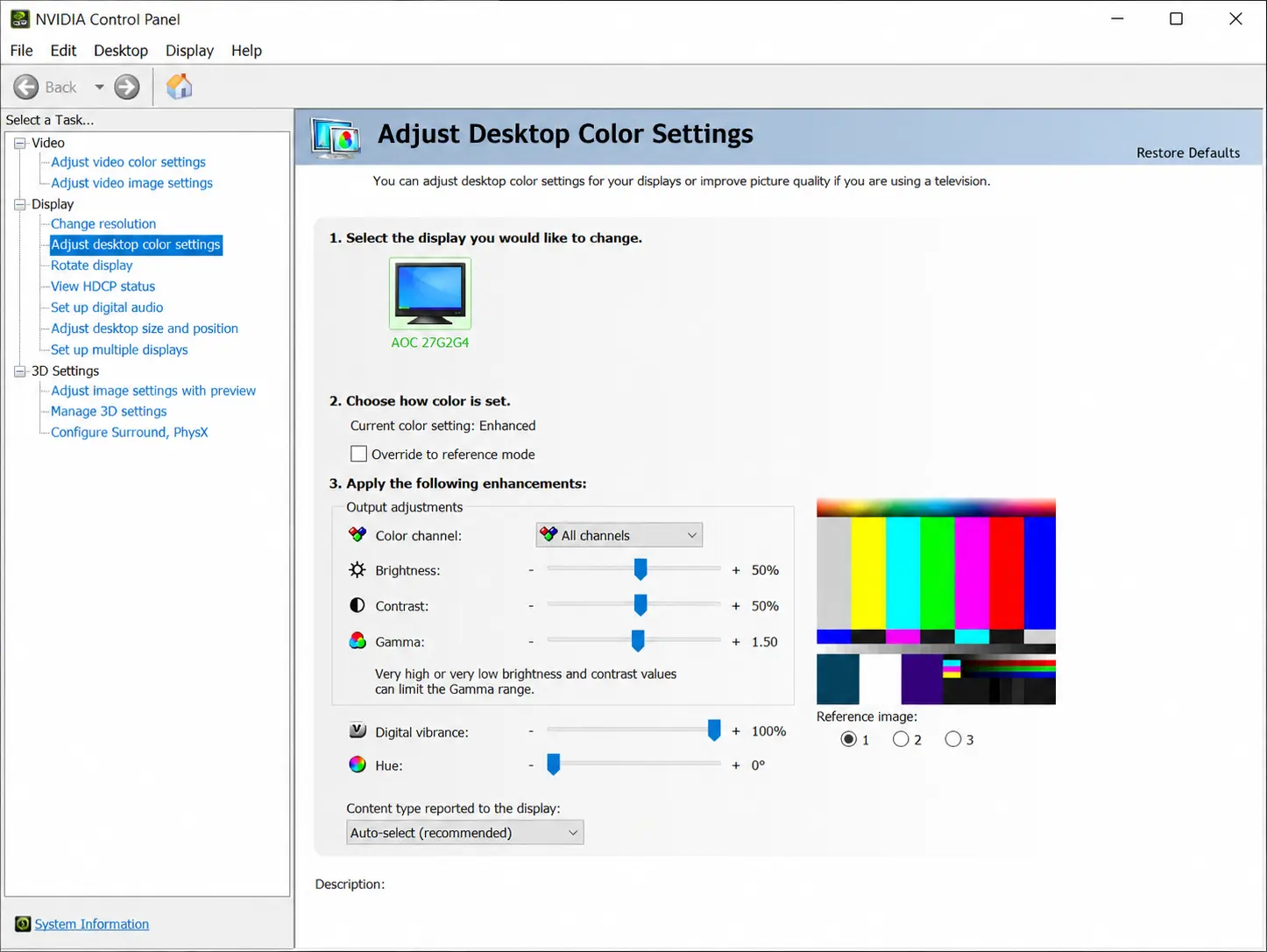
As you can see, the Gamma value is set to 1.50, while Digital Vibrance is set to 100%.
After applying the console commands and adjusting your graphics card settings, you'll achieve much better brightness and visibility in CS2.