
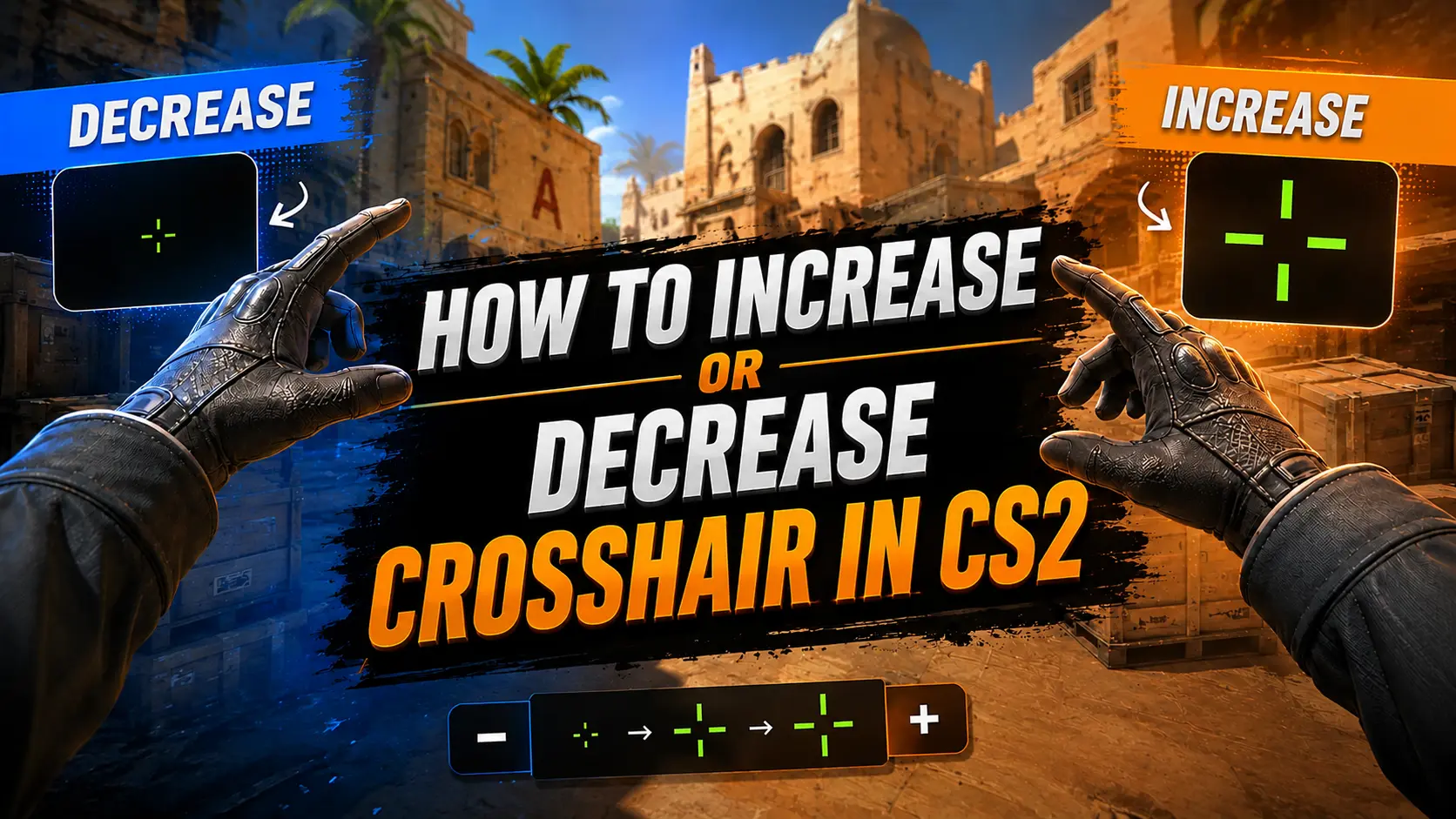
Learn how to increase or decrease your crosshair size in CS2 using console commands.
31 July 2026
How to Increase or Decrease Crosshair Size in CS2
In Counter-Strike 2, comfort depends on more than just FPS, mouse sensitivity, or screen resolution. One of the most important settings is your crosshair, since it's the one element you're focused on throughout every round. If it's too large, it can block enemy models and reduce visibility. If it's too small, it may blend into the environment and become difficult to track during intense fights.
That's why many players want to know how to make their crosshair bigger or smaller in CS2. There is no universal size that works for everyone. The ideal crosshair depends on your resolution, viewing distance, playstyle, personal preference, and even muscle memory built over time.
In this guide, you'll learn how to change your crosshair size in CS2 using both the in-game settings and console commands, which commands control crosshair length, how to create binds for quickly switching between different sizes, and what crosshair sizes are commonly used by professional CS2 players.
How to Make Your Crosshair Bigger in CS2
If your crosshair feels too small and is difficult to see during firefights, increasing its size can make aiming more comfortable. This is especially useful for players using 27–32-inch monitors, high resolutions, or those who are just getting started with Counter-Strike 2. A larger crosshair is easier to keep track of in the center of the screen, making target acquisition more consistent and helping many beginners feel more comfortable during matches.
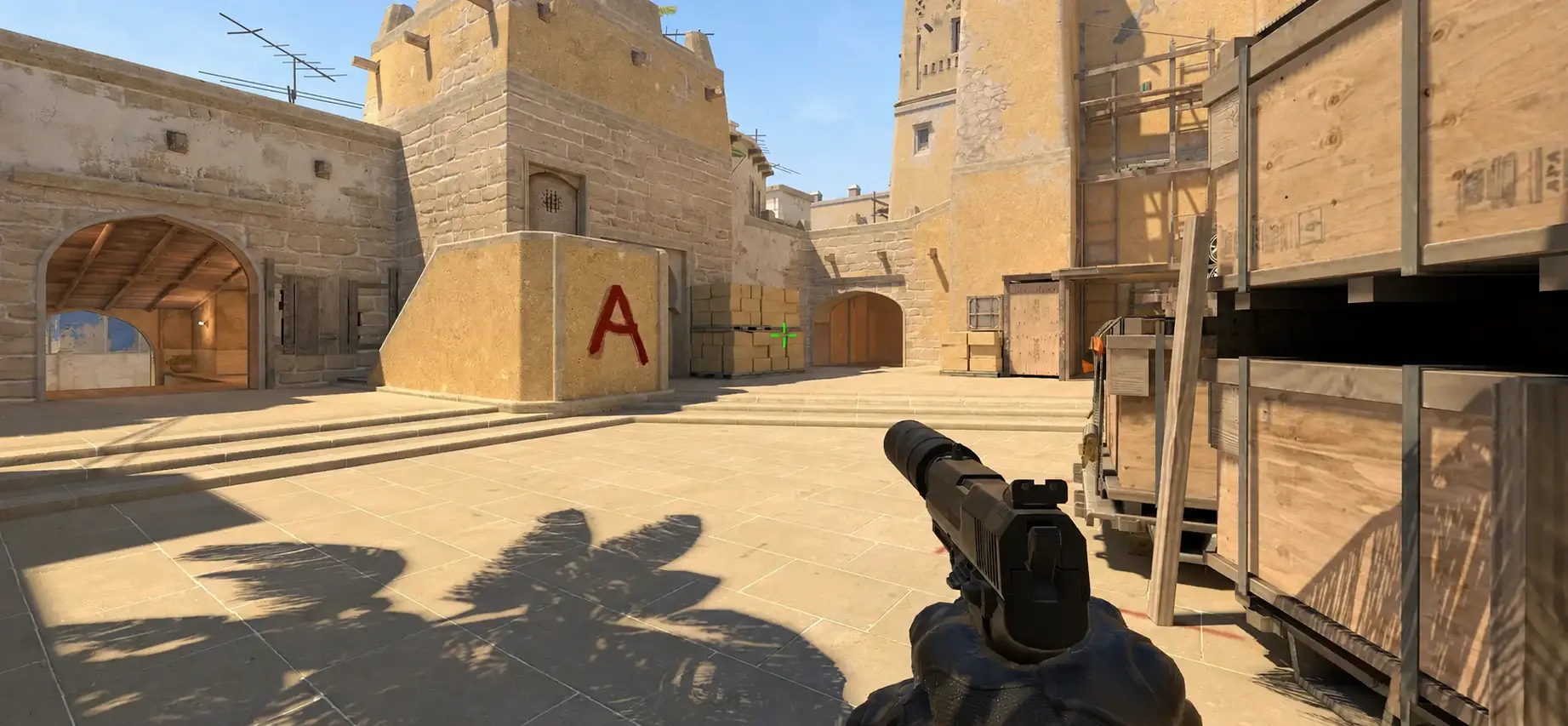
To make your crosshair bigger in CS2, use the cl_crosshairsize console command. This command controls the length of the crosshair lines. The higher the value, the longer and larger your crosshair will appear on the screen.
Command to increase your crosshair size:
cl_crosshairsize 5
If that isn't large enough, you can increase the value to 6, 7, or even 8. However, an overly large crosshair can block an enemy's head, especially during long-range engagements. For the best results, increase the size gradually and test each setting on an aim training or practice map.
How to Make Your Crosshair Smaller in CS2
A compact crosshair is the most popular choice among professional CS2 players. Shorter crosshair lines take up less screen space, make enemy heads easier to see, and provide a cleaner view while aiming. That's why many players start looking for a way to make their crosshair smaller in CS2 after gaining some experience with the game.
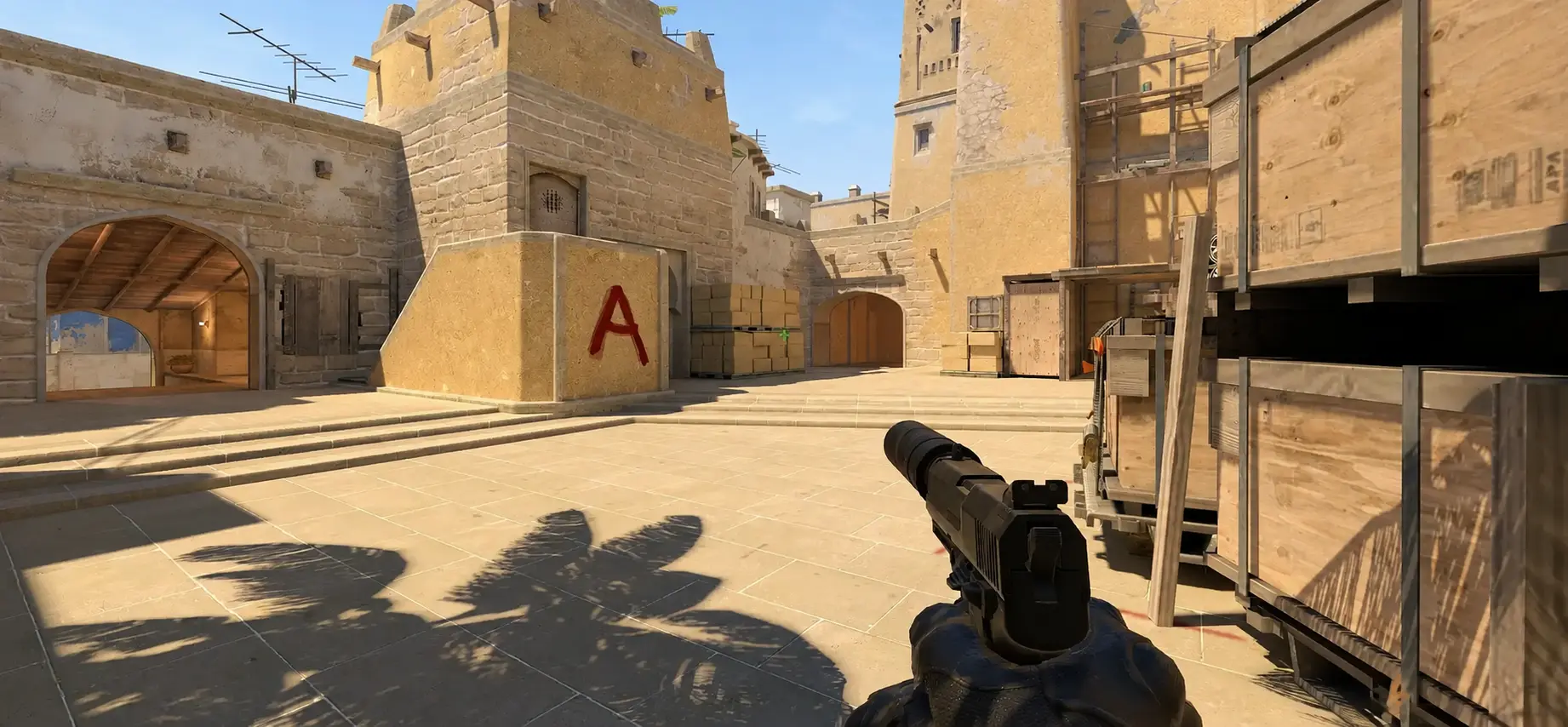
The same cl_crosshairsize command is used to make your crosshair smaller. Simply set it to a lower value to shorten the crosshair lines.
Command to make your crosshair smaller:
cl_crosshairsize 2
If you want an extremely compact crosshair, you can experiment with values such as 1.5 or 1. These settings are commonly used by professional players and high-level FACEIT competitors, although they may feel too small for beginners.
Keep in mind that crosshair size is only one part of the overall design. Its appearance is also affected by line thickness, the gap between the lines, the center dot, and the outline. If changing the size alone doesn't produce the result you're looking for, it's worth adjusting these settings as well. We'll cover each of them in the next section of this guide.
How to Change Your Crosshair Size Through the CS2 Settings
Not everyone prefers using the developer console, especially for simple adjustments like changing the crosshair size. Fortunately, Counter-Strike 2 includes a built-in crosshair editor that lets you customize most settings in just a few clicks. If you're changing your crosshair for the first time, this is the easiest and most beginner-friendly method.
To change your crosshair size through the in-game settings, follow these steps:
- Launch Counter-Strike 2.
- Open Settings.
- Go to Game → Crosshair.
- Find the Size option.
- Move the slider to the right to make your crosshair larger, or to the left to make it smaller.
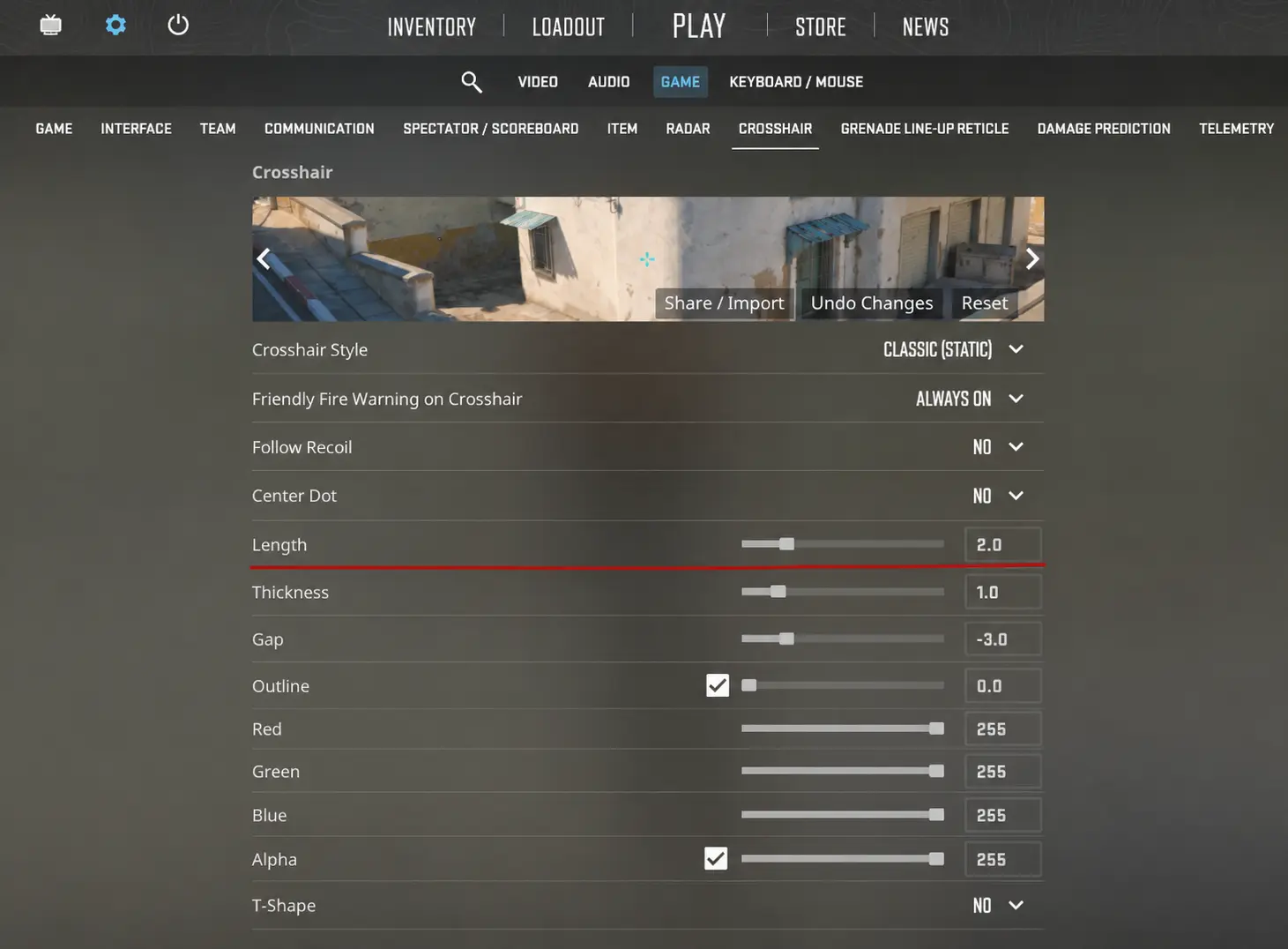
The main advantage of this method is that you don't need to remember console commands or open the developer console. However, the in-game crosshair editor doesn't always offer the same level of precision as console commands. That's why most experienced players prefer configuring their crosshair through the console.
CS2 Crosshair Size Commands
Many players think that cl_crosshairsize is the only command that controls crosshair size, but that's not entirely true. The final appearance of your crosshair is determined by several different settings. Changing only the line length can make the crosshair look unbalanced, so it's useful to understand the main commands that affect its size and overall shape.
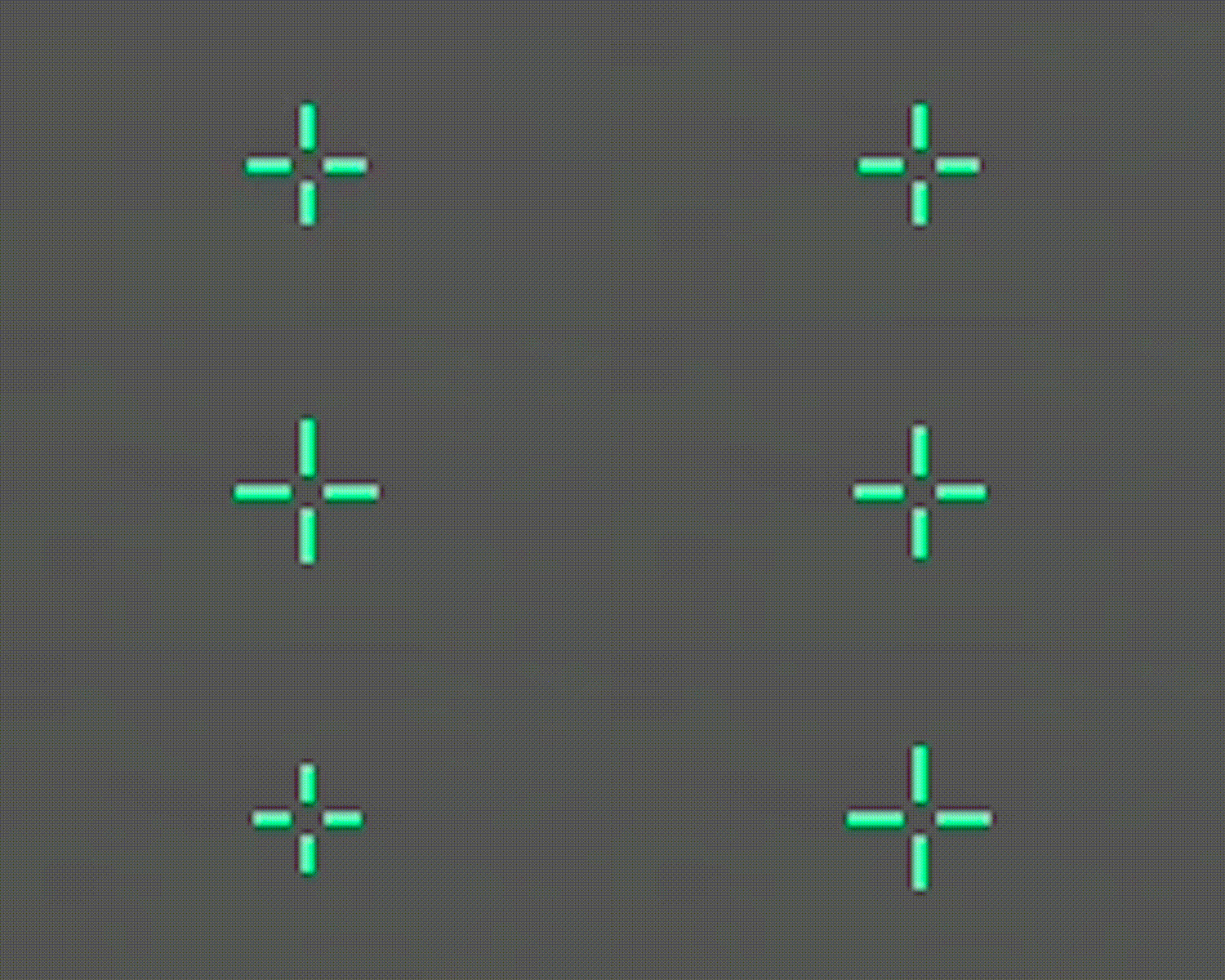
The primary command that controls your crosshair size.
cl_crosshairsize 3
The higher the value, the longer the crosshair lines become. This is the command players use most often when they want to make their crosshair bigger or smaller.
2. cl_crosshairthickness — Crosshair Thickness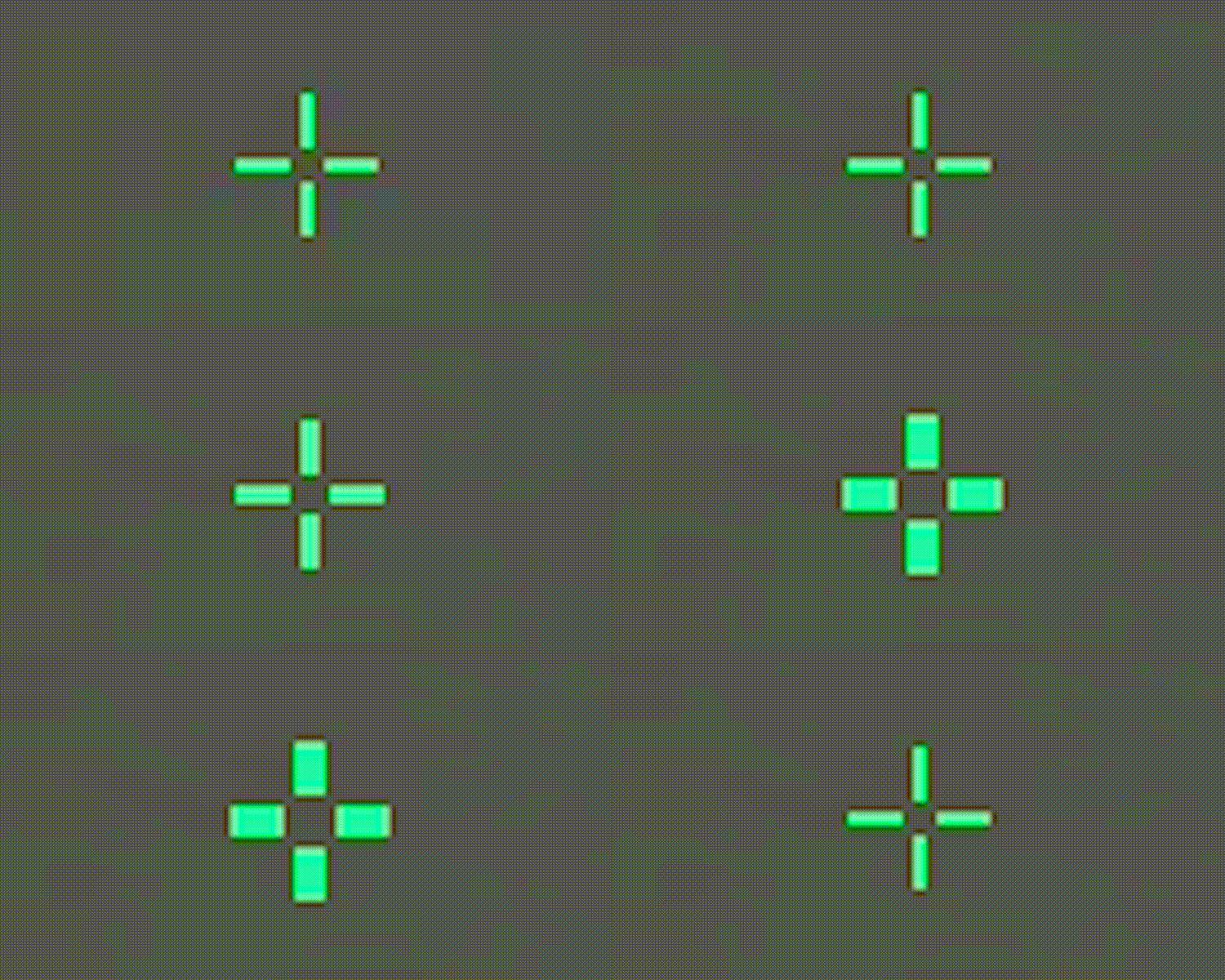
cl_crosshairthickness 1
Allows you to make the crosshair lines thicker or thinner. If you increase the crosshair size, it's often a good idea to slightly increase the thickness as well so the crosshair doesn't look too thin.
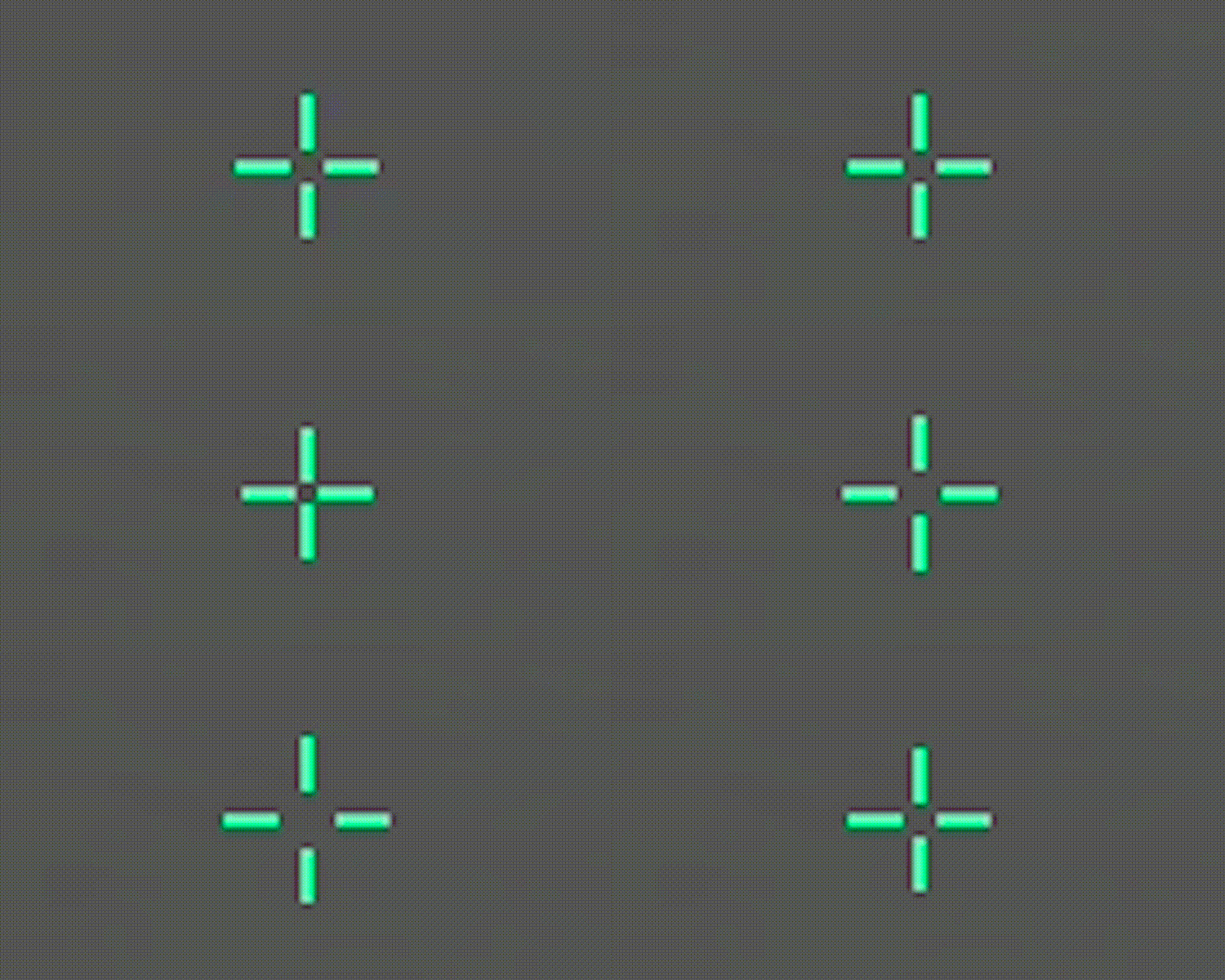
cl_crosshairgap -3
This command changes the distance between the crosshair lines. Negative values make the crosshair more compact, while positive values increase the empty space in the center.
4. cl_crosshairdot — Center Dot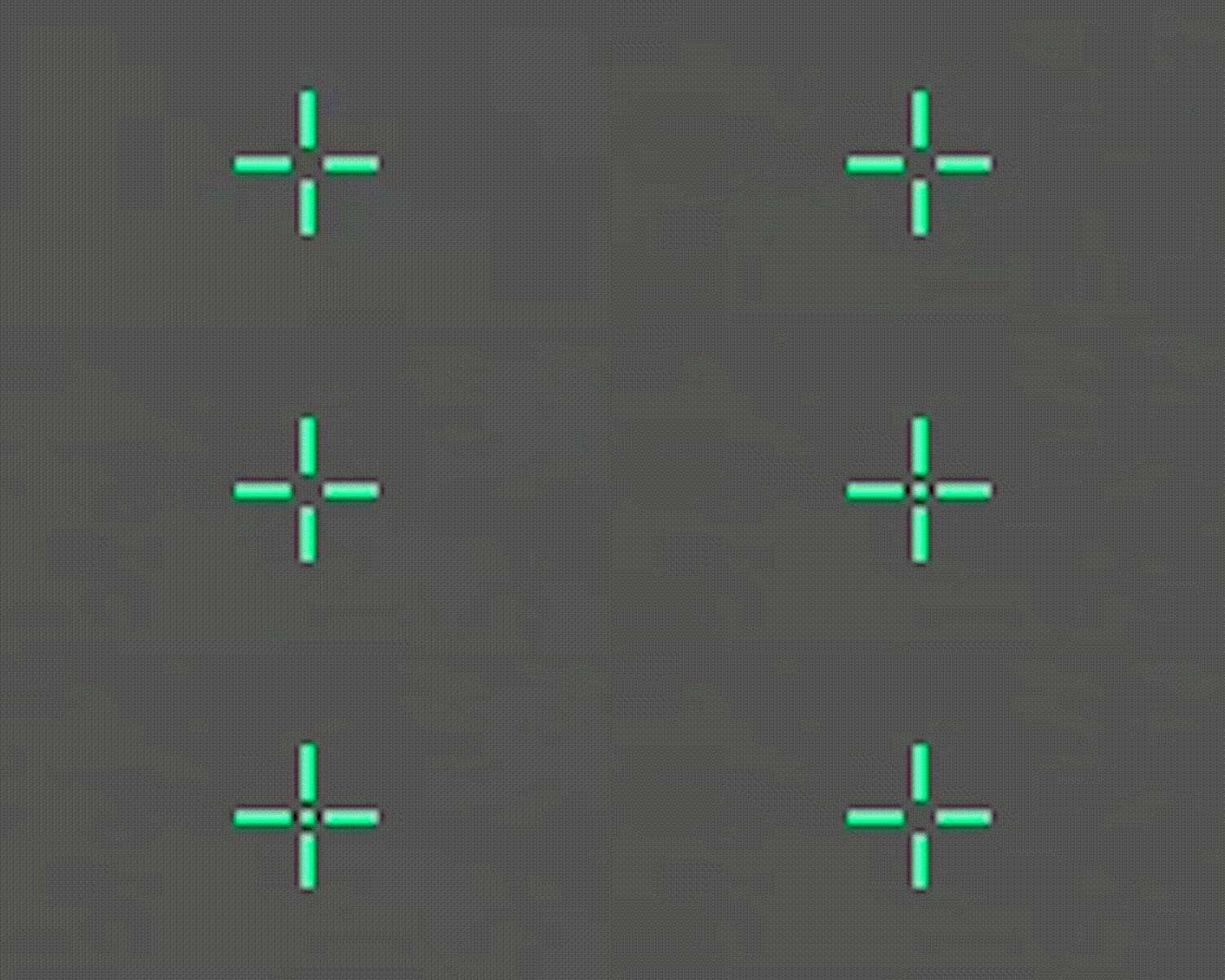
cl_crosshairdot 1
Adds an outline around the crosshair lines, making them easier to see against bright surfaces and complex backgrounds. Many players enable a thin outline to improve visibility without making the crosshair feel too bulky.
5. cl_crosshair_drawoutline — Crosshair Outline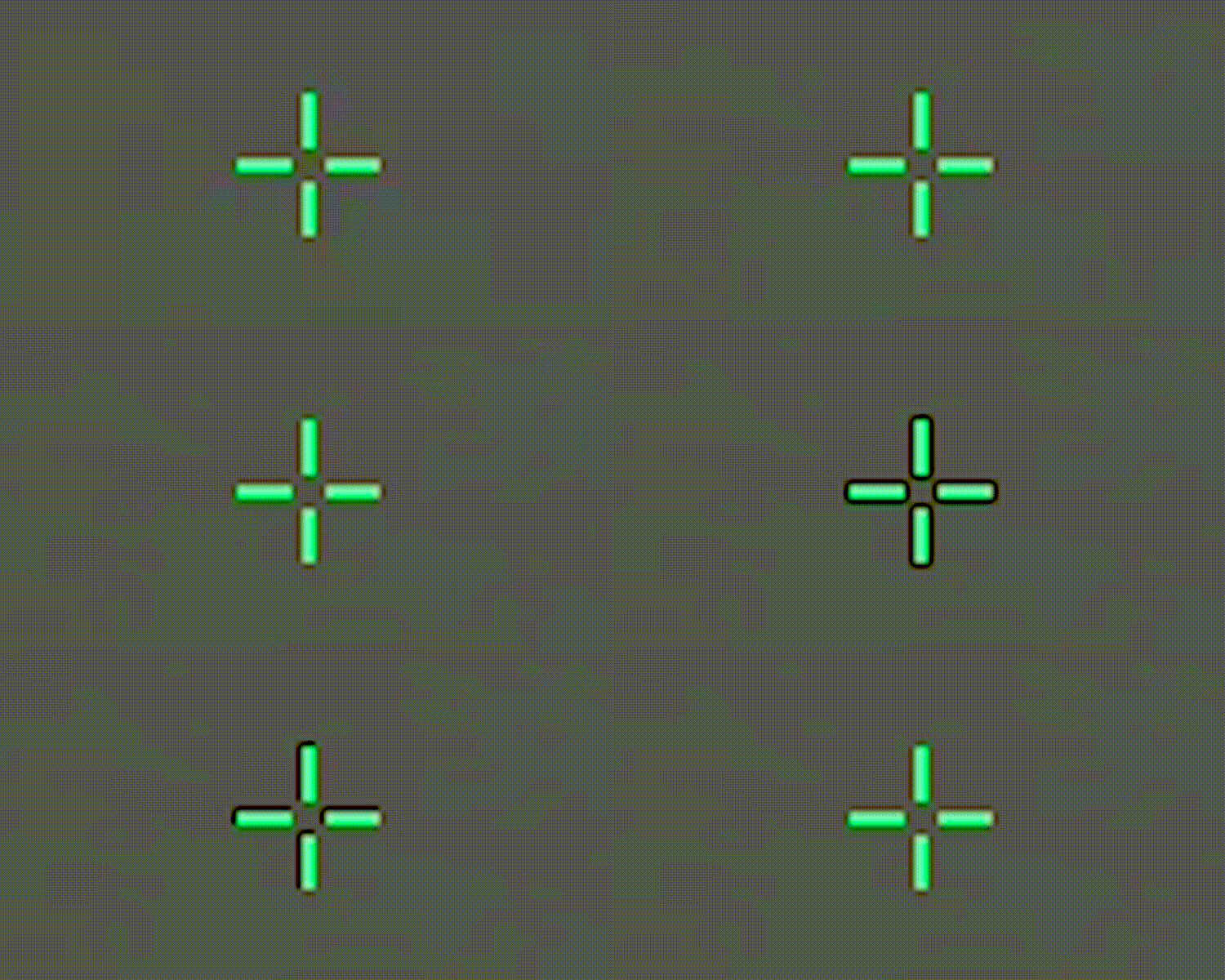
cl_crosshair_drawoutline 1
Enables a black outline around the crosshair lines. This makes the crosshair much easier to see on bright surfaces and visually busy areas of the map.
By combining these commands, you can create almost any crosshair style—from a small, minimalist design to a larger, highly visible one. That's why professional players rarely adjust just a single setting. Instead, they fine-tune the line length, thickness, gap, and outline together to achieve the perfect balance.
What Crosshair Size Do Professional Players Use?
Many players try to copy the crosshair settings of well-known professionals, hoping it will improve their aim. While there is no universally perfect configuration, pro player crosshairs can serve as an excellent starting point when creating your own setup.
If you look at the settings used by players such as donk, ZywOo, m0NESY, s1mple, and NiKo, you'll notice that most of them prefer small or medium-sized crosshairs. These designs don't obstruct enemy models, remain clearly visible on virtually every map, and perform well in almost every situation.
Below you'll find the crosshairs of some of the most popular Counter-Strike 2 professional players. Each one can be applied in just a few seconds using its Share Code.
donk Crosshair
donk is a professional player for Team Spirit and one of the best riflers in the world. He uses a compact crosshair that provides excellent visibility and is well suited for aggressive playstyles and precise aiming.

ZywOo Crosshair
ZywOo is the star player of Team Vitality and one of the greatest Counter-Strike players in the world. He uses a clean, medium-sized crosshair that offers excellent visibility and works equally well with both the AWP and rifles.
m0NESY Crosshair
m0NESY is a professional AWPer for Team Falcons, renowned for his lightning-fast reactions and spectacular highlights. He uses a compact crosshair that provides excellent visibility, allows for quick target transitions, and helps maintain precision in both sniper duels and rifle engagements.
Bind to Change Crosshair Size in CS2
If you frequently adjust your crosshair settings or want to quickly find the ideal size, you don't have to open the console every time. In Counter-Strike 2, you can create custom binds that instantly increase or decrease your crosshair size whenever you press a specific key.
This approach is especially useful during practice. For example, you can load an aim training map, fire a few shots, increase your crosshair size with a single key press, then make it smaller and immediately compare how each setting feels. It's much faster than opening the console and entering commands manually every time.
Bind to Increase Crosshair Size in CS2
The following bind increases the length of your crosshair lines each time you press the selected key.
bind "X" "incrementvar cl_crosshairsize 0 500 0.4"
This lets you fine-tune your crosshair size on the fly without repeatedly entering new console commands.
Bind to Decrease Crosshair Size in CS2
If you want to reduce the length of your crosshair lines instead, use the following command:
bind "X" "incrementvar cl_crosshairsize 0 500 -0.4"
After each press of the selected key, the value will decrease, allowing you to quickly compare different crosshair sizes and find the one that feels most comfortable.
Instead of X, you can use almost any unused key on your keyboard. Many players choose keys on the numeric keypad, F6–F12, or the arrow keys, since they don't interfere with normal gameplay.
Example:
bind "kp_plus" "incrementvar cl_crosshairsize 0 500 0.4"
bind "kp_minus" "incrementvar cl_crosshairsize 0 500 -0.4"
Conclusion
Changing your crosshair size in Counter-Strike 2 takes only a few seconds. You can do it through the in-game settings or by using console commands. If you frequently experiment with your configuration, creating binds to increase and decrease your crosshair size can make the process much faster and more convenient.
The most important thing is to find a crosshair size that feels natural, doesn't distract you during gameplay, and helps you aim consistently in every situation. Once you've found the right setup, you won't need to adjust it before every match.
Random CS2 Guides
30 June 2026 Settings
Learn how to increase brightness in CS2 using console commands and NVIDIA Control Panel settings.
14 April 2026 Tutorial
Learn how spray pattern works in CS2, understand recoil and bullet spread, and improve spray control for every weapon. Full guide for rifles, SMGs, pistols, snipers, and shotguns