
Learn how to enable grenade hints in CS2. This guide shows you how to activate grenade trajectory previews.
09 July 2026
1080×1080 CS2 Resolution Guide
Proper graphics settings are one of the most important factors affecting both comfort and performance in Counter-Strike 2. Image clarity, stable frame rates, and a comfortable field of view all have a direct impact on your aim and overall gameplay. That's why many players especially those looking to maximize performance adjust their display settings instead of sticking with the default resolution.
One of the more unusual options is 1080×1080. Although it is not available as a standard resolution in Windows or CS2, it can be created manually. When configured correctly, this custom resolution can offer a unique visual experience and, for some players, even provide a competitive advantage. Below, you'll find a step-by-step guide explaining how to set up a 1080×1080 resolution in CS2 and why it has become a popular choice among certain players.
Why Is 1080×1080 Popular in CS2?
Although 1080×1080 is not a standard monitor resolution, it has become increasingly popular among both professional and casual Counter-Strike 2 players. Its square aspect ratio offers a unique balance between visibility and screen coverage, making it an appealing alternative to traditional 4:3 and 16:9 resolutions.
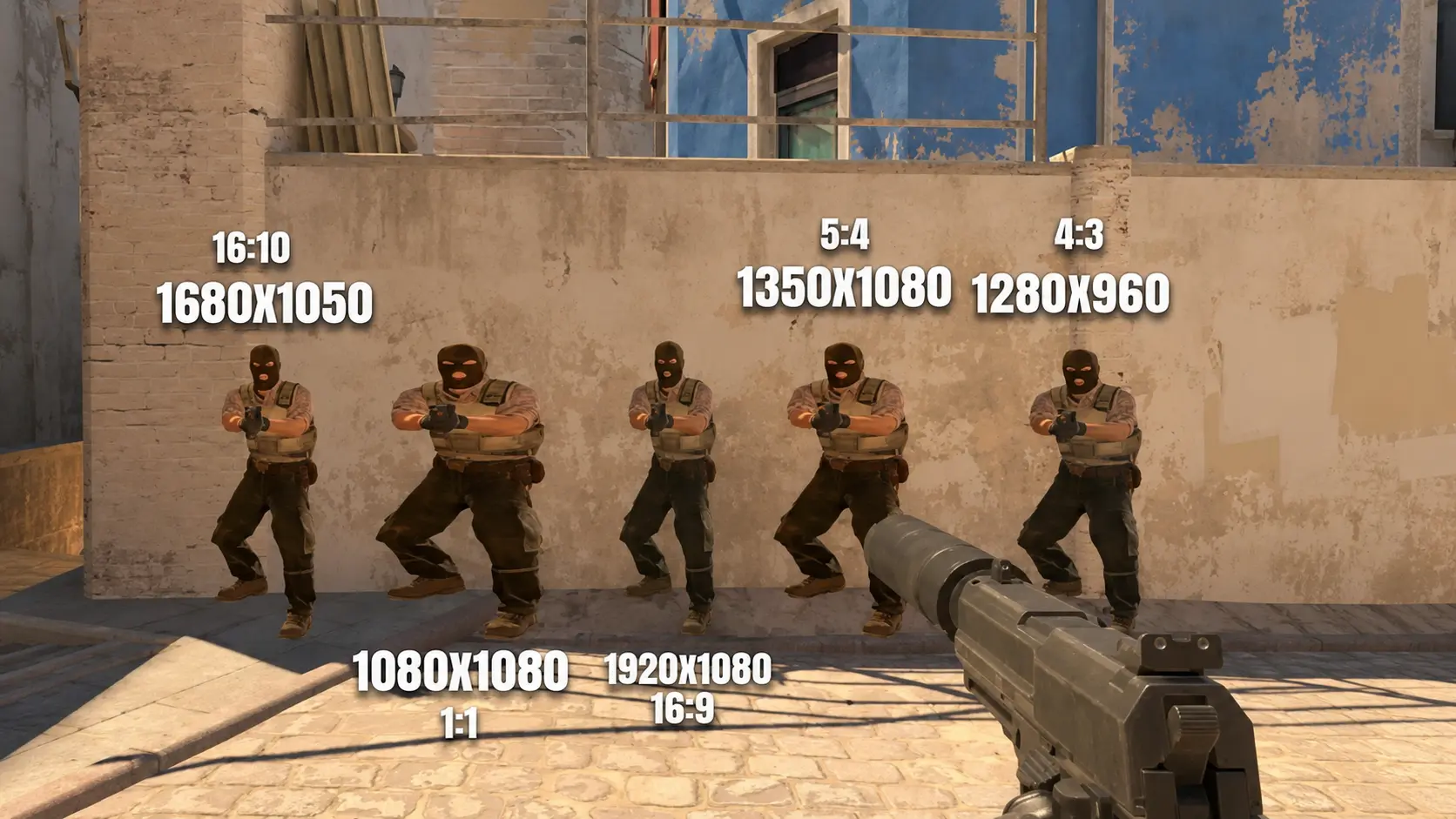
The main reasons for its popularity come down to a combination of improved performance and greater visual comfort.
- Better focus on the center of the screen.
At a 1080×1080 resolution, the image becomes slightly stretched, making enemy player models appear wider. This makes headshots feel more natural and easier to land. - Higher frame rates.
Since fewer pixels need to be rendered, the workload on the graphics card is reduced. This is especially beneficial for lower-end PCs, where every additional frame per second can make a significant difference. - More stable performance.
Custom resolutions allow players to find the ideal balance between image quality and rendering speed. This helps reduce micro-stutters and FPS drops, even during intense firefights. - Familiarity and comfort.
Many players who previously used stretched resolutions in Counter-Strike: Global Offensive continue to play with a similar setup in CS2 because they are accustomed to the way it looks and how the interface is positioned. - Faster target acquisition.
With fewer distractions around the edges of the screen, it's easier to focus on the action. Players can track enemy movement more effectively and react more quickly during engagements.
As a result, the popularity of this resolution is driven not only by technical advantages but also by personal preference, as many players find it improves both their accuracy and reaction time.
How to Set Up a 1080×1080 Resolution
Since 1080×1080 is not a standard display resolution, you need to create it manually through your graphics card's control panel.
NVIDIA: Create a Custom Resolution
To set a 1080×1080 resolution in CS2, follow these steps:
- Right-click on your desktop and select NVIDIA Control Panel.
- In the left sidebar, open Change Resolution.
- Click Customize..., then select Create Custom Resolution.
- Enable "Enable resolutions not exposed by the display" to allow custom display modes.
- Enter 1080 for both the Horizontal pixels and Vertical lines.
- Set the Timing option to GTF, then click Test. If the image displays correctly, save the new resolution.
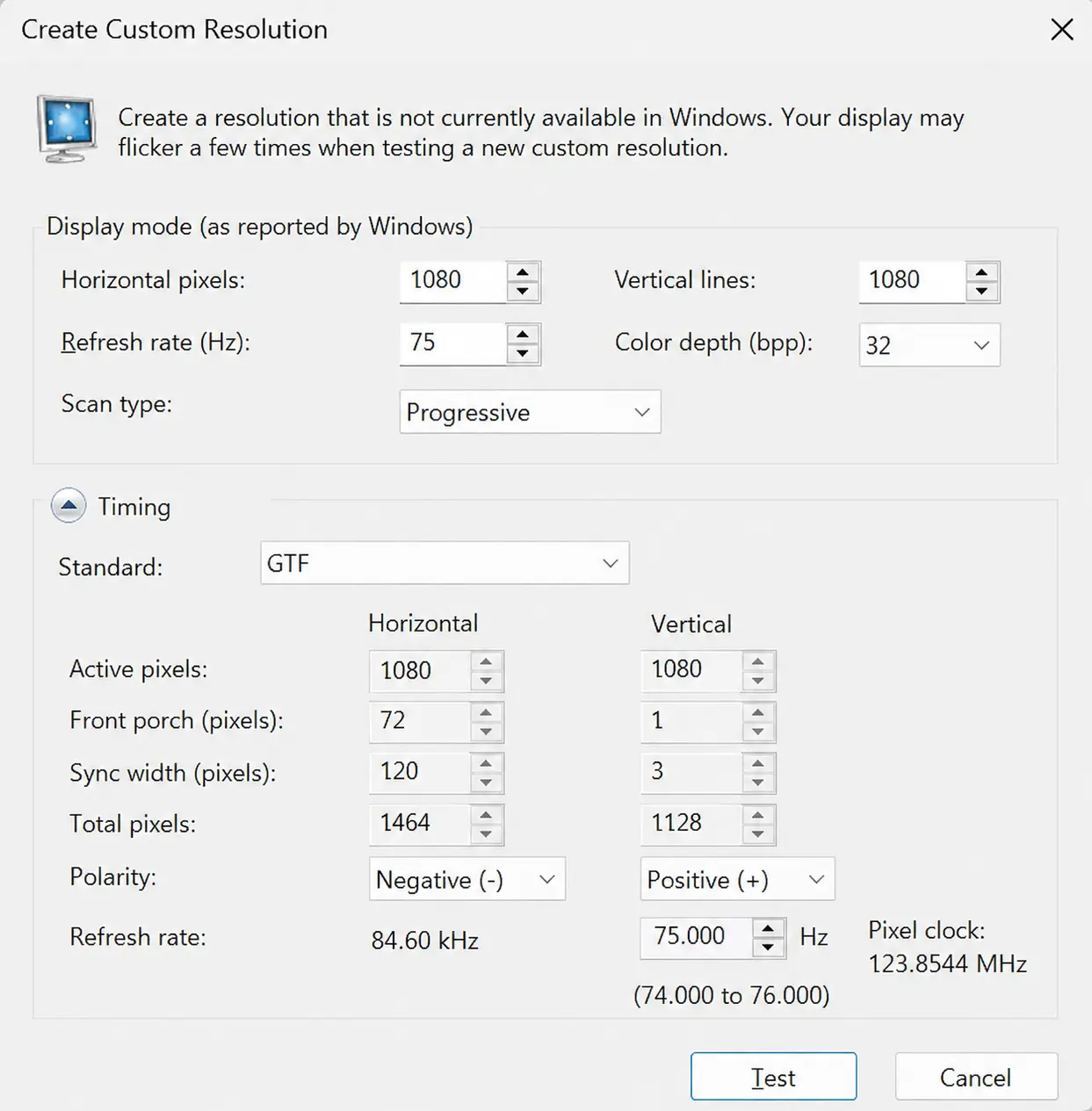
Once you've completed these steps, the new 1080×1080 resolution will appear in the list of available display modes. You can then select it in your CS2 video settings and start playing with your custom resolution.
AMD: Creating a Custom Resolution
Now let's look at how to create a 1080×1080 resolution if you're using an AMD graphics card. The process is slightly different from NVIDIA:
- Open AMD Software: Adrenalin Edition by pressing Alt + R.
- Click the gear icon in the top-right corner to open Settings.
- Go to the Display tab.
- Under Custom Resolutions, click Create New.
- Enter 1080 for both the Width and Height, then save the new resolution.
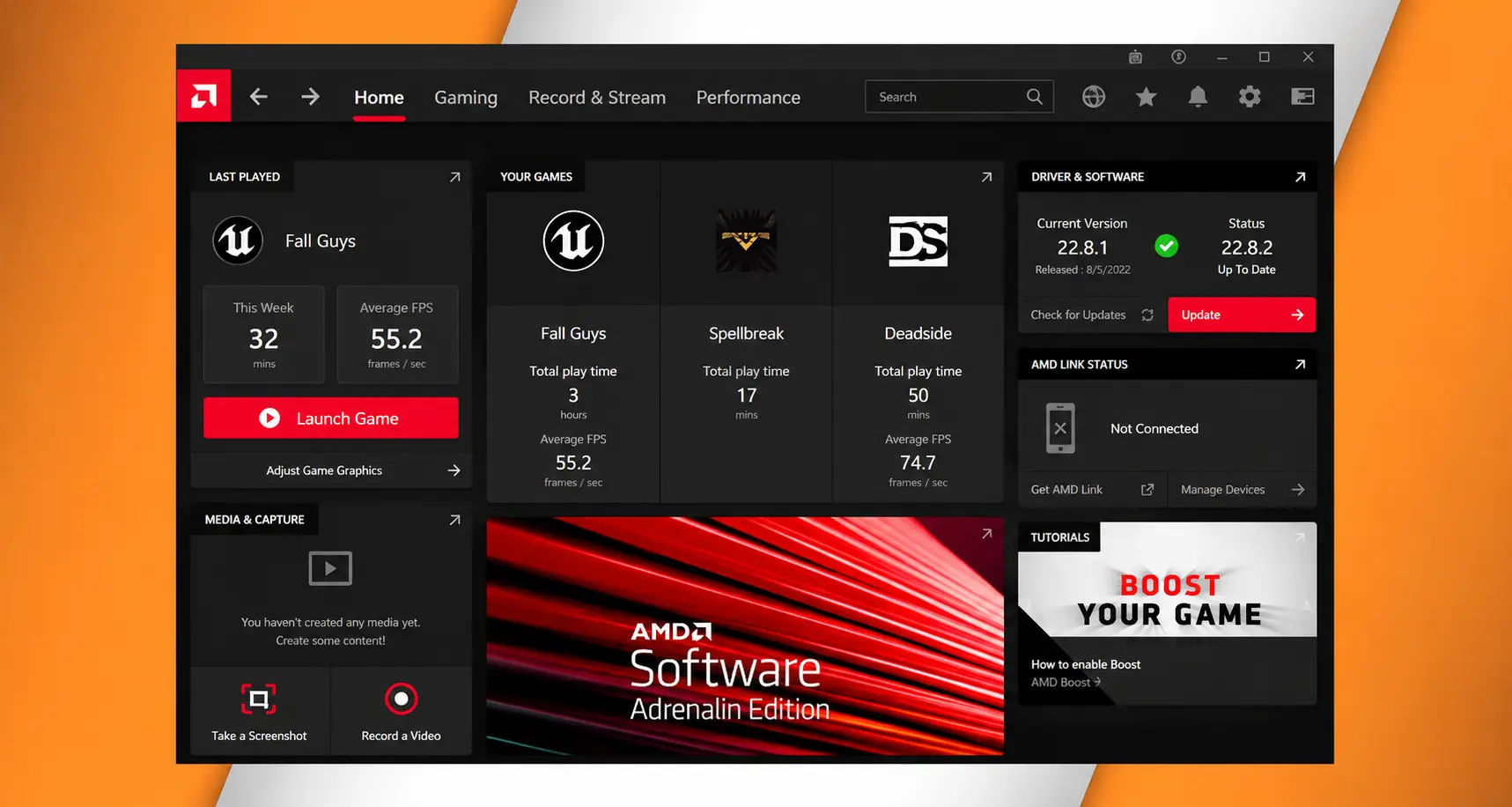
Now you now know how to set up a 1080×1080 custom resolution on an AMD graphics card. Once you've created the custom resolution, simply select it in your CS2 video settings to start using it.
Resolution settings in CS2
Once you've created your custom resolution, the next step is to enable it in Counter-Strike 2:
- Launch the game and open the Video settings.
- Set the Display Mode to Windowed or Fullscreen Windowed. This ensures that the custom resolution is applied correctly.
- Choose an Aspect Ratio of 16:10 or 1:1, depending on your preference.
- Select the 1080×1080 resolution you created earlier from the list of available resolutions.
- If everything looks correct, save your changes and test the game's performance.
Possible Issues
Black screen
Try changing the Timing setting in your graphics card's control panel. Switching to CVT or CVT-RB often resolves the issue.
Your monitor doesn't support 1080×1080
If your display cannot handle this custom resolution, try using 1440×1080 or 1024×768, which provide a similar visual experience.
The resolution keeps resetting
Open your graphics card's control panel and disable Display Scaling. This can help preserve your custom resolution settings.
Blurry image or visual distortion
Check whether GPU scaling is enabled in your graphics driver settings. In some cases, resetting your monitor to its factory settings or installing the latest graphics drivers can also solve the problem.
If none of these solutions work, try deleting your CS2 configuration file and setting up the resolution again from scratch. After installing new graphics drivers, it's also recommended to restart your computer to ensure all changes are applied correctly.
In Conclusion
A custom 1080×1080 resolution can help you focus more on the center of the screen while improving FPS stability on lower-end systems. To get the best results, make sure your monitor and graphics drivers support custom resolutions, create the resolution correctly in your graphics card's control panel, and select it in your CS2 video settings.
Don't be afraid to experiment with different resolutions and scaling modes. Compare how each setup feels in terms of visibility, performance, and responsiveness. Ultimately, only hands-on testing will help you determine which resolution works best for your own playstyle.