
Overflow Error in CS2: Why You Get Disconnected from Servers and How to Fix It
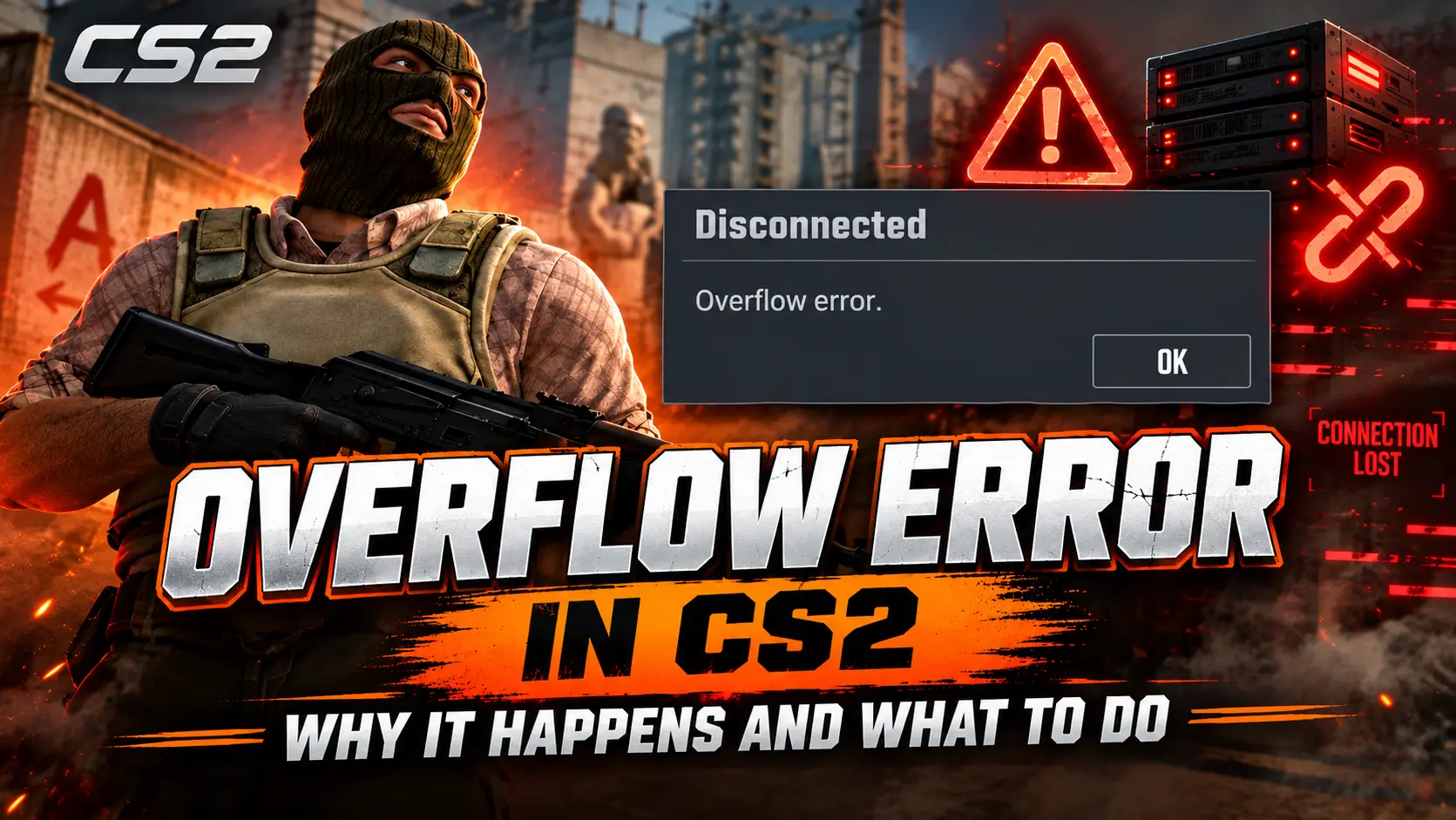
Overflow error in CS2 is an error that can disconnect you from a server and return you to the main menu. Other players may see a message indicating that you left the game due to an Overflow error. If the game client remains open, this is a disconnection from the game session rather than a typical crash that closes the application and returns you to the desktop.
The first thing to determine is whether the error affects only you or several players at once. This will help you decide what to do next. If multiple players are disconnected, it is more useful to check the match status and game updates. If you keep getting disconnected while playing on your own computer, check the game files, recent configuration changes, and your internet connection.
Quick fix: Try rejoining the current match and ask your teammates whether anyone else was disconnected. Then check for CS2 updates. If the error keeps occurring only for you, restart the game and Steam, verify the game files, and temporarily revert any recent configuration changes. There is no single command that is guaranteed to fix the Overflow error.
What Does Overflow Error Mean in CS2?
What Does Overflow Error Mean in CS2?
The word overflow means “an excess” or “overflowing.” However, the brief disconnection message does not specify which internal limit was exceeded or why. The message alone is not enough to determine whether the issue lies with the client, the server, a specific in-game situation, or a data-processing error.
An Overflow error does not prove that you are running out of RAM, that your graphics card is faulty, or that your internet connection is unstable. It is also not, by itself, a VAC ban notification. The full error message, when the disconnection occurs, and whether the problem keeps recurring are much more useful for diagnosing the issue.
Pay attention to the differences between these symptoms: being returned to the main menu with an Overflow error, the game freezing, CS2 closing entirely, and receiving a connection-lost message are different issues. A generic guide to fixing game crashes may not apply to your situation.
Overflow Error After the October 2026 CS2 Update
Following the October update, players began reporting repeated disconnections with an Overflow error. A Reddit discussion describes issues occurring across several consecutive matches, affecting both teammates and opponents. These are user reports, not an official explanation of the cause.
The October 6, 2026 CS2 patch notes list changes to how downloaded Workshop maps are handled, Vulkan shader cache flags, and the localization of the photo book. They do not provide a specific explanation of the Overflow error or state that it has been fixed.
As of October 7, 2026, no universal fix for this wave of disconnections had been found in the official notes reviewed. The timing of the reports makes it worth checking for new patches, but it does not establish that Workshop, Vulkan, or a memory leak is the cause.
How Overflow Differs from Packet Loss and Ordinary Connection Drops
Packet loss and an Overflow error are not the same thing. Packet loss occurs when some network packets fail to reach their destination. An Overflow error is the text of a specific disconnection error. The two issues may occur together, but the presence of one does not prove that it caused the other.
Other symptoms can help narrow down the cause:
-
Overflow error: You are returned to the main menu with the corresponding message, while the game may remain open. Check whether other players were disconnected and whether the error occurs on other servers.
-
Packet loss: You experience network stuttering, inconsistent player movement, or packet loss shown in the game's connection diagnostics. Start by checking your home network, background downloads, and connection to the server.
-
Ordinary disconnection or timeout: You receive a connection-lost or timeout message without an Overflow error. Check your connection and note the exact wording of the error.
-
Microstutter: The image briefly freezes, but you remain connected to the match. In this case, check frame times, system load, and background processes.
If CS2 cannot connect to official servers before you even enter a match, start by troubleshooting your connection. Do not automatically assume that this is an Overflow error.
Quick Troubleshooting Based on Symptoms
Before changing any settings, compare your situation with the scenarios below. This will help you choose what to investigate first, but it does not replace analyzing the specific match.
- Several players are disconnected at the same time. Check the match status, ask your teammates what happened, and see whether you can rejoin. This is more likely to indicate a shared session issue than a problem specific to your PC.
- The error occurs on only one server. Try another server after the current match has ended. Start by contacting the server owner or support team.
- Only you are disconnected, across multiple servers. Check for updates, verify the game files, review recent configuration changes, and inspect your network connection. You will need to troubleshoot your system step by step.
- The error started after installing a config. Try launching the game without the new config or additional launch parameters. Compare the results before and after reverting the changes.
- The error occurs on a single custom map. Check the map version and see whether the issue can be reproduced on other maps. Focus on the specific content and server instead of removing all your Workshop subscriptions.
- CS2 closes completely without a disconnection message. Look for other error messages and identify the conditions that cause the client to crash. An Overflow error mentioned elsewhere is not enough to explain this separate issue.
How to Fix Overflow Error in CS2: Step-by-Step Troubleshooting
Change one thing at a time and test the result. If you remove your config, reinstall the game, and change your network settings all at once, you will not know which action helped, if any.
1. Try to Rejoin the Current Match
Take a screenshot of the error and use the available option to rejoin the match. In a competitive game, do not abandon the match just to test another server. First, try to restore your current session.
If you manage to rejoin, ask your teammates whether they were disconnected too. Note which round the error occurred in and what happened immediately beforehand. A recurring issue triggered by the same event is more useful for troubleshooting than a general description such as “I keep getting kicked.”
2. Restart CS2 and Check for Updates
If rejoining does not work, close the game. Check the Steam Downloads page and make sure any client update has finished before launching CS2 again. If necessary, exit Steam completely through its menu and reopen it.
Restarting may resolve a temporary issue with the current session, but it will not fix a server-side error. If the entire team is disconnected at once, repeatedly restarting the game after every round is pointless. Instead, document the pattern and investigate the shared issue.
3. Verify the Integrity of CS2 Game Files
This step is worth trying if the error keeps affecting only you, started after an interrupted update, or occurs alongside other client problems. Steam will check the installed files and download any missing or damaged data if necessary.
-
Close Counter-Strike 2.
-
Open your Steam Library and right-click the game.
-
Select Properties → Installed Files.
-
Click Verify integrity of game files.
-
Wait for the verification and any required downloads to finish, then launch CS2.
Verifying the files is a standard client repair procedure, not a confirmed fix for every Overflow error. If Steam does not replace anything, move on to the next step instead of repeatedly running the verification.
You can also find instructions in Steam's official guide to verifying game files. Verifying the installation does not check your custom autoexec configuration and does not guarantee that problematic settings will be reset.
4. Temporarily Revert Recent Configuration Changes
If the disconnections started after installing someone else's autoexec, adding new binds, or applying a set of “FPS optimization commands,” revert to the previous configuration. First, back up your files and save your launch options.
-
Copy your current launch options from CS2's Steam properties into a separate text file.
-
Temporarily remove any recently added launch options.
-
If you use a custom
autoexec, temporarily rename the file and remove any commands that execute it from other configs. -
Revert new binds or macros, especially if the error occurs when you use them.
Disabling autoexec does not automatically restore settings and key bindings that have already been saved. You may need to restore these manually from your own backup. Do not delete entire userdata or cfg folders just to perform a single test.
There is no need to add new console commands during troubleshooting without a specific reason. First, identify what the launch options and configuration commands you already use actually do.
5. Clear the Steam Download Cache if You Have Update Issues
Clearing the Steam download cache is worth trying if the CS2 update gets stuck, repeatedly downloads files, or fails to complete. This is not the same as verifying game files, and it is not a proven fix for Overflow errors when downloads are working normally.
-
Close CS2. Perform this procedure after your current match, as you will need to sign in to Steam again.
-
Open Steam → Settings → Downloads.
-
Find Clear Download Cache and confirm the action.
-
Sign in to your account again, using Steam Guard if required.
-
Wait for the update to finish, then try launching the game.
According to Steam's instructions, clearing the download cache does not delete installed games. Before proceeding, make sure you can sign in to your account again.
What to Do If the Overflow Error Keeps Occurring
After completing the basic checks, put together a brief description of the issue and the conditions under which it occurs. This will help support teams distinguish a server-specific problem from a recurring client-side error.
Include the following information in your report:
-
The full error message or a screenshot.
-
The date, time, and time zone.
-
The game mode, map, and match link or ID.
-
Whether one player or several players were disconnected at the same time.
-
Whether you managed to rejoin and how long it took for the error to occur again.
-
Any recent configuration changes and the results of the troubleshooting steps you have already tried.
For FACEIT matches, contact the platform's support team. For community servers, contact the server administrator. For official servers, check Valve's CS2 news and patch notes for updates and fixes.
Do not include your password, Steam Guard codes, or other account credentials in your report.
Random CS2 Guides
Learn how to change your hand position in CS2 using viewmodel commands. Copy configs from pro players like m0NESY, donk and kyousuke.