
Learn how to change your hand position in CS2 using viewmodel commands. Copy configs from pro players like m0NESY, donk and kyousuke.
04 July 2026

Why Bots Stand Still in CS2 and How to Fix Bots Not Movin
During practice or when playing with bots, many players run into the same annoying issue - the AI simply freezes on spawn and does nothing. Instead of taking positions, pushing bombsites, or looking for enemies, bots stand still in CS2 like training dummies. This usually happens after using console commands, loading a practice config, or launching a custom Workshop map.
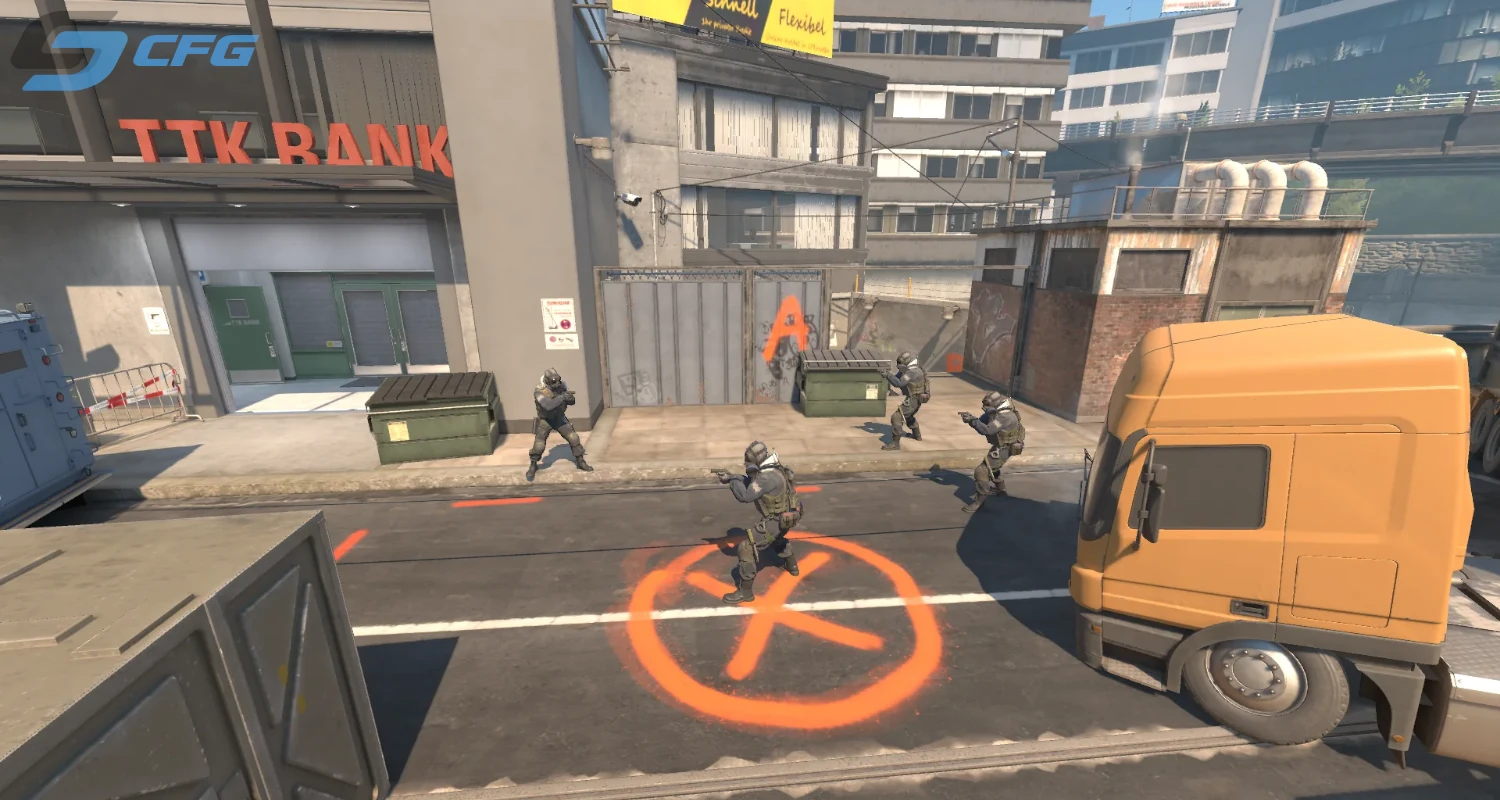
In most cases, this problem is easy to fix and only takes a few seconds. The reason may be an enabled console command, incorrect server settings, broken map navigation, or bot-related parameters. In this guide, we will explain why bots stand still in CS2, which commands usually cause this issue, and how to make bots move normally again.
Which commands make bots stand still?
If CS2 bots are not moving, the first thing you should check is the console. In most cases, the reason is very simple - one of the practice commands was enabled earlier. Many players download ready-made aim configs or grenade practice configs and then forget to reset the bot settings back to normal.
The most common command is bot_stop 1. Once enabled, all bots stop doing anything. They do not move, shoot, react to sounds, or leave their spawn positions. This command is useful for learning maps or practicing wallbangs, but after using it many players start wondering why bots stand still in CS2.
To return bots to normal behavior, enter this command:
bot_stop 0
Another common command is bot_dont_move 1. It works a bit differently. Bots stay in place, but they can still shoot if they see the player. This mode is often used for aim training against static targets.
You can disable it with this command:
bot_dont_move 0
There is also the bot_zombie 1 command. When it is enabled, bots become completely harmless. They do not move, do not attack, and simply stand in their positions. This is a good option for beginners who want to practice aim or recoil control without getting punished.
| Command | What it does | How to disable it |
|---|---|---|
bot_stop 1 |
Completely stops all bots |
bot_stop 0
|
bot_dont_move 1 |
Bots stand still but can still shoot |
bot_dont_move 0
|
bot_zombie 1 |
Bots become fully passive |
bot_zombie 0
|
bot_crouch 1
|
All bots stay crouched |
bot_crouch 0
|
In most cases, these four commands are the reason why a bot stands still in CS2. Before looking for more complicated fixes, always check the console and make sure none of these commands are active.
Why bots do not move because of bot_quota_mode
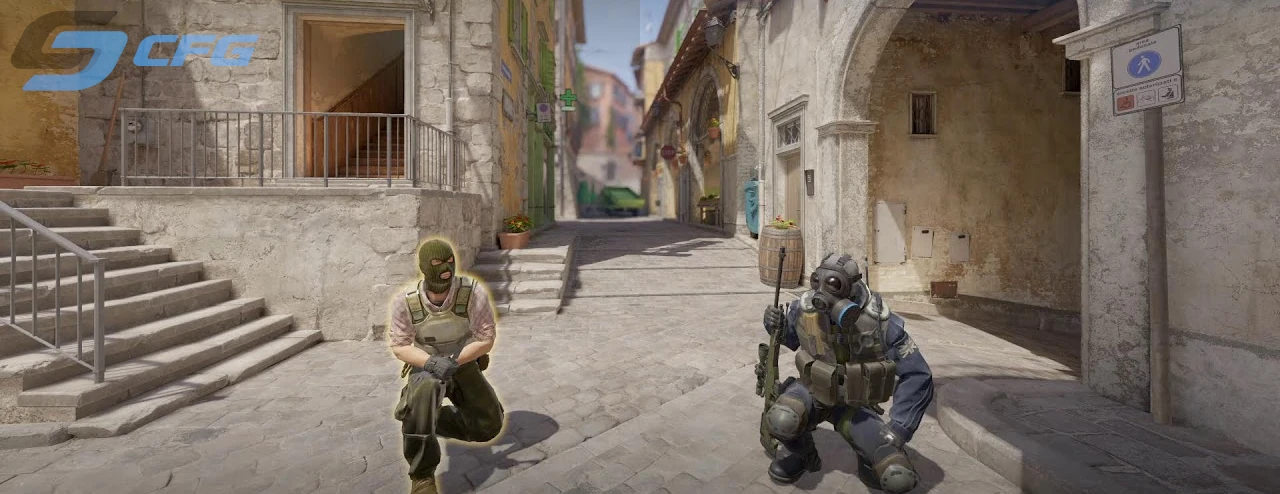
Another reason that many players do not know about is the bot_quota_mode parameter. This command controls how the server adds and distributes bots between teams.
After some CS2 updates, players noticed that bots appear on the map but stay frozen on spawn. At the same time, commands like bot_stop were not enabled. In many of these cases, the problem was fixed by changing the bot_quota_mode value.
The most stable option is:
bot_quota_mode fill
After that, the server automatically keeps the required number of players and activates bots correctly. Then you only need to set the number of bots with this command:
bot_quota 10
For better results, restart the round right away:
mp_restartgame 1
If you are looking for a fix for CS2 bots standing AFK, the bot_quota_mode fill setting is one of the most effective solutions and helps in most cases.
Map navigation issues - another reason why bots stand still in CS2
If you have already checked your console commands but CS2 bots still are not moving, the issue may be related to the map itself. In Counter-Strike 2, bots rely on a special navigation system called the Nav Mesh. It tells the AI where to move, how to avoid obstacles, and how to reach bombsites.
Official maps such as Mirage, Dust 2, Inferno, Ancient, Nuke, and Anubis rarely have navigation problems. However, custom Steam Workshop maps are a different story. Some creators do not generate the navigation mesh correctly, causing bots to behave strangely. They may stay at spawn, run into walls, jump endlessly in one place, or simply refuse to move.
If the issue only happens on one specific map, there is a good chance that the broken Nav Mesh is the real cause rather than your game settings.
The most common signs of a broken navigation mesh include:
- bots standing still at spawn;
- running directly into walls;
- getting stuck in doorways or corners;
- jumping repeatedly in one spot;
- turning around for no reason and running back.
You can check the navigation mesh by using the following command:
bot_show_nav 1
Before using it, enable cheats:
sv_cheats 1
This command displays the navigation areas used by bots. If parts of the map are missing or disconnected, you've found the reason why bots are standing still in CS2.
Unfortunately, players cannot fix a broken Nav Mesh themselves. The only solution is to use another Workshop map or switch to an official Valve map.
Server settings that can affect bot movement
Sometimes the issue is not caused by the bots themselves but by your server configuration. Certain server settings may prevent bots from joining or moving correctly, making them appear AFK even though the game is simply waiting for specific conditions.
Pay special attention to the following commands:
| Command | Recommended Value | Purpose |
|---|---|---|
| mp_autoteambalance | 0 | Disables automatic team balancing |
| mp_limitteams | 0 | Removes team size restrictions |
| bot_quota | 5-10 | Sets the number of bots on the server |
| bot_difficulty | 2-3 | Sets medium or hard bot difficulty |
If you are practicing alone against multiple bots, make sure automatic team balancing is disabled. Otherwise, the server may prevent bots from joining or moving correctly.
Keep in mind that these commands only work in private lobbies or local servers. They cannot be used in official matchmaking.
How to make bots stand still for practice
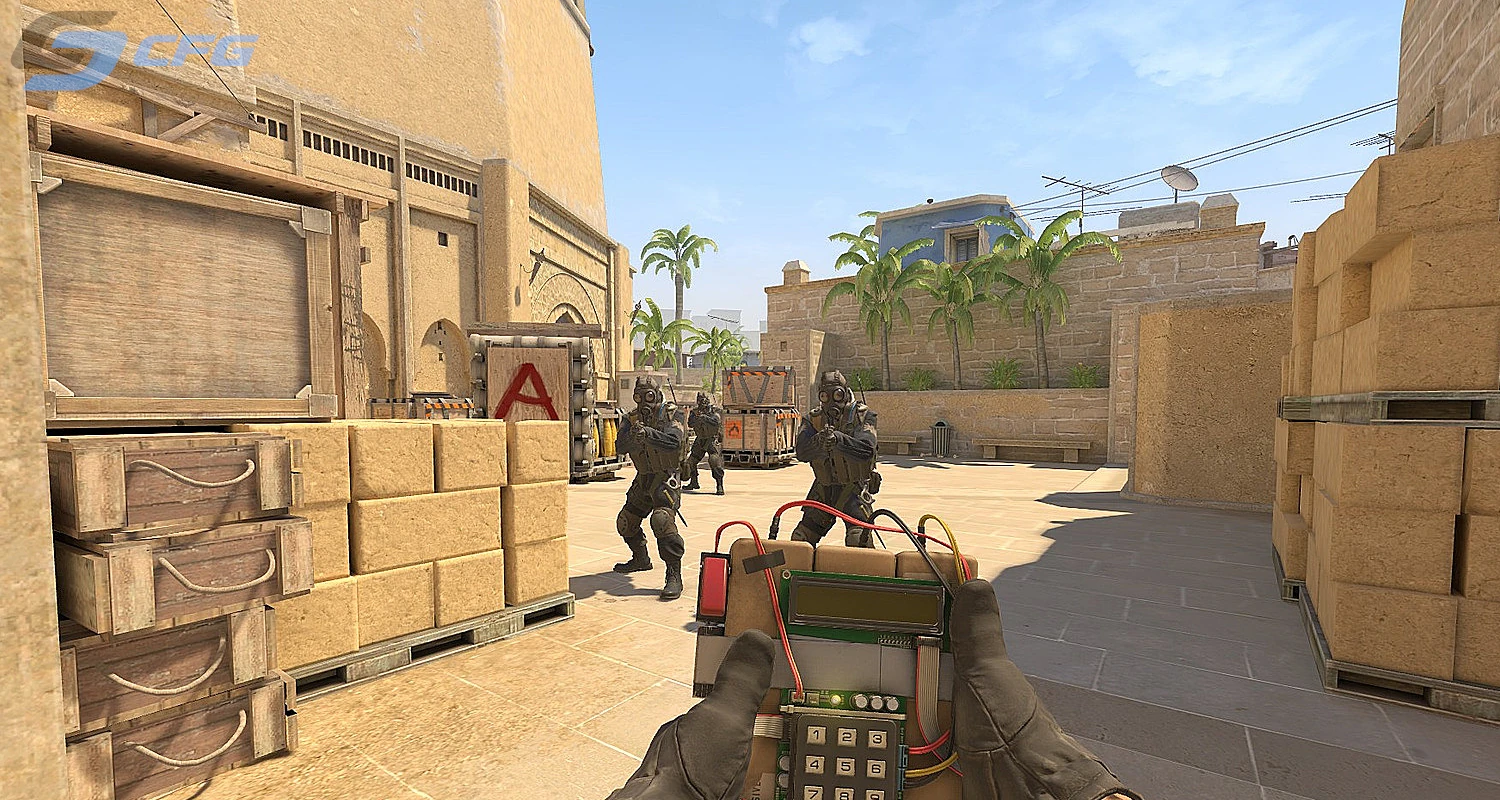
Sometimes players want the exact opposite. Many users search for how to make bots stand still in CS2 so they can practice aim, prefire angles, wallbangs, or grenade lineups without moving targets.
The easiest setup is:
sv_cheats 1; bot_kick; bot_quota 5; bot_add_ct; bot_stop 1
After running these commands, every bot you add will remain completely stationary.
If you want to place a bot exactly where your crosshair is pointing, use:
bot_place
This command instantly spawns a bot in front of you, making it perfect for practicing peeks, prefire angles, and common positions.
Many players also combine these commands:
mp_roundtime_defuse 60; sv_infinite_ammo 1; sv_grenade_trajectory 1;
This creates an ideal practice server with unlimited time, infinite ammo, and visible grenade trajectories.
What should you do if bots still are not moving?
If you have already disabled bot_stop, checked bot_quota_mode, switched maps, and adjusted your server settings, but bots still do not move in CS2, it is time to completely reset their configuration.
Follow these steps:
- Enter bot_stop 0.
- Disable bot_dont_move 0.
- Enter bot_zombie 0.
- Remove all bots using bot_kick.
- Add them again with bot_add_ct or bot_add_t.
- Restart the round with mp_restartgame 1.
If the issue still persists, verify the integrity of your game files through Steam. Damaged game files after updates can sometimes cause unusual bot behavior.
Final thoughts
In most situations, the answer to why bots stand still in CS2 is surprisingly simple. The problem is usually caused by practice commands such as bot_stop 1 or bot_dont_move 1. Less commonly, it is related to bot_quota_mode, server settings, or broken navigation on custom Workshop maps.
By checking your console commands, restarting the round, and re-adding the bots, you can solve the issue in almost every case. If you actually need stationary bots for practice, simply use bot_stop together with bot_place to build your own training server in just a few seconds.
Frequently Asked Questions
Why are bots standing still in CS2?
The most common reason is that commands such as bot_stop 1, bot_dont_move 1, or an incorrect bot_quota_mode setting are enabled. Broken Workshop map navigation can also cause bots to stop moving.
How do I make bots move again in CS2?
Use bot_stop 0 and bot_dont_move 0, then restart the round with mp_restartgame 1. If necessary, remove all bots using bot_kick and add them again.
Why do bots only stop moving on one specific map?
This is usually caused by a broken Nav Mesh. Some Steam Workshop maps have incorrect bot navigation, preventing bots from finding valid paths.
How can I make bots stand still for aim practice?
Enable sv_cheats 1, add bots, and use the bot_stop 1 command. If you want to place a bot at a specific location, use bot_place.
Do bot commands work in official matchmaking?
No. Most bot commands are only available in private lobbies, local servers, or practice mode with the required permissions.