
Learn how to fix a black screen in CS2 on startup.
14 October 2026
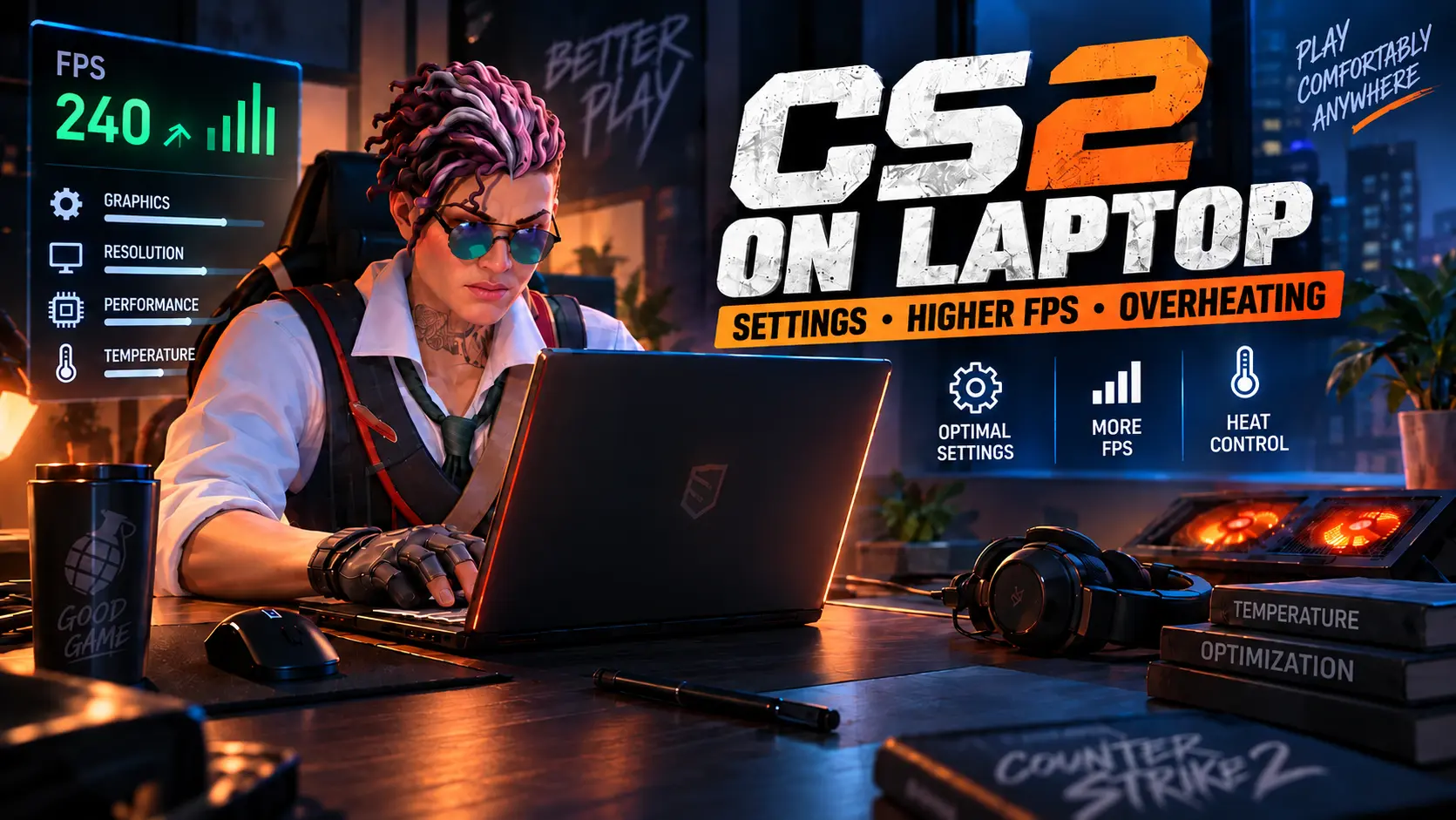
CS2 on a Laptop: How to Optimize the Game, Increase FPS, and Reduce Heat
CS2 on a laptop can perform very differently depending on whether the laptop is running on battery power or plugged in, whether it is in quiet or performance mode, and whether the game is using the integrated or dedicated GPU. Low FPS does not always mean you need to lower the resolution immediately or buy a new computer.
Start by configuring power settings and selecting the GPU, then adjust the graphics settings and check performance after the laptop has warmed up. The goal is to achieve a stable frame rate during matches: a high FPS count in the main menu says nothing about how smoothly the game will run during a firefight with smokes.
Can Your Laptop Run CS2? System Requirements and Limitations
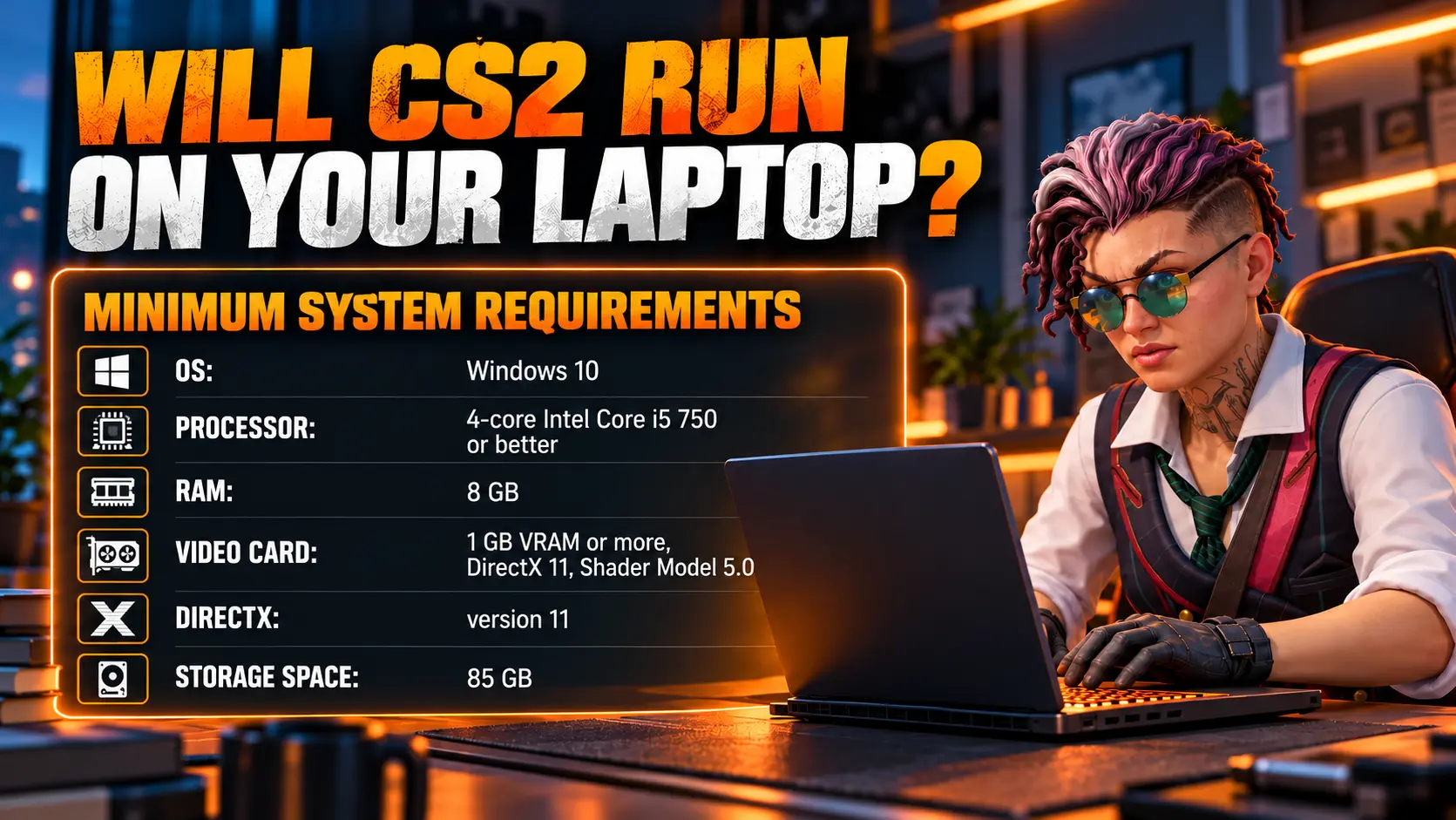
For Windows, the CS2 page on Steam lists the following minimum system requirements. These are the requirements for running the game, not a guarantee of stable 60, 144, or 240 FPS.
Minimum system requirements:
-
Operating system: Windows 10
-
Processor: Intel Core i5-750 or better, with four hardware threads
-
RAM: 8 GB
-
Graphics card: NVIDIA GTX 660 or AMD Radeon HD 7850, with at least 1 GB of VRAM
-
Free storage space: 85 GB
Leave some additional free space for updates before installing the game. The fact that Windows 10 is listed in the requirements does not mean you need to switch to an older operating system.
Labels such as “Core i5,” “Ryzen 7,” or “gaming laptop” are not enough to assess performance. You need the exact processor model, graphics card, RAM capacity, and memory configuration. Even laptops with the same GPU model can differ in power limits and cooling performance.
Recommended system requirements:
-
Operating system: Windows 10
-
Processor: Intel Core i5-6600K or AMD Ryzen 5 1600 or better
-
RAM: 16 GB
-
Graphics card: NVIDIA GTX 1060 or AMD RX 580, with at least 4 GB of VRAM
-
Free storage space: 85 GB
You can check your processor, memory, and graphics cards in Task Manager → Performance. When comparing your laptop with benchmark reviews, look for tests of your exact model or a similar configuration. Check the test date, map, resolution, and settings: an old CS2 benchmark cannot automatically be considered accurate after subsequent updates.
Why Does CS2 Stutter on a Laptop?
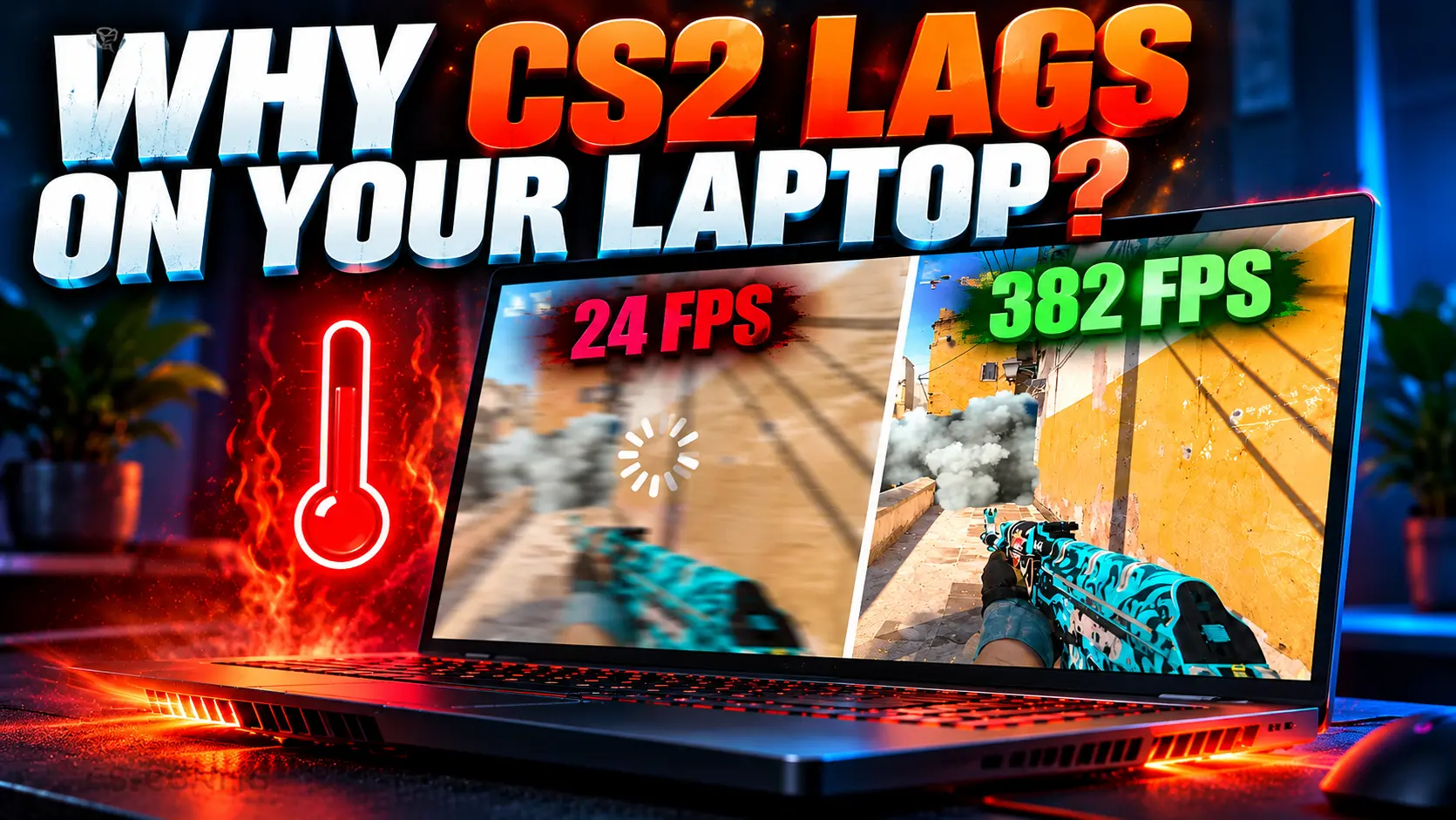
First, identify when the problem occurs. This will help you choose the right fix instead of randomly changing every setting.
Common CS2 performance issues on laptops:
-
Lower FPS on battery power: Power limits and battery-saving features may be restricting performance. Start by testing the game with the appropriate power adapter connected.
-
Low FPS from the very beginning: The hardware may be underpowered, the graphics settings may be unsuitable, power-saving features may be enabled, or the game may be using the integrated GPU. Check the active GPU and power mode.
-
Performance gets worse after 10–20 minutes: Thermal or power throttling, or background activity, may be responsible. Compare clock speeds and FPS in the same scene before and after the laptop warms up.
-
FPS is capped at exactly 30, 60, or 120: The limit may come from the game, driver, quiet mode, or synchronization settings. Check for frame rate caps before investigating overheating.
-
High average FPS but frequent stutters: Inconsistent frame times, memory limitations, or background processes may be the cause. Check frametime and whether the drops occur consistently.
-
Players teleport or commands are delayed: Packet loss or an unstable network connection may be responsible. Test the connection separately from graphics performance.
FPS and ping describe different problems. Switching from Wi-Fi to an Ethernet cable may improve your connection, but it will not solve a lack of GPU processing power. Similarly, lowering the resolution will not fix packet loss.
Laptop Power and Performance Modes
Connect the Appropriate Power Adapter
To test FPS in CS2 on a laptop, use the original power adapter or one recommended by the manufacturer with the appropriate wattage. The fact that a laptop can be charged via USB-C does not necessarily mean that a particular charger provides the same gaming performance as the included power adapter.
If connecting the power adapter does not change performance, check whether the laptop recognizes it correctly and whether there are any warnings about its wattage. Do not try to compensate for a charger-related problem with launch options.
Compare Windows and Manufacturer Performance Modes
Open Windows Settings and navigate to the system and power options. If available, select a power mode that prioritizes performance while the laptop is plugged in. Then open the laptop manufacturer's utility, such as Armoury Crate, Lenovo Vantage, MSI Center, or the equivalent software for your model.
Quiet mode may limit CPU and GPU power to reduce noise. Start by comparing it with Performance or a similar gaming profile. Turbo is not necessarily the best compromise: check whether the performance gains persist after the laptop warms up and whether the noise level is acceptable.
Available modes and their features vary by manufacturer. Change one setting at a time. Do not disable the manufacturer's utility without knowing what it does, as some models rely on it to control the fans and GPU mode.
How to Run CS2 on the Dedicated Graphics Card
If your laptop has both integrated and dedicated graphics, check which GPU is assigned to the game itself. In Windows 11:
-
Open Settings → System → Display → Graphics.
-
Find CS2 or add it as a desktop app.
-
Select the
cs2.exeexecutable from the installed game directory. -
Choose High performance and check the GPU name displayed by Windows.
-
Save the changes and restart CS2.
The path relative to the game's installation folder on Windows is:
game\bin\win64\cs2.exe
Open the installation folder through Steam: CS2 Properties → Installed Files → Browse. Selecting a GPU for steam.exe does not replace configuring cs2.exe.
During testing, check which graphics processor the game is using through a monitoring tool or the GPU Engine column in Task Manager. Match the GPU number to its name in the Performance tab. Do not automatically assume that GPU 0 is the integrated graphics card, as numbering can vary.
MUX, Optimus, and External Monitors
In hybrid mode, the dedicated GPU may render the game while the integrated GPU helps output the image to the display. Therefore, activity on both GPUs does not necessarily indicate a problem.
If your laptop supports a MUX switch or a dedicated-GPU-only display mode, compare it with hybrid mode according to the manufacturer's instructions. A restart may be required, and battery life will usually change. On laptops with Advanced Optimus, switching may happen automatically.
An external monitor does not guarantee higher FPS. The result depends on which GPU the specific HDMI or USB-C/DisplayPort connector is wired to. Check the port configuration for your laptop model. You do not need to disable the integrated GPU in Device Manager instead of using the manufacturer's supported switching method.
CS2 Settings for Laptops: Where to Start
Below is a starting point for testing, not a universal preset for maximum FPS. Setting names may vary slightly after updates. Save screenshots of your current settings first.
Recommended starting settings for CS2 on a laptop:
-
Display mode: Fullscreen for the initial comparison. If you prefer borderless windowed mode, test it separately in the same scene.
-
Resolution: Native resolution; lower it if the GPU is struggling. Compare 1920×1080 with 1600×900 or 1280×720, if available.
-
MSAA anti-aliasing: Off or 2×. Check the performance impact and how easily you can distinguish player silhouettes.
-
Models and textures: Low if memory is limited, then test Medium. Pay attention not only to average FPS but also to stuttering while moving.
-
Shaders and particles: Low for the initial test. Check a scene with grenades and visual effects.
-
Global illumination: Off for comparison. Evaluate the difference in performance and image quality.
-
Shadows: Adjust separately. When lowering shadow quality, check whether player shadows remain visible. Do not disable everything without evaluating the impact.
-
FSR upscaling, if available: Start with it disabled. Try it if the GPU is the bottleneck, and compare the sharpness of distant targets.
-
Vertical sync: Disabled for the baseline test of input latency and frame rate limits. Screen tearing may occur; configure VRR separately if you use it.
-
NVIDIA Reflex, if available: Enabled. Test Boost separately, considering latency, power consumption, and heat.
For a laptop, you should not automatically select Reflex Enabled + Boost. NVIDIA notes that the additional mode can increase power consumption. This is a latency-related setting, not a guarantee of higher FPS.
4:3 is not a mandatory setting for low-end laptops. Performance depends on the number of pixels rendered, not the aspect ratio itself. For example, 1280×960 contains more pixels than 1280×720. Choose a combination of performance and visual clarity that works for you.
If significantly lowering the resolution barely increases FPS, do not keep sacrificing image quality blindly. Check the frame rate limit, CPU usage, power settings, and background tasks. Low overall CPU utilization does not rule out a bottleneck in individual CPU threads.
Can You Play CS2 Without a Dedicated Graphics Card?
CS2 performance on integrated graphics depends on the specific GPU, processor power limits, and laptop memory. Older Intel HD/UHD graphics and modern integrated solutions from Intel or AMD should not be evaluated in the same way. DirectX compatibility alone does not guarantee a comfortable frame rate.
For your first test, use a lower available resolution, low graphics settings, and MSAA disabled. Close unnecessary programs, then test a typical in-game scene. If performance is still insufficient under these conditions, no “secret config” will eliminate the hardware limitation.
Integrated graphics use system memory. Therefore, memory capacity and configuration affect available resources. Increasing the dedicated memory buffer in the BIOS does not, by itself, make the GPU faster. Check whether RAM can be upgraded for your exact laptop model: memory may be soldered, and the number of modules does not always tell the whole story about the memory channel architecture.
The official minimum requirement is 8 GB of RAM, but the operating system, applications, and graphics also consume memory. As a practical guideline for a laptop, consider 16 GB or more. This is not a separate Valve requirement or a guarantee of a specific FPS.
In Conclusion
When optimizing CS2 on a laptop, start with power settings, performance mode, and GPU selection. Then adjust the graphics settings and FPS limit based on repeatable tests conducted after the laptop has warmed up. This approach helps identify the actual cause of performance drops and maintain a comfortable image quality without relying on useless launch commands.
Random CS2 Guides
13 September 2026 Tutorial
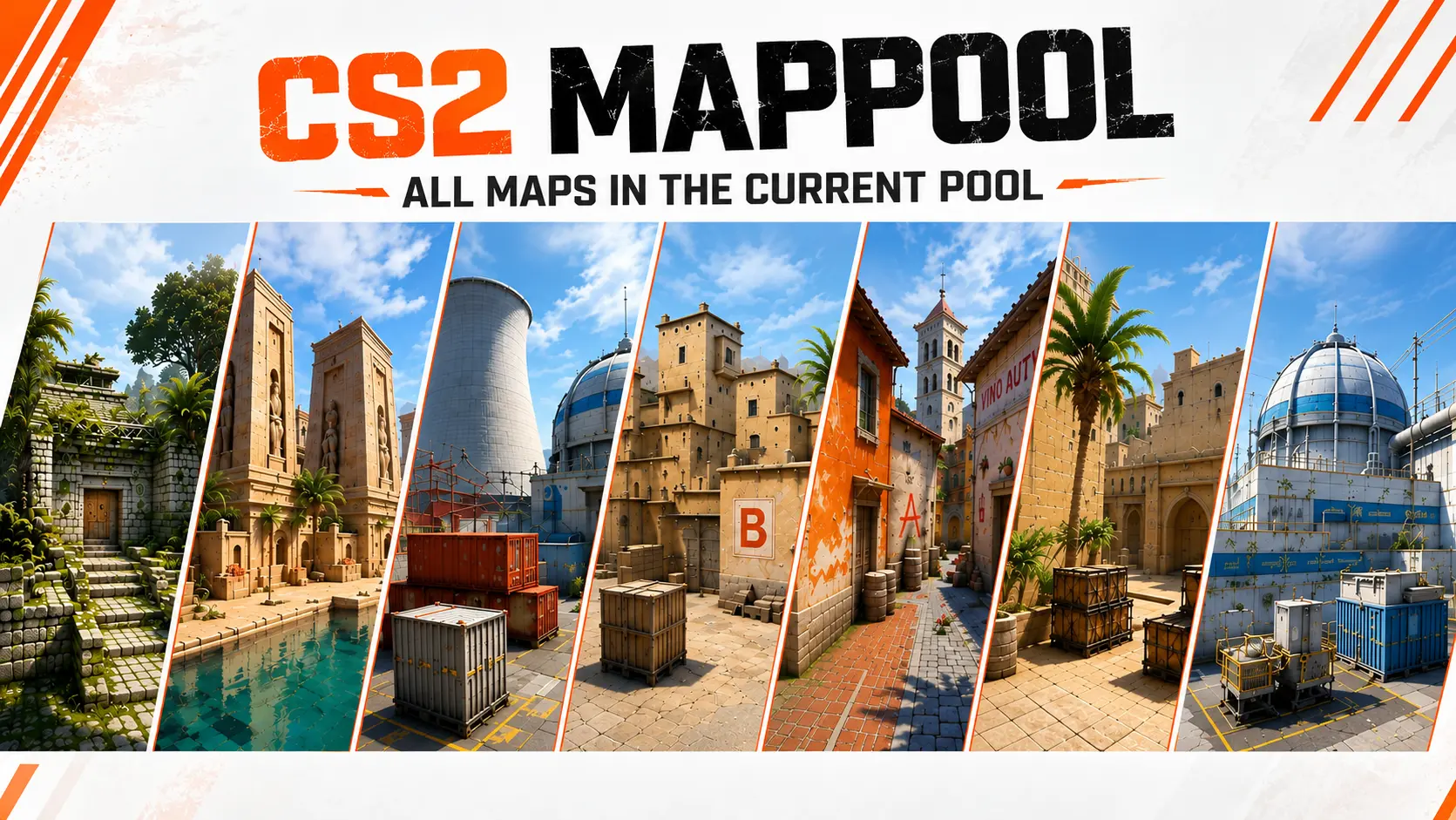
Learn about the current CS2 map pool in 2026. See all Premier maps and recent Active Duty rotations.

29 May 2026 Tutorial
Learn how to get the Ballistic Shield in CS2 using console commands. Find the shield command, bind setup, shield mechanics, and whether it can be used in Counter-Strike 2 matchmaking.