
Learn how to optimize CS2 on a laptop, increase FPS, reduce stuttering and overheating.
18 October 2026
Failed to Connect to Official CS2 Servers
The “Failed to connect to official CS2 servers” message appears when the game cannot establish a connection to the Valve services required for matchmaking. In the English interface, the same issue may appear as “Failed to reach any official servers” or be accompanied by the message “Unknown network error.” Meanwhile, your browser, Discord, and even community servers may continue to work.
Possible causes include a Steam outage, a frozen client, a VPN, firewall restrictions, incorrect DNS settings, your home router, or your ISP's network routing. You do not need to reinstall CS2 immediately. First, determine whether the problem is server-side or local, then work through the troubleshooting steps in order.
Quick fix: Fully close CS2 and Steam, check the status of Counter-Strike services, restart your router, disable your VPN, proxy, and Cloudflare WARP, then try connecting through a mobile hotspot. If the game works through your phone's connection, the problem is likely with your home network or ISP. If the error persists across all networks, allow Steam and CS2 through your firewall, verify the game files, and flush your DNS cache.
What Does the Official CS2 Server Connection Error Mean?
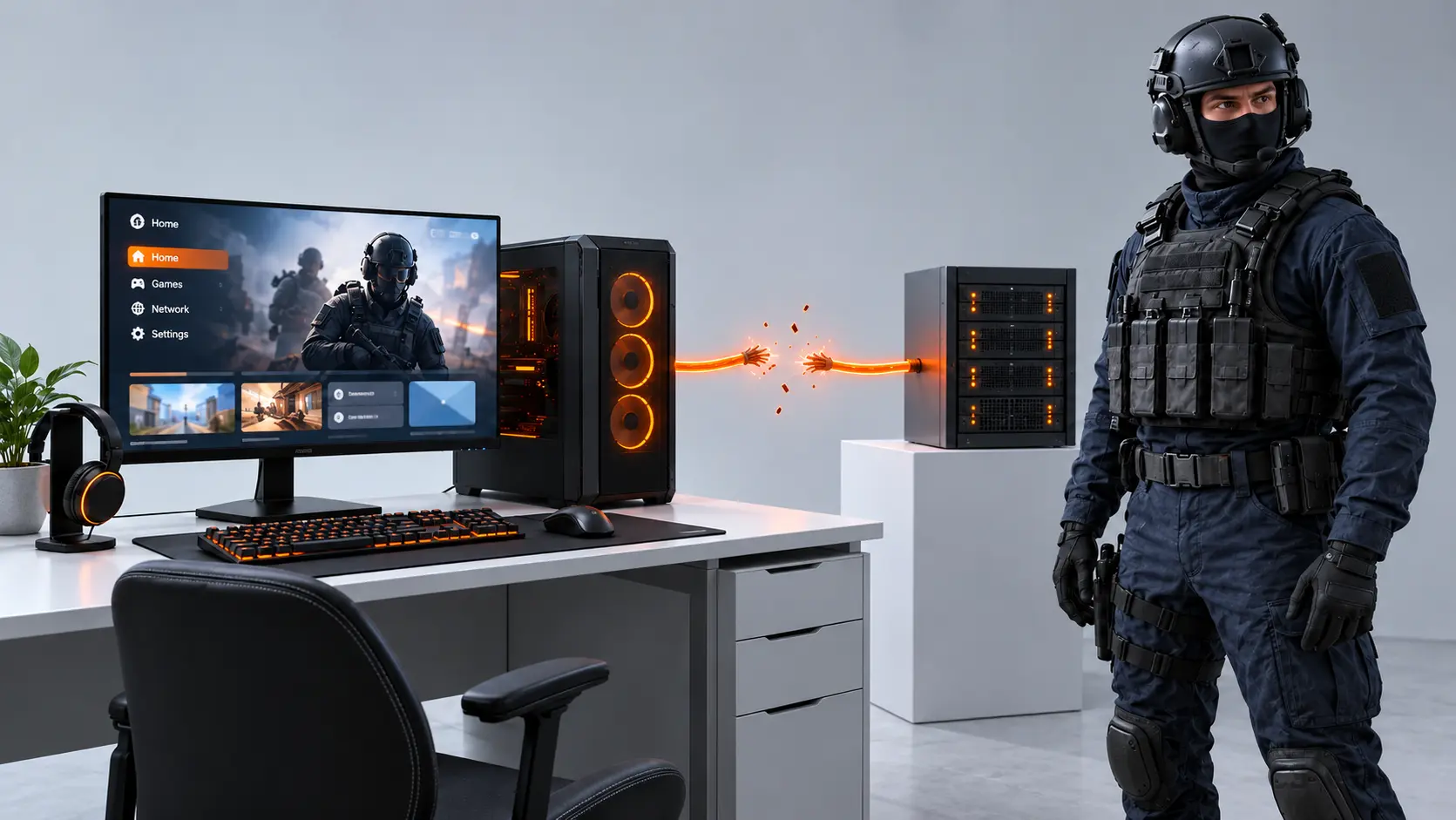
When launching official matchmaking, CS2 communicates with several services rather than connecting to a single address. The game relies on Steam authentication, the Counter-Strike coordinator, the matchmaking system, and regional game servers. If any required stage becomes unavailable, matchmaking will not start, and the client displays a connection error.
This message alone does not indicate a VAC ban, a low Trust Factor, or a corrupted inventory. It is also different from being disconnected from an ongoing match: the error appears before you connect, when the client fails to receive a valid response from the network services.
The symptoms can help you identify the likely cause. If the error appears for many players at the same time, Steam or Counter-Strike services may be experiencing an outage. If Steam itself cannot connect and your friends list or profile will not load, the problem may involve Steam authentication, the client, or your general internet connection.
If CS2 works over mobile data but not through your home internet, focus on your router, DNS settings, ISP restrictions, and network routing. If the error disappears after you disable your VPN, the VPN, proxy, Cloudflare WARP, or a virtual network adapter may be interfering with the connection. If the issue occurs on only one computer, check its firewall, antivirus, and Windows network settings. Finally, if community servers work but official matchmaking does not, the issue may involve matchmaking services, traffic filtering, or the route to Valve's servers.
How to Quickly Identify the Cause
Testing another network provides more useful information than randomly changing settings. Connect your computer to your smartphone's mobile hotspot, fully restart Steam, and try to start matchmaking. This simple test helps distinguish between problems with your computer, home network, and Valve's services.
-
CS2 connects successfully through your phone. The game and its files are probably working correctly. Check your router, DNS, ISP restrictions, and home network configuration.
-
The error persists on the mobile hotspot. The problem may be related to your computer, the Steam client, or Valve's services.
-
Another computer works on the same home network. Focus on your firewall, VPN adapters, antivirus, and Windows network stack.
-
Multiple devices and players cannot connect. A wider service outage or network issue is more likely. Wait for the services to recover before changing local settings.
Before moving on to advanced troubleshooting, follow this basic sequence: close Steam through Steam → Exit, restart your router, disable your VPN and proxy, check that Windows date and time are set automatically, and sign in to Steam again. Test matchmaking after each step so you can identify which change helped.
Checking CS2 and Steam Server Status
If CS2 cannot connect to servers unexpectedly and other players are experiencing the same issue, first rule out an outage or scheduled maintenance.
The unofficial service Steamstat.us displays separate statuses for Steam Connection Managers, Counter-Strike API, CS Sessions Logon, and Matchmaking Scheduler. Session authentication and matchmaking services are particularly relevant when you cannot start an official match.
If a relevant service shows an outage and players across different networks report the same error, troubleshooting Windows is unlikely to help. Wait for the services to recover and try again later.
A green status does not guarantee that there is no regional issue. If the status looks normal, compare your connection with a mobile hotspot before making further changes.
Restarting CS2, Steam, and Your Router
Closing the Steam window does not always terminate all its processes. To restart the client properly, exit CS2, open the Steam menu, and select Exit. If Steam is frozen, open Task Manager and end the remaining Steam and CS2 processes before launching the client again. You do not normally need to run Steam as an administrator to fix this error.
-
Unplug your router or modem for approximately 30 seconds.
-
Reconnect it and wait until your internet connection is fully restored.
-
If your computer uses Wi-Fi, try an Ethernet cable or a 5 GHz Wi-Fi network, if available.
-
Launch Steam, wait for your friends list to load, and only then open CS2.
Restarting can clear stuck network sessions, refresh the connection to your ISP, and allow the network route to be re-established. If the problem occurs only over Wi-Fi, check signal strength, your wireless adapter driver, and channel congestion.
For stuttering that occurs during an actual match, see the separate guide on how to fix micro-stuttering in CS2. Connection errors that prevent matchmaking and in-game network lag require different troubleshooting methods.
VPNs, Proxies, and Unnecessary Network Adapters
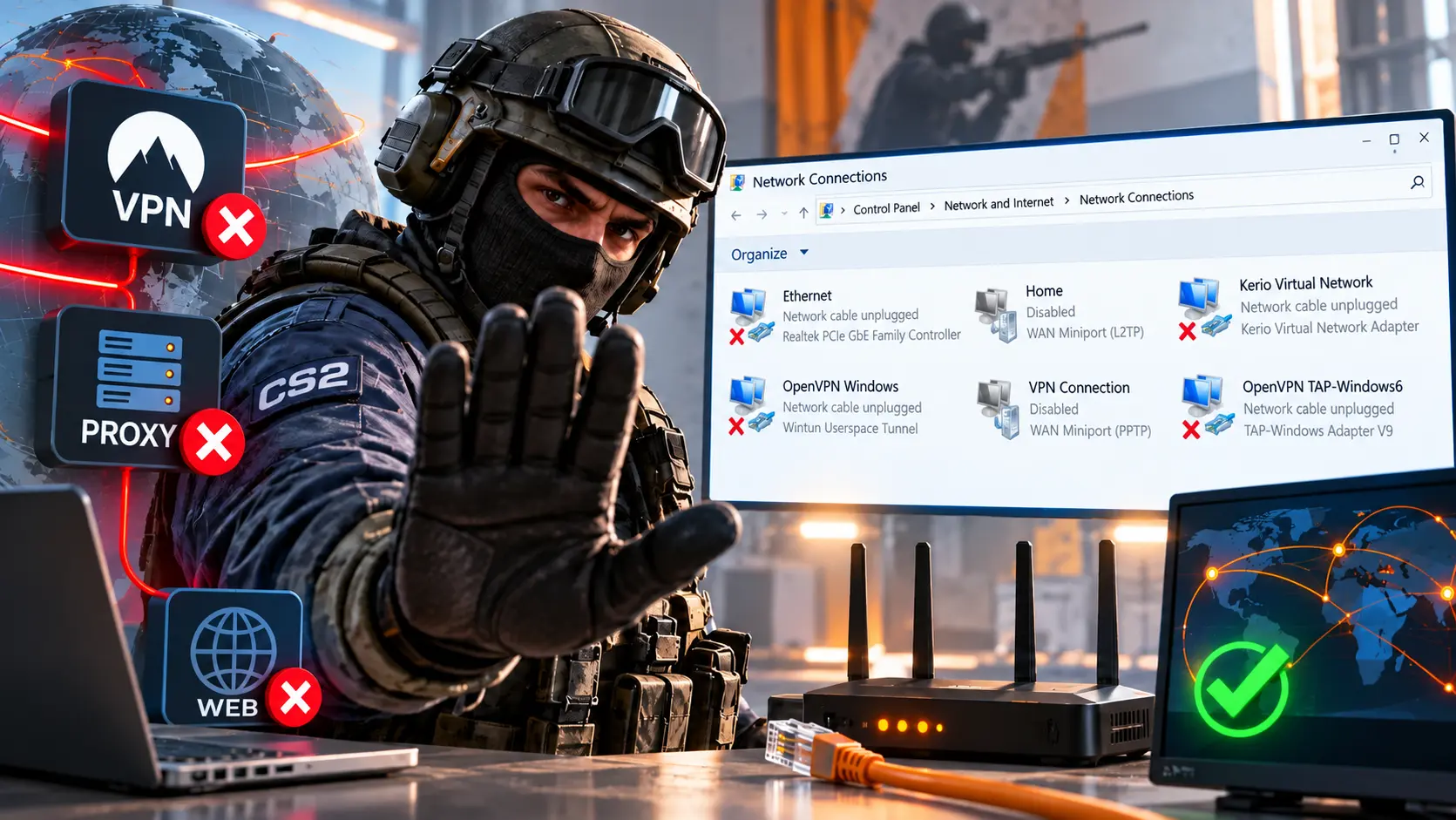
A VPN changes your routing path and public IP address, and some services filter UDP traffic or use unstable nodes. Before launching CS2, fully disable your VPN, Cloudflare WARP, gaming network accelerator, and manual proxy. Then close Steam, wait a few seconds, and reopen it. An existing connection may continue using the old route until the client is restarted.
In Windows, open Settings → Network & internet → Proxy and disable the manual proxy if you do not need it. Press Win + R, enter ncpa.cpl, and check the list of network connections. You can temporarily disable unused adapters from older VPN clients, Hamachi, VirtualBox, or Hyper-V for testing. Do not disable your primary Ethernet or Wi-Fi adapter.
If the connection fails without a VPN but works with one, the problem may be related to routing or filtering by your ISP. Note the time of the error, your region, and the results of testing two different networks, then share this information with your ISP's support team. In this case, a VPN is useful only as a diagnostic tool: it may increase your ping and does not address the underlying cause.
Firewall and Antivirus
After a CS2 update, the executable's file path or signature may change, making an existing firewall rule incompatible. Open Windows Security → Firewall & network protection → Allow an app through firewall. Check the permissions for Steam and Counter-Strike 2 under your active network profile.
If an entry is missing, add the application manually. The default paths look like this, although the actual installation folder depends on which Steam library you use:
C:\Program Files (x86)\Steam\steam.exe

C:\Program Files (x86)\Steam\steamapps\common\Counter-Strike Global Offensive\game\bin\win64\cs2.exe
For historical reasons, the installed CS2 folder may still be named Counter-Strike Global Offensive. To find the exact path through Steam, go to Library → right-click Counter-Strike 2 → Manage → Browse local files.
Important: Do not permanently disable your firewall or antivirus. A brief test may help identify a conflict, but re-enable protection immediately afterward and create specific allow rules for steam.exe and cs2.exe. If you use corporate antivirus software, only an administrator may be able to change its rules.
Verifying CS2 and Steam Client Files
A damaged or incompletely updated file is less likely to cause a network error than a VPN issue or server outage, but verifying the files is safer than reinstalling the game. Open Library → Counter-Strike 2 → Properties → Installed Files → Verify integrity of game files. Steam will compare the local files and download any missing components again.
Wait for the verification to finish, remove any outdated launch options, and restart the client. Launch options for resolution, graphics, and FPS will not help Steam connect to official servers. If CS2 also opens with a blank or black window, follow our guide on how to fix a black screen when launching CS2.
An additional step is to clear the download cache: Steam → Settings → Downloads → Clear Download Cache. This does not delete installed games, but Steam will restart and ask you to sign in again. Try this if Steam itself loads pages with errors, freezes during updates, or fails to complete file verification.
Flushing DNS and Renewing Your Network Address
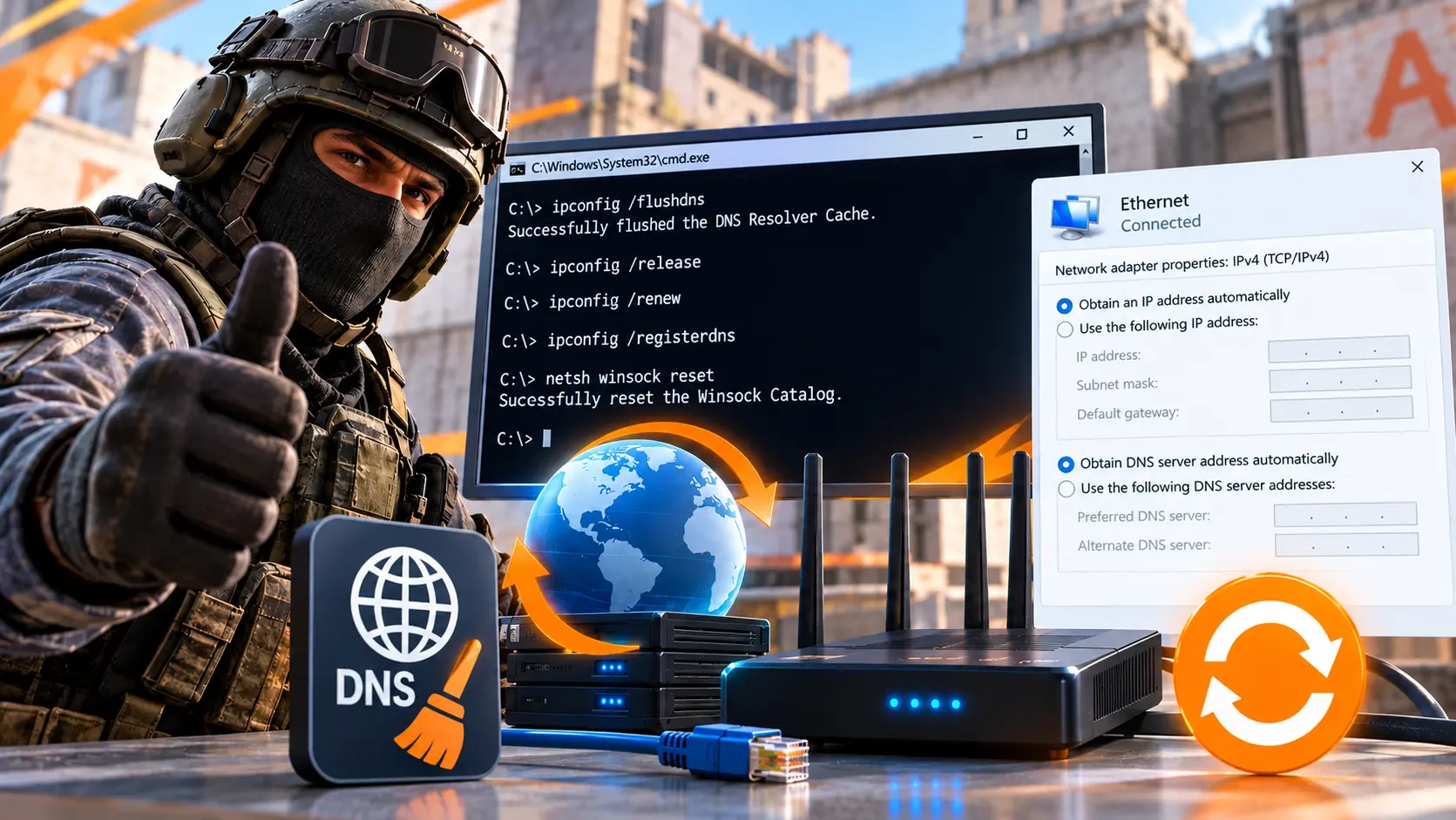
DNS translates service domain names into network addresses. An outdated record or DNS server failure can interfere with connections even when ordinary websites continue to load from the cache. Open Command Prompt as an administrator and flush the DNS cache:
ipconfig /flushdns
Once the cache has been flushed successfully, close Steam and launch it again. If the connection still does not work, renew the IP address assigned by your router:
ipconfig /release
ipconfig /renew
The ipconfig /release command temporarily disconnects your network connection, while ipconfig /renew requests a new address through DHCP. If you use a static configuration on a work or school network, consult your network administrator before performing this step.
You can also try setting a public DNS server in the properties of your active network adapter. For example, use Cloudflare DNS (1.1.1.1 and 1.0.0.1) or Google DNS (8.8.8.8 and 8.8.4.4). Change only the DNS settings; do not copy IP addresses, gateway addresses, or subnet masks from random guides. If this does not help, restore automatic address assignment.
Resetting Winsock and TCP/IP
If the CS2 network connection error appeared after installing a VPN, network filter, antivirus software, or a Windows update, the Winsock catalog or TCP/IP configuration may be corrupted. Perform a reset only after trying the basic troubleshooting steps. Open Command Prompt as an administrator and run these commands in order:
netsh winsock reset
netsh int ip reset
Restart your computer after running both commands. The reset restores some Windows network settings to their default state, so custom DNS settings, static IP addresses, virtual adapters, and corporate network configurations may need to be set up again.
Windows 11 also offers a broader option: Settings → Network & internet → Advanced network settings → Network reset. This removes and reinstalls network adapters, so use it as a last resort among Windows troubleshooting methods. Before proceeding, save your Wi-Fi, VPN, and static connection settings.
Checking the MTU
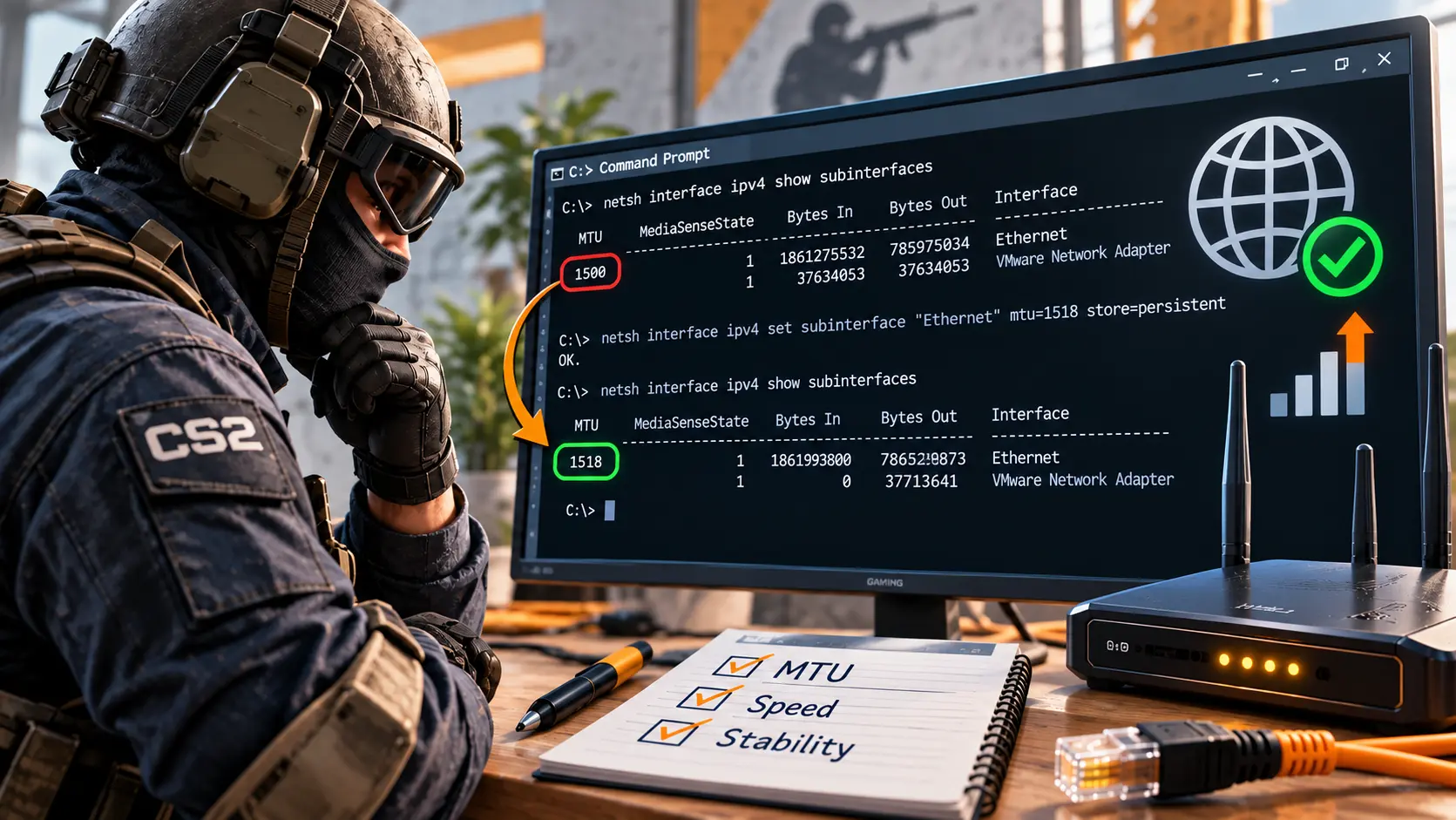
MTU defines the maximum size of a network packet that can be transmitted without fragmentation. An incorrect value can sometimes cause an unusual symptom: websites load normally, but certain gaming services fail to establish a stable connection. This is more common after manual network optimization, changing modems, installing a VPN, or switching to PPPoE.
Check the current interface values:
netsh interface ipv4 show subinterfaces
A value of 1500 is common for standard Ethernet, while PPPoE often uses 1492. VPN tunnels may require an even lower value. These are not universal settings: the correct MTU depends on your connection. If you previously changed it manually, restore the value recommended by your router manufacturer or ISP. Here is an example command for an interface named Ethernet:
netsh interface ipv4 set subinterface "Ethernet" mtu=1500 store=persistent
Important: Do not blindly set the MTU to 1500. PPPoE, VPNs, and some ISPs may require a lower value. An incorrect MTU can affect not only CS2 but also other applications.
Steam Ports and Network Restrictions
Steam uses HTTP/HTTPS and various gaming TCP/UDP port ranges. Its official documentation lists TCP ports 80 and 443, as well as TCP/UDP ports 27015–27050, among the required remote connections. On a typical home network, outbound traffic is allowed automatically, so you generally do not need to manually forward the entire port range to your computer.
Port checks are relevant in dormitories, offices, gaming cafés, hotels, and other managed networks with strict filtering. Give the network administrator a link to the current Required Ports for Steam documentation. The required connections may change, and permissions must be configured on the organization's gateway or firewall.
Do not confuse allowing outbound traffic with port forwarding. Port forwarding is primarily used for incoming connections to a service on your local network. You do not need to expose your computer to the internet to play on official servers. Also, do not enable DMZ or disable your router's security just to test the connection.
What You Should Avoid
Popular troubleshooting guides often mix network fixes with commands for graphics settings and matchmaking. This introduces unnecessary changes without restoring the connection to Steam.
In Conclusion
When you can't connect to official CS2 servers, the fastest approach is not to try dozens of commands, but to identify where the problem originates. Checking service status can reveal a widespread outage, testing a mobile hotspot helps distinguish a home network issue from a computer-related problem, and disabling a VPN or checking firewall rules can uncover local connection blocks.
Start by restarting Steam and your router, then test another network, check application permissions, and verify the game files. Leave DNS flushing, Winsock resets, and MTU changes for situations where the basic steps have not helped. This approach preserves working settings and helps identify the actual cause of the error without unnecessarily reinstalling CS2 or Windows.