
Discover the best white crosshair codes for CS2
17 October 2026
How to Fix the "VAC Was Unable to Verify Your Game Session" Error in CS2
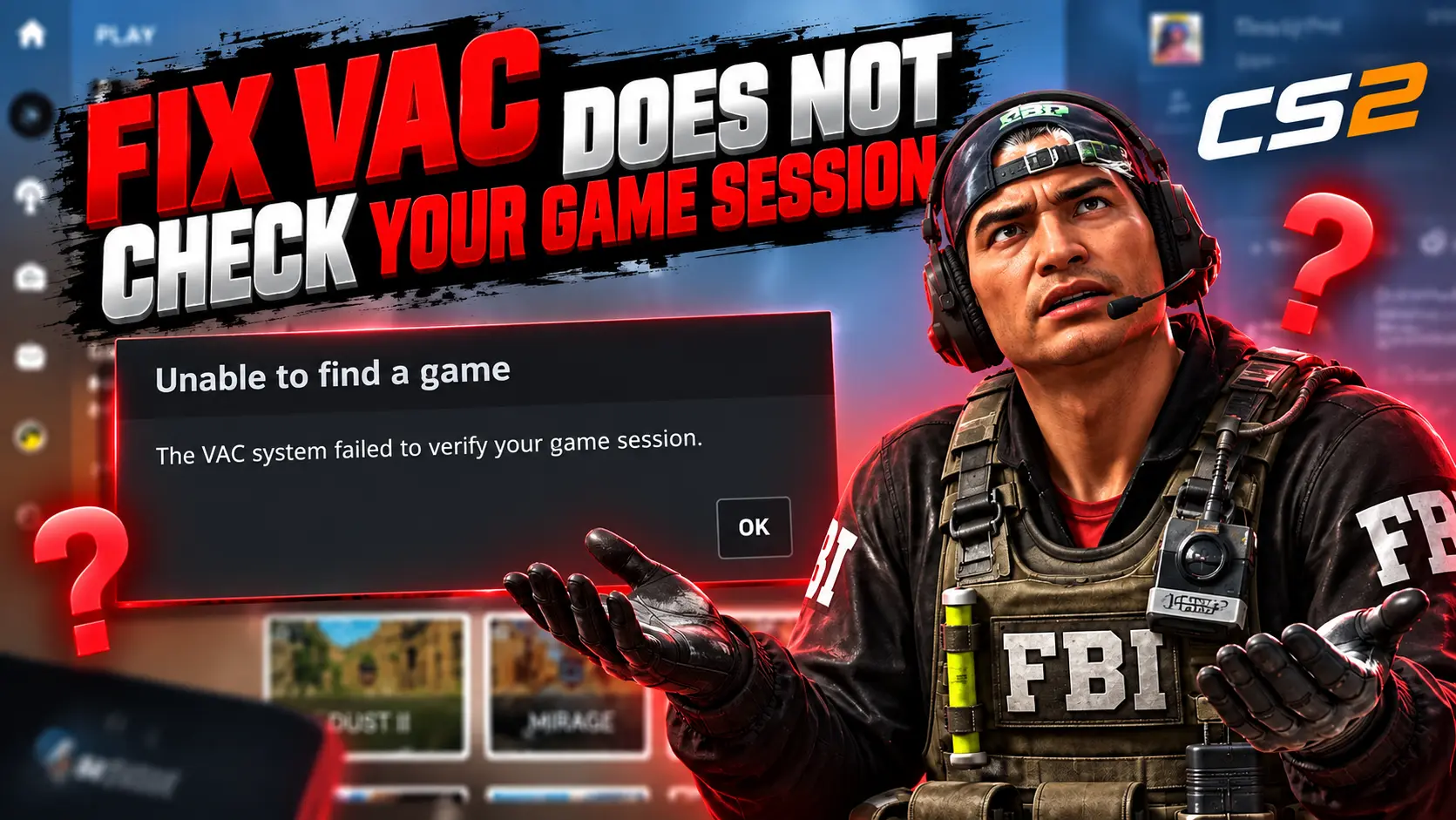
The “VAC was unable to verify your game session” error occurs when Counter-Strike 2 and Steam cannot complete the client verification process before connecting to a VAC-secured server. The most common causes include corrupted CS2 files, a stuck Steam process, issues with the Steam Client Service, nonstandard launch options, or software interfering with the game.
What Does the VAC Error Mean?
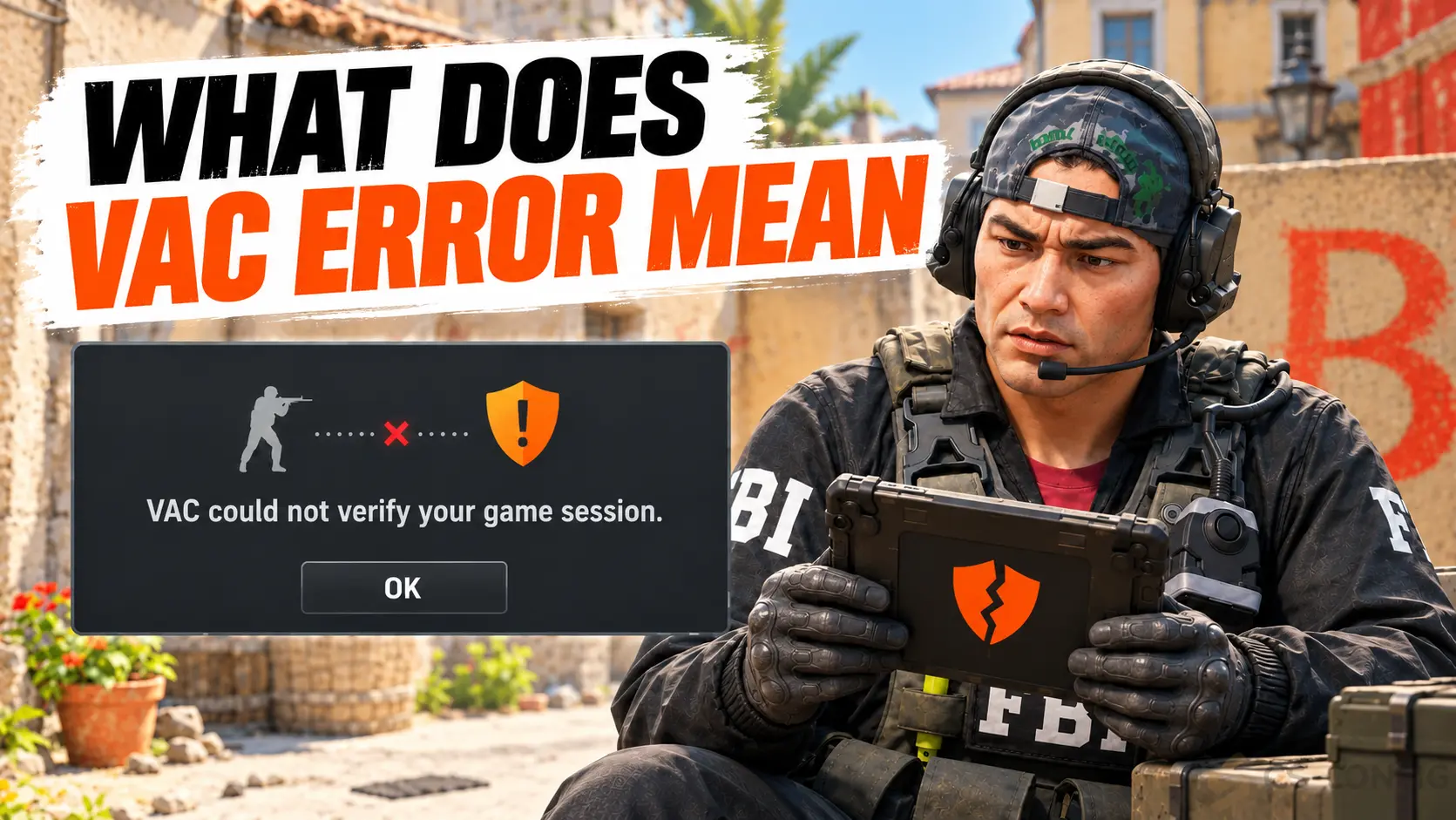
VAC is Valve Anti-Cheat, Steam's built-in anti-cheat system. Before allowing access to a protected server, it must verify that the Steam client, game files, and current session pass its checks. The message “VAC was unable to verify your game session” means that this verification could not be completed. It doesn't identify the exact cause, so there is no single universal fix.
The error usually occurs when connecting to official matchmaking, Premier, or another VAC-secured server. However, the CS2 menu, local maps, and unprotected servers may still work normally. This can help distinguish a VAC verification issue from problems with the graphics driver, game startup, or internet connection.
Does the “VAC Was Unable to Verify Your Game Session” Error Mean a Ban?
No. This message does not mean you've received a VAC ban. When a technical issue occurs, Steam may temporarily prevent you from joining a protected server because it cannot verify your session. Once the underlying problem is resolved, matchmaking should work again.
An actual VAC ban is displayed on your Steam profile. It won't disappear after verifying game files, clearing the cache, or reinstalling the game. Avoid suspicious “VAC fix” and “unban” programs: they cannot resolve every technical verification issue or remove a genuine VAC ban.
Important: A game session verification error and a VAC ban are two different things. If your Steam profile doesn't show a ban notification, start by troubleshooting the Steam client, CS2 files, and Steam services.
Common Causes of the VAC Error
-
A stuck Steam or CS2 process. The error may appear after a match, an update, or an unexpected shutdown.
-
Corrupted or incomplete game files. The problem can occur after a patch, a disk error, or an interrupted download.
-
Steam Client Service issues. The error may persist even after verifying the game files.
-
Nonstandard launch options. Options such as
-insecure, experimental parameters, or outdated commands can interfere with normal operation. -
Conflicts with third-party software. Overlays, game modifications, debugging tools, or programs that inject code into the game may interfere with verification.
-
Antivirus or firewall interference. Security software may block a Steam component or
cs2.exe. -
Incorrect system date and time. This can cause certificate or service connection problems.
-
Corrupted Windows components. System errors or malfunctioning services can affect Steam.
-
A widespread Steam or CS2 outage. If many players experience the same issue simultaneously, the cause may be on Valve's side.
How to Quickly Fix the VAC Error in CS2
Start with these steps, which don't change your system configuration and take only a few minutes:
-
Exit CS2.
-
In Steam, select Steam → Exit instead of simply closing the window with the X button.
-
Open Task Manager and make sure all Steam and Counter-Strike 2 processes have stopped.
-
Restart your computer.
-
Launch Steam normally, without compatibility mode or forcing it to run as administrator.
-
Make sure any CS2 updates have finished downloading.
-
Start a practice session with bots, return to the main menu, and try joining an official match again.
Starting a local practice session can sometimes refresh the game session, but this is only a supplementary troubleshooting step. If the error returns, proceed to verifying the game files to address more persistent issues.
Verify the Integrity of CS2 Game Files
Verifying CS2 game files is one of the main ways to fix this error after an update or an unexpected game shutdown. Steam compares your local files with the current version and redownloads any missing or corrupted components.
-
Open Steam and go to your Library.
-
Right-click Counter-Strike 2 and select Properties.
-
Open the Installed Files section.
-
Click Verify integrity of game files.
-
Wait for the verification and any necessary downloads to finish.
-
Restart Steam before attempting to join a match again.
Don't launch CS2 or modify files in the game folder while verification is running. A small number of files being redownloaded doesn't necessarily indicate a serious problem. What matters is whether the game works correctly after verification and a client restart.
What to Do If CS2 File Verification Gets Stuck
Check how much free disk space is available and wait for other Steam downloads to finish. Then restart the client and repeat the process. If the drive reports read or write errors, check its health first. Repeatedly downloading the same file may indicate a storage problem rather than a VAC issue.
Launch Options, Modifications, and Config Files
Open Library → Counter-Strike 2 → Properties → General → Launch Options. Copy your current launch options into a text file for reference, then temporarily clear the field and launch the game without additional commands.
Pay particular attention to this parameter:
-insecure
It launches the game without connecting to VAC-secured servers, making it unsuitable for normal matchmaking. For a clean test, also temporarily remove -allow_third_party_software and other experimental options if you previously added them.
Standard user settings in an autoexec file aren't inherently problematic. Issues are more likely to arise from replaced libraries, injectors, client modifications, third-party DLLs, or programs that inject code into the game process. Remove unofficial modifications and then verify the integrity of the game files again.
Safe launch: For troubleshooting, leave the launch options field empty, disable third-party modifications, and run Steam and CS2 with the same privilege level. Never download standalone DLLs or supposedly “fixed VAC files” from unfamiliar websites.
Clear the Steam Download Cache
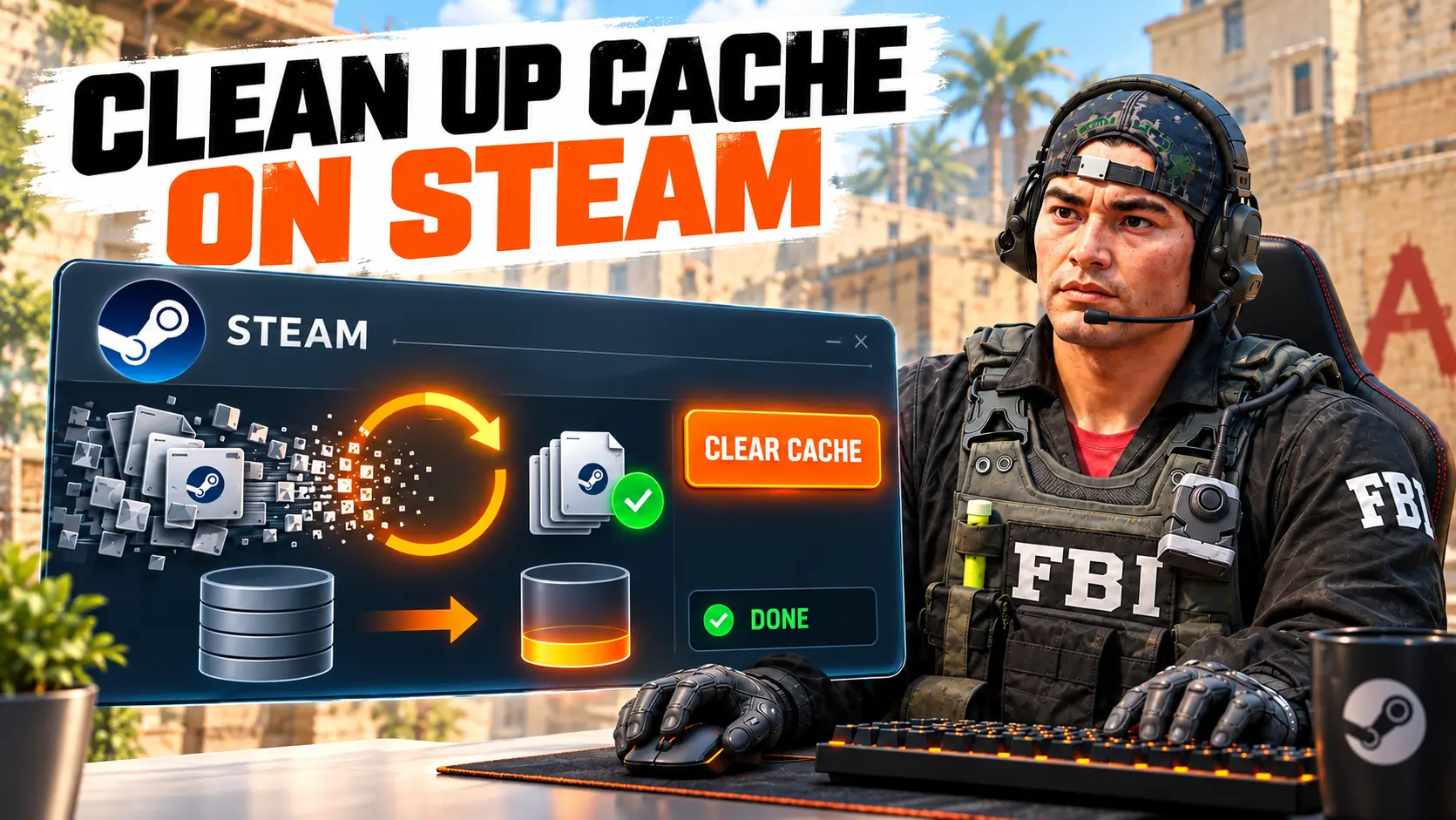
A corrupted download cache can prevent Steam from completing updates correctly or retrieving the required service data. Open Steam → Settings → Downloads → Clear Download Cache, then confirm the action.
Your installed games will not be deleted, but Steam may require you to sign in again. Before clearing the cache, make sure you remember your password and have access to Steam Guard. After signing in, wait for Steam to check for updates, then verify the CS2 game files again.
Should You Delete the Cache Manually?
Start with Steam’s built-in feature. Manually deleting random folders such as appcache or depotcache, or removing library files without understanding their purpose, can cause additional errors. If the built-in cache-clearing process completes successfully, there is no need to delete anything else.
Repair the Steam Service
If restarting Steam and verifying the game files did not help, the issue may be related to Steam Client Service. Close Steam, open Terminal or Command Prompt as an administrator, and run the following command to repair the service.
For a standard Steam installation, use:
"C:\Program Files (x86)\Steam\bin\SteamService.exe" /repair
If Steam is installed in a different directory, specify the actual path to SteamService.exe. Wait for the operation to finish, restart your computer, and launch Steam normally. This command repairs the service components, but it does not delete games or remove account restrictions.
How to Check Steam Client Service
-
Press Win + R.
-
Type services.msc and press Enter.
-
Find Steam Client Service.
-
Open the service properties and try to start it if it is stopped.
Do not change the startup type of unfamiliar system services or delete them through the Windows Registry. Steam’s built-in SteamService.exe utility is sufficient to repair the service.
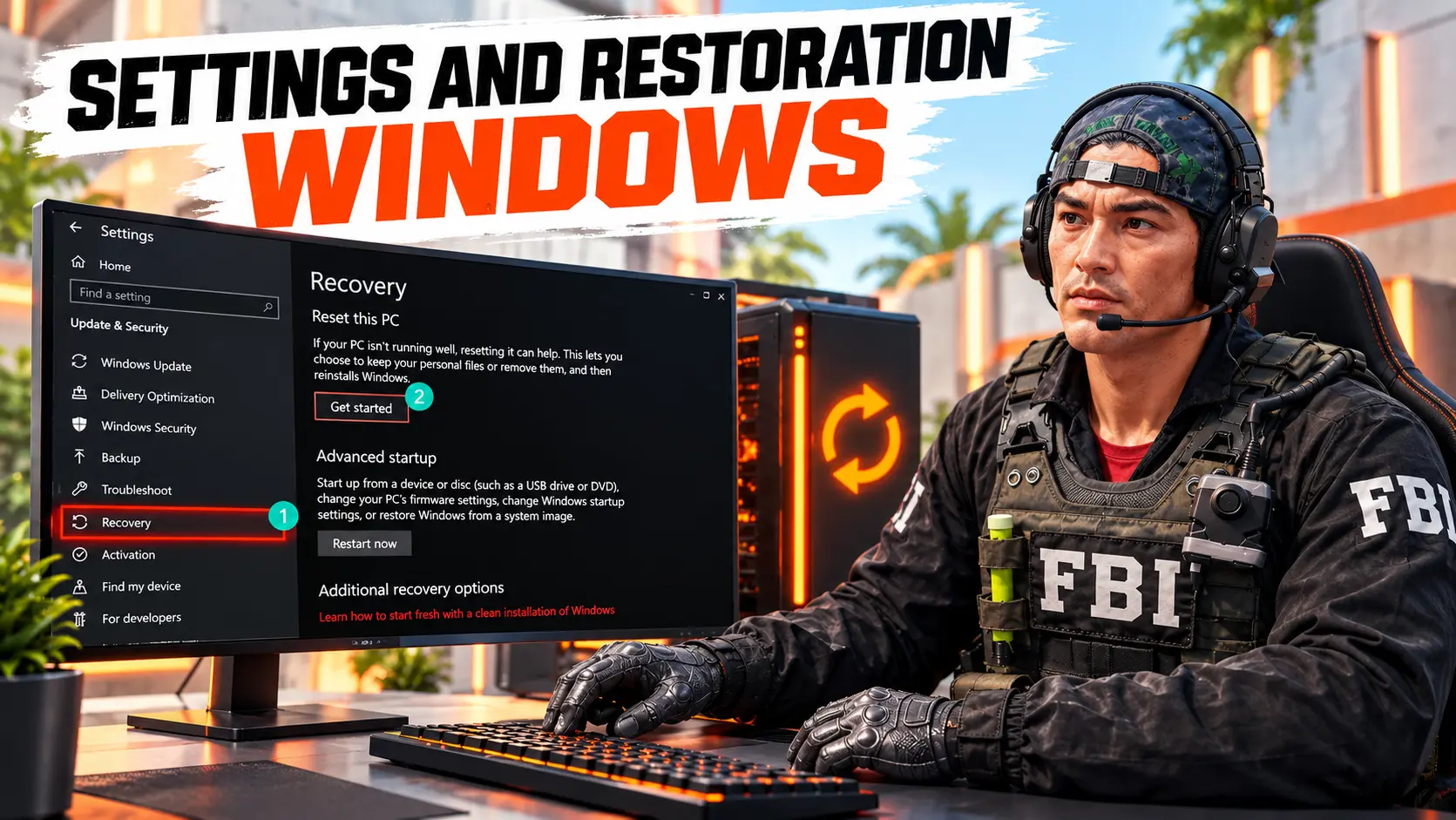
Windows Settings and Recovery
Check the Date and Time
Open Settings → Time & language → Date & time, enable automatic time and time zone settings, then click Sync now. Incorrect system time can cause authentication, certificate, and Steam service connection issues.
Update Windows and Drivers
Install any pending Windows updates and restart your computer. Download drivers through Windows Update or from the hardware manufacturer's official website. Avoid third-party driver packs, as they can complicate troubleshooting and install incompatible components.
Check System Files
This step is useful if system services are malfunctioning, other applications fail to launch, or Steam repair operations return errors. Open Terminal as an administrator and run:
sfc /scannow
If Windows reports that it found corrupted files it could not repair, you can run the following command after SFC:
DISM /Online /Cleanup-Image /RestoreHealth
Once the process is complete, restart your computer and verify the CS2 game files again. Avoid using bcdedit commands from outdated guides unless there is a specific system-related reason to do so. These commands modify the Windows boot configuration and are unnecessary for most game session verification errors.
When to Reinstall CS2 or Steam
Reinstallation should be a last resort, not the first step. First, restart Steam, verify the game files, clear launch options, repair the Steam service, and try a clean launch without third-party software.
Reinstall CS2
Uninstall Counter-Strike 2 through your Steam Library, restart the client, and install the game again. Before uninstalling, back up your personal autoexec file, screenshots, and other custom files if they are not synced to the cloud. After installation, launch the game without old modifications or launch options.
Reinstall Steam
Reinstalling Steam may be appropriate if Steam Client Service cannot be repaired or the same problems occur in multiple VAC-protected games. Back up your steamapps folder in advance and make sure you can access your account and Steam Guard. After a clean installation, test CS2 without overlays or additional software first.
In Conclusion
If VAC Was Unable to Verify Your Game Session in CS2, it is usually a technical error rather than an account ban. In most cases, fully restarting Steam, verifying the integrity of the game files, and removing problematic launch options are enough to resolve the issue. Less common causes include problems with Steam Client Service, software interfering with the game process, security settings, or corrupted Windows components.
Follow the recommended order: start with simple, reversible fixes, then repair Steam services and Windows if necessary, and reinstall the game or Steam only as a last resort. This approach saves time and helps resolve the underlying issue without unnecessarily deleting working settings or your game library.