
Learn how to create a 1080×1080 custom resolution in CS2. Step-by-step NVIDIA and AMD guides.
05 August 2026
White CS2 Crosshair – Best White Crosshair Codes and Settings
The white crosshair in CS2 has long been considered one of the most versatile crosshair options. It is used by both casual players and professional esports athletes thanks to its excellent visibility, clean appearance, and consistent performance across almost every map. Unlike brighter colors, a white crosshair is less distracting, allowing you to stay fully focused on your aim.
In this guide, we've collected the best white crosshairs for CS2 that are perfect for Matchmaking, Premier, and FACEIT. You'll find ready to use Share Codes, crosshair settings used by professional players, and step-by-step instructions on how to import a new crosshair through the in-game settings or the developer console.
Why Choose a White Crosshair in CS2?

White is considered one of the most versatile crosshair colors in Counter-Strike 2. It remains clearly visible on most surfaces, isn't overly bright, and doesn't distract you during firefights. That's why many players who couldn't get used to green or cyan crosshairs eventually switch to white.
Another advantage is its natural appearance. White is easy on the eyes, even during long gaming sessions, making it comfortable to use for hours at a time. With the right size and line thickness, a white crosshair makes it easy to locate the center of the screen and maintain consistent aim.
However, there is no universally perfect crosshair. On maps with many bright surfaces or when using high brightness settings, a white crosshair may partially blend into the environment. In such cases, many players enable a thin black outline or increase the line thickness for better visibility.
Who Should Use a White Crosshair?
White crosshairs are used by both beginners and professional Counter-Strike players. Thanks to their neutral color, they suit virtually every playstyle.
- Players who prefer classic settings. A white crosshair looks clean and doesn't clutter the screen.
- Premier and FACEIT players. White remains highly visible on most official maps.
- Players who dislike bright colors. White has a more subtle appearance than green, cyan, or red crosshairs.
- Players who frequently switch maps. With the right settings, a white crosshair stays comfortable to use on almost any background.
It's also worth remembering that comfort depends on more than just color. Crosshair size, line thickness, gap, and whether you use a center dot have a much greater impact on aiming accuracy. Below, we've put together a collection of the best white crosshairs in CS2, making it easy to find one that suits your preferences.
Best White Crosshairs in CS2
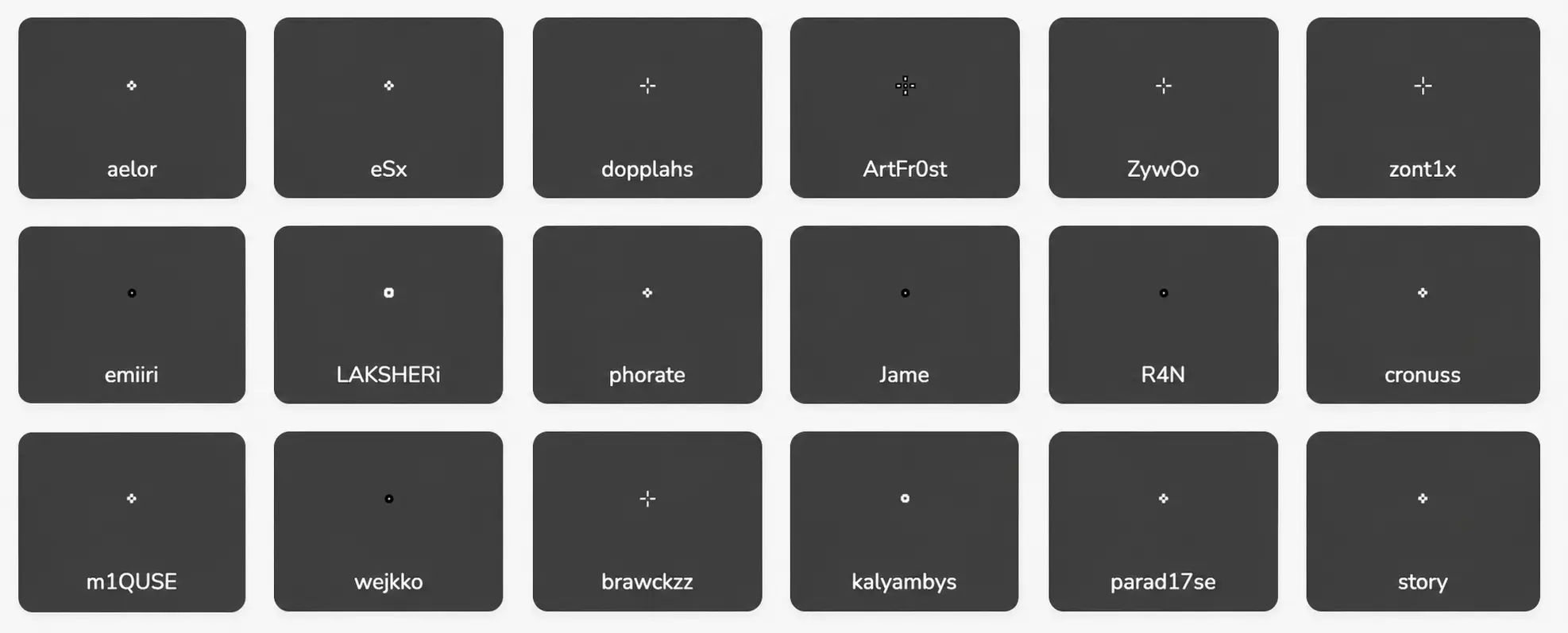
We've put together a collection of the best white crosshairs for Counter-Strike 2. Here you'll find versatile settings for everyday matches, compact options for headshot-focused players, static crosshairs with no movement, crosshairs designed for AWP users, and minimalist presets for experienced players.
If you're trying a white crosshair for the first time, we recommend starting with the classic option. It suits most players and is a great way to see whether this color feels comfortable for you.
Best White Crosshairs in CS2
The crosshairs below differ in size, gap, line thickness, and overall shape. This makes it easy to find a crosshair that matches almost any playstyle, from slow, positional gameplay to an aggressive, entry-fragging approach.
Don't be afraid to experiment with different crosshair codes. Sometimes even a small adjustment to the line thickness or crosshair size can noticeably improve your feel for the game and make your aim more consistent.
Classic White Crosshair
A great all-around option for most Counter-Strike 2 players. This crosshair remains highly visible, doesn't block the enemy model, and feels equally comfortable when using both rifles and pistols.

Compact White Crosshair
A compact white crosshair is an excellent choice for players who prefer quick and precise headshots. Thanks to its small size, it barely covers the enemy model, even at long distances.
Note:
At first, this crosshair may feel too small. However, after a few matches, many players find that it becomes much more comfortable to use.
Static White Crosshair
Most professional players disable the dynamic crosshair. A static crosshair keeps its shape while moving and shooting, making it easier to track the center of your screen and land accurate first shots.
If you're looking for consistent aim and the most predictable crosshair behavior, this is one of the best options available.
White Crosshair for AWP
Even if you spend most of your time using the AWP, your regular crosshair still plays an important role. It's used when switching to your pistol, firing without scoping, and in many other in-game situations.
Minimalist White Crosshair
This option is perfect for players who prefer the most compact crosshair possible without any unnecessary elements. Its small lines barely cover the enemy model, allowing you to stay fully focused on your aim.
Despite its small size, this crosshair remains easy to see and is an excellent choice for players who are already comfortable using compact crosshair settings.
White Crosshairs Used by Professional CS2 Players
Many players start looking for a new crosshair by trying the settings used by professional players. It's no surprise these crosshairs have already been tested in official matches, major tournaments, and thousands of hours of practice.
However, it's important to remember that even the best white crosshair won't replace experience or proper aiming mechanics. Professional players' settings are a great starting point, but over time, you should adjust them to match your own screen resolution, mouse sensitivity, and playstyle.
Below, we've collected several popular white crosshairs used by professional CS2 players. Each one differs in size, line thickness, and gap, so we recommend testing a few options to find the one that feels most comfortable.
ZywOo's White Crosshair
Mathieu ZywOo uses a small, compact crosshair that is ideal for fast-paced gameplay and quick target switching between multiple opponents. However, it's worth remembering that ZywOo is one of the best AWP players in the world, so this crosshair size suits his playstyle perfectly. Thanks to its compact design, it keeps the enemy model as visible as possible.
molodoy's White Crosshair
Despite its compact size, molodoy's white crosshair is very comfortable to use with both rifles and pistols. It remains easy to see while leaving the enemy's head unobstructed, even at long range.
If you prefer small static crosshairs without unnecessary elements, be sure to try this option.
LAKSHERi White Crosshair
Pavel LAKSHERi uses a white crosshair that is perfect for spray control and consistent burst firing. Thanks to its balanced settings, it remains comfortable to use in almost any gaming situation.
How to set a white crosshair in CS2
The fastest way to set up a white crosshair is to use a ready-made Share Code. Simply paste the code into the game settings, and all parameters will be applied automatically.
- Launch Counter-Strike 2;
- Open the “Settings” menu;
- Go to the “Game” tab;
- Open the “Crosshair” section;
- Click the “Share or Import” button;
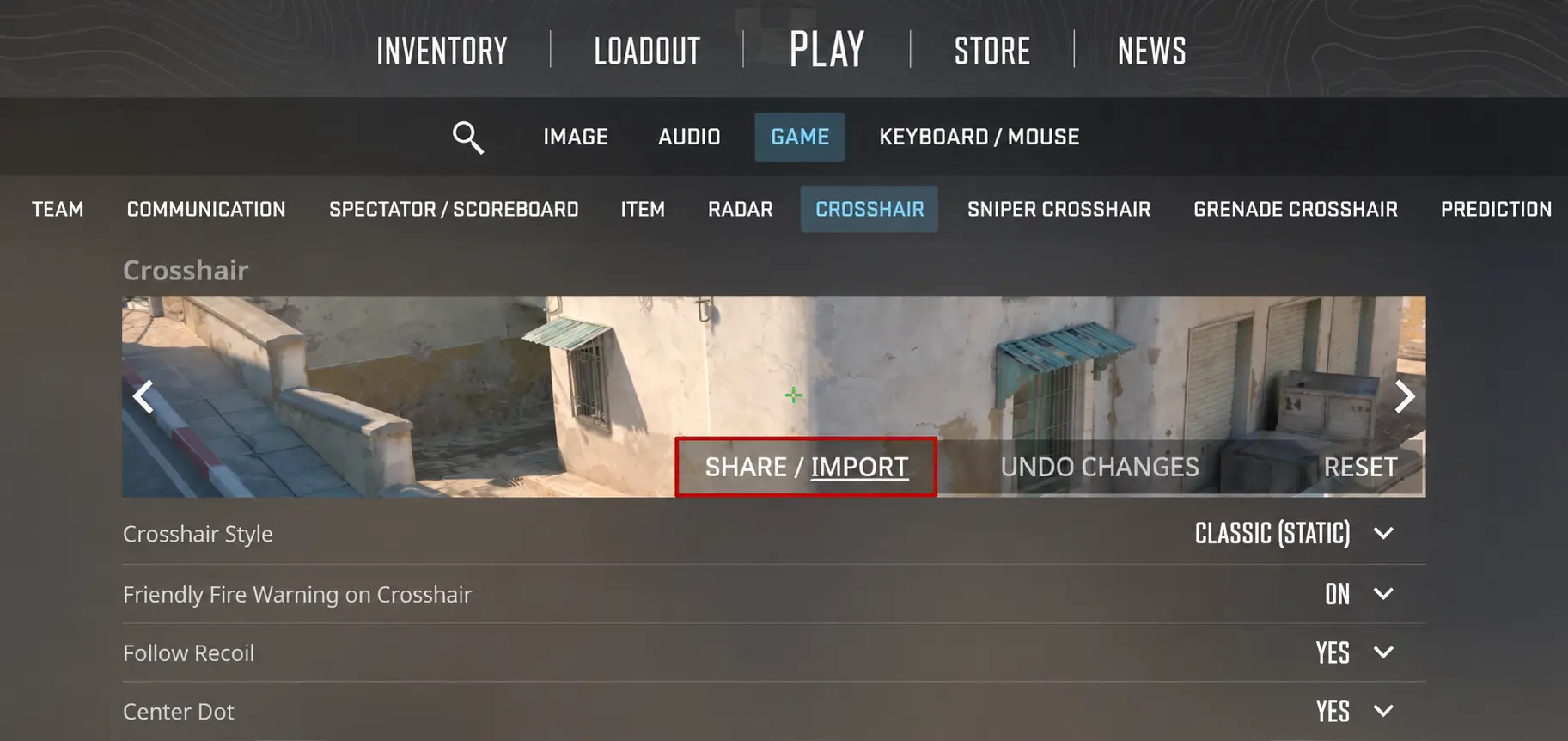
Paste the white crosshair code;
Click the “Import” button.
After importing, the new white crosshair will become active immediately. No additional steps are required.
Before changing your settings, we recommend saving your current Share Code. This will allow you to quickly restore your old crosshair if the new option turns out to be inconvenient.
In Conclusion
A white crosshair in CS2 is a universal solution for players who value good visibility, a clean appearance, and comfort during long gaming sessions. With the right settings, it works perfectly for matchmaking, Premier, and FACEIT.
Try several ready-made Share Codes from our selection, compare different sizes, and choose the option that feels the most comfortable for you. A properly selected crosshair will help you adapt to shooting faster and feel more confident in every match.
Random CS2 Guides
15 May 2026 Settings
Discover the best CS2 viewmodel settings and hand positions. Copy popular viewmodel commands used for cleaner screen visibility, classic styles, centered weapons, and competitive gameplay in 2026
20 August 2026 Settings
Learn the most important CS2 terms, slang, that every Counter-Strike 2 player should know.